

More people are switching to Linux distro as Windows 10 reaches end-of-life. If your PC can’t upgrade to Windows 11 or feels sluggish on modern Windows builds, Linux is a free way to keep it fast and secure — but not every distro fits every machine. This guide helps you check hardware, pick a best distro, and avoid driver headaches so your transition is smooth.
Why Compatibility Check Before You Switch to Linux
Different Linux distributions (distros) have different needs. Pick the wrong one and you may hit installation errors, poor performance, or missing Wi‑Fi/sound. The right distro for your hardware will give you a responsive, reliable system.
What to Note on Windows 10
Open Start > Settings > System > About and write down:
- Installed RAM
- Processor model
- Storage capacity
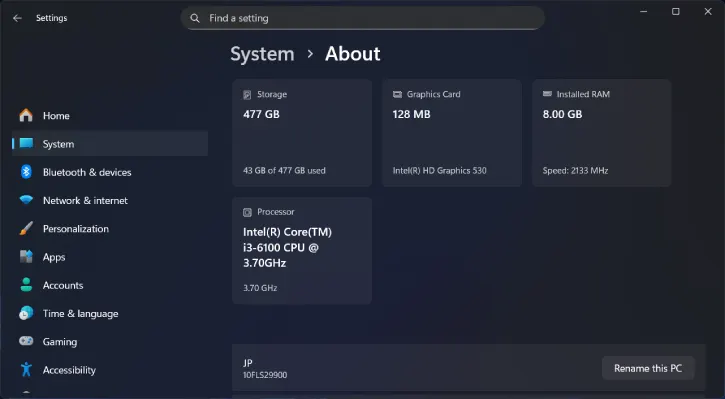
Then open Device Manager (right‑click Start > Device Manager) and note these entries:
- Display adapters
- Network adapters
- Sound, video and game controllers
Keep these details when you search for Linux compatibility.
RAM: How Much Do You Need for a Linux Distro?
Full-featured desktops (GNOME, KDE Plasma — e.g., Ubuntu, Fedora): 4–8 GB recommended.
Windows-to-Linux friendly distros (Zorin OS, Linux Mint Cinnamon): minimum 2 GB listed, but 4 GB+ is recommended; 8 GB+ ideal for multitasking.
Lightweight distros (Lubuntu, Linux Lite, Puppy Linux): well-suited to 2–4 GB systems.
Storage: How Much Space for Linux?
Typical minimum: 15–25 GB for mainstream distros (Ubuntu, Mint, Zorin), but real-world use needs more.
Recommended for comfortable use and updates: 50–100 GB (Linux Mint recommends ~100 GB).
Very small drives: choose stripped-back distros (Lubuntu, Puppy) that can run in <10 GB.
Linux CPU Compatibility
Most Intel/AMD CPUs from the past decade work fine.
Some distros state minimum clock speed: Ubuntu Desktop suggests ~2 GHz dual‑core; Zorin OS lists 1 GHz dual‑core.
Very old 32‑bit machines (pre‑2008) need 32‑bit builds — consider antiX or other lightweight 32‑bit distros.
ARM PCs are rare for Windows machines; if you have ARM, install a distro with ARM builds (ARM support is more limited).
ALSO READ: How to Install Linux on an External SSD: Beginner-Friendly Steps
Drivers and Hardware Support for Linux Distro
Drivers determine whether Wi‑Fi, audio, and graphics work properly. Two distros on the same hardware can behave very differently.
- Intel Wi‑Fi/graphics: Generally, well supported.
- Realtek/Broadcom Wi‑Fi: can be hit-or-miss; check community reports before installing.
- NVIDIA GPUs: Often need proprietary drivers for best results (install after OS if necessary).
- If critical drivers aren’t present, many distros offer tools to install them automatically.
How to Check Driver Availability for Linux
Search the web for your exact hardware model + “Linux” (e.g., “Realtek RTL8821CE Linux”) to find reports and solutions. Look for multiple sources or forum threads describing success or workarounds.
Linux Built-in Driver Tools (examples)
Linux Mint: “Driver Manager” scans and installs recommended drivers (Menu > type driver manager > run > Apply Changes).
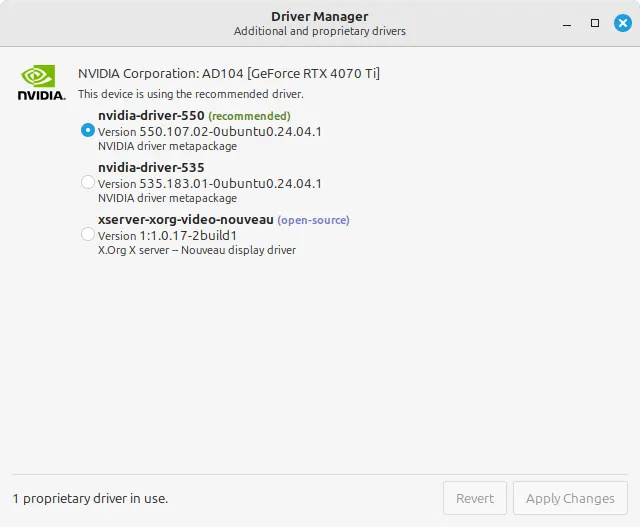
Ubuntu/Zorin: “Software & Updates” / “Additional Drivers” will suggest proprietary drivers.
Debian/Fedora: often require manual driver installation from repositories or command line.
Note: driver tools usually need internet access. If Wi‑Fi is broken, use Ethernet or a known-compatible USB Wi‑Fi adapter.
Simple External Fixes
Wi‑Fi: Buy a Linux‑compatible USB Wi‑Fi adapter (e.g., TP‑Link Archer series models with confirmed Linux support).
Audio: Use a USB audio adapter or USB speakers (generic USB audio works with standard drivers).
Graphics: No cheap universal external fix; external GPUs are expensive and can have the same driver issues.
Quick Checklist Before Installing Linux on a Windows PC
- Record RAM, CPU model, and storage from Settings > About.
- Record Device Manager entries for Display, Network, and Sound.
- Google each component with “Linux” to check reports.
- Pick a distro matching your specs:
- High-spec: Ubuntu, Fedora, KDE Neon, Zorin Pro.
- Mid-spec / Windows 10 switchers: Linux Mint Cinnamon, Zorin OS.
- Low-spec / old PCs: Lubuntu, Linux Lite, Puppy Linux, antiX (32‑bit).
- Make a bootable USB installer (Rufus, balenaEtcher).
- Test with a Live USB session first — confirm Wi‑Fi, sound, display before installing.
- If drivers are missing, try the distro’s driver tool or connect via Ethernet to download drivers.
- Have a USB Wi‑Fi or USB audio adapter on hand if needed.
Recommended Distros by Scenario
| SITUATION | RECOMMENDED DISTROS |
| Modern laptop/desktop, 8GB+ RAM | Ubuntu, Fedora, Zorin OS, KDE Neon |
| Upgrade from Windows 10, 4GB RAM | Linux Mint Cinnamon, Zorin OS Lite |
| Low RAM (2–4GB) or old CPU | Lubuntu, Linux Lite, Puppy Linux, antiX (32 bit) |
| Privacy/security focus or lightweight server | Debian, Arch (advanced users) |
Troubleshooting Tips
- No Wi‑Fi after install: plug Ethernet, run driver manager or install necessary firmware packages. Search for chipset-specific fixes.
- Sound missing: check ALSA/PulseAudio settings, test with external USB audio.
- Poor graphics: install proprietary NVIDIA driver (Driver Manager or Additional Drivers).
- Want a safe test: use Live USB — no changes to your disk until you choose Install.
Final Steps and Resources Before Installing a Linux Distro on a PC
- Back up important files before installing.
- Try a Live session for a hands-on check.
- Search online communities (distribution forums, Linux subreddits) for your exact hardware model.
- Keep a USB adapter handy for flaky Wi‑Fi or audio adapters.
Conclusion
Switching to Linux can breathe new life into older PCs if you pick a distro that matches your hardware and plan for drivers. Test with a Live USB first, and you’ll avoid most surprises.
If you want, tell me your PC’s RAM, CPU model, storage, and entries from Device Manager (Display, Network, Sound) and I’ll recommend one or two specific distros and any likely driver issues.

