

VLOOKUP or vertical lookup in Google Sheets ia s search and retrieve function for spreadsheets. It helps you find a value you’re looking for in one column, then grabs related information from another column in the same row. This function is very useful when you’re dealing with huge datasets.
Imagine a Google Sheets spreadsheet with thousands of students, their ID numbers, and departments. Instead of manually searching through it all, VLOOKUP instantly pulls exactly what data you need.
How to Use VLOOKUP in Google Sheets
VLOOKUP formula looks like: =VLOOKUP(search_key, range, index, [is_sorted])
- search_key – The value you’re hunting for (like a name or ID number)
- range – The section of your spreadsheet where the data lives (must include at least two columns)
- index – Which column number (within your range) contains the data you want back.
- is_sorted – Whether your data is alphabetically or numerically sorted (TRUE or FALSE)
Why is_sorted in this formula is important?
When you set is_sorted to TRUE, Google Sheets assumes your data is sorted A–Z or smallest to largest. It’ll search faster, finds the closest match that’s less than or equal to your search value, not an exact match.
When you set is_sorted to FALSE, Google Sheets will search deeper to find an exact match. If it can’t find one, you’ll get an #N/A error message. It is helpful because it tells you something’s wrong.
ALSO READ: Google Sheets QUERY Function: Learn Data Filtering & Analysis With Examples
Step by Step Guide to Use VLOOKUP in Google Sheets
FYI, Google Sheets now have Gemini AI integration. So you can ask Gemini in plain language to get desired data. But learning how to use VLOOKUP yourself is always beneficial.
In this step-by-step guide, assume that you have a list of students and their ID numbers, and you need to find a specific student’s ID.
Step 1: Click the cell where you want your answer to appear (let’s say cell D5)
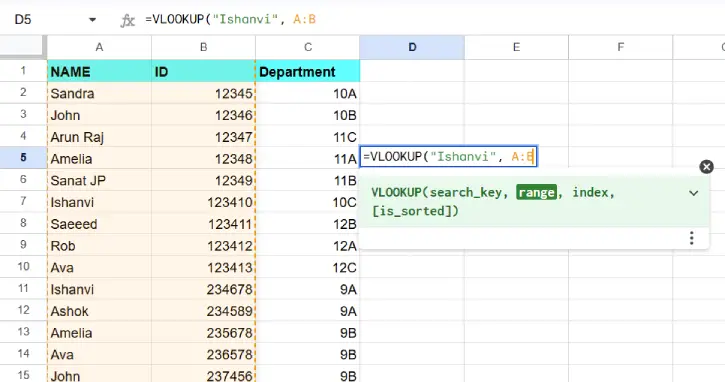
Step 2: Type in your VLOOKUP formula. Here’s what it might look like: =VLOOKUP("Ishanvi", A:B, 2, FALSE)
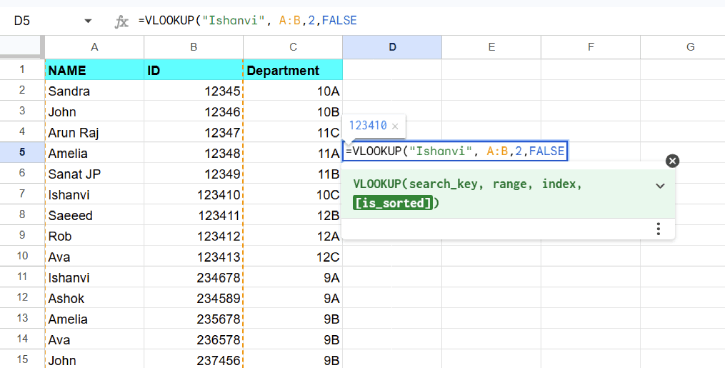
In this example:
- “Ishanvi” = the student’s name you’re looking for
- A:B = your table (column A has names, column B has IDs)
- 2 = you want the value from the 2nd column (the ID numbers)
- FALSE = you want an exact match, not an approximate one
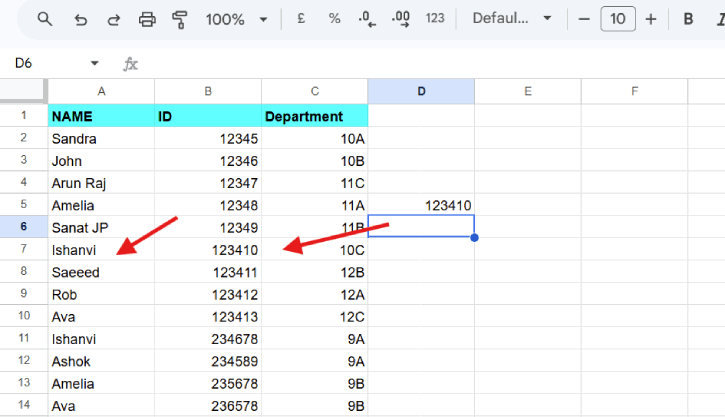
Step 3: Press Enter. If everything’s set up right, you’ll see Ishanvi’s ID number instantly.
ALSO READ: How to Fix IMPORTRANGE Function Not Working in Google Sheets
How to Use VLOOKUP for Multiple Criteria?
Assume that you have multiple students named “Sanat JP,” and you need to distinguish between them using more than one piece of information. In that case, you need to create a helper column that combines two values, then search for both at once.
Here’s how:
1. Add a helper column to the left of your lookup data. This becomes your new leftmost column.
2. In the first row of this column (say, A2), enter: =B2 & ” ” & C2 This formula joins the values from columns B and C with a space between them—so “Sanat” and “JP” become “Sanat JP.”
3. Copy that formula down the entire helper column.
4. Now use VLOOKUP with both criteria combined. For example:=VLOOKUP("Sanat JP", A2:D22, 4, FALSE)
5. This searches for “Sanat JP” (both values combined) in your helper column, then returns data from the 4th column of your range.
6. Adjust the numbers as needed. The range A2:D22 should include your helper column. The number 4 means you want the value from the 4th column—change it based on where your actual data is.
VLOOKUP is Not Working or Bring Wrong Data: How to Fix It
1. It returning the wrong value: It means is_sorted is set to TRUE when it shouldn’t be. Check if your first column is actually sorted A–Z or numerically from smallest to largest. If it’s not, change it to FALSE. Simple as that.
2. It only giving you the first match: By default, VLOOKUP stops at the first match it finds. If you have multiple data (in our example,name “Ishanvi”) in your list, VLOOKUP will grab the first one. So, make your search unique by combining columns.
3. If extra spaces and typos in your data, VLOOKUP will not work. If your lookup value has a space that the data doesn’t (or vice versa), no match. Before you start, clean up your spreadsheet. Go to Data > Data Cleanup > Trim whitespace to automatically remove unwanted spaces.
4. You are getting #N/A errors: This means VLOOKUP couldn’t find an exact match. Double-check that your search value exists in the first column of your range, and make sure there are no hidden spaces or typos causing problems.
Final Thought
VLOOKUP is powerful once you understand how it functions. Yes, Gemini AI can write it for you, but knowing how to set it up, troubleshoot it, and adapt it for different situations is very useful when working with spreadsheets.

