
Windows 11 is designed with an array of features, visual elements, and background services that can sometimes slow down your PC. While choosing a high-performance power plan and tweaking performance settings can improve efficiency, one particular setting hidden deep within the system can make a significant difference: the Connected User Experience and Telemetry Service. Disabling this service could lead to noticeable performance improvements, especially for users with older or less powerful PCs.
Table of Contents
What Does the Connected User Experience and Telemetry Service Do?
The Connected User Experience and Telemetry Service is an integral built-in component of Windows 11 that collects data about how your computer is utilized. It gathers information related to:
- Performance Metrics: How well your system is running.
- App Behavior: How applications respond during use.
- Crash Reports and Error Logs: What happens when applications fail.
While this data is valuable to Microsoft for identifying bugs and enhancing system stability, it consumes system resources and can impede performance.
How This Service Impacts PC’s Performance
The service runs continuously in the background, consuming precious system resources. This can lead to noticeable slowdowns, particularly on older PCs with limited processing power. Disabling the service can alleviate this burden, allowing your PC to operate more smoothly.
Data Collection and Diagnostics
Whenever an application freezes or Windows encounters an issue, this service is responsible for logging these occurrences and sending the details to Microsoft. This process assists the company in identifying and resolving bugs, as well as refining future updates. As a background reporter for your system, it plays a critical role in improving user experience but at a cost to your system’s performance.
Personalization and Smart Features
The telemetry service facilitates personalized features like improved typing suggestions and enhanced voice input accuracy. By observing how users interact with their devices, Windows can continuously refine these features. This data helps Microsoft to better understand usage patterns and optimize the overall experience across various devices.
Hardware and Software Optimization
Monitoring how different hardware and software components interact is another function of this service. This capability allows Microsoft to gather insights that contribute to the reliability of system updates and applications across an array of devices.
Why You Might Consider Disabling the Service
By disabling the Connected User Experience and Telemetry Service, you’ll not only minimize the demands placed on your system but also gain more control over your privacy. Although it significantly reduces telemetry activity, some essential diagnostic data is still collected for core system functionalities and updates. You’ll effectively limit unnecessary background data transmission, resulting in a more responsive user experience.
ALSO READ: Enable Windows 11 Memory Compression: Free Up RAM Without Buying More
How to Disable the Connected User Experience and Telemetry Service in Windows 11
Disabling the Connected User Experience and Telemetry Service is a straightforward process. Follow these simple steps:
1. On your Windows 11 PC, click the Search icon in the taskbar.
2. Type Services and press Enter to open the Services window.
3. In the list, scroll down to find Connected User Experience and Telemetry (under “C”).
4. Right-click the service and select Properties.
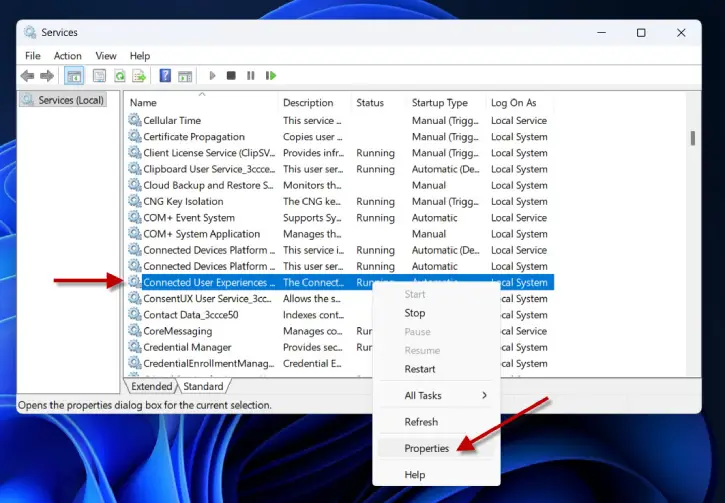
5. In the Startup type section, choose Disabled from the drop-down menu.
6. Click Apply, then OK to save the changes.
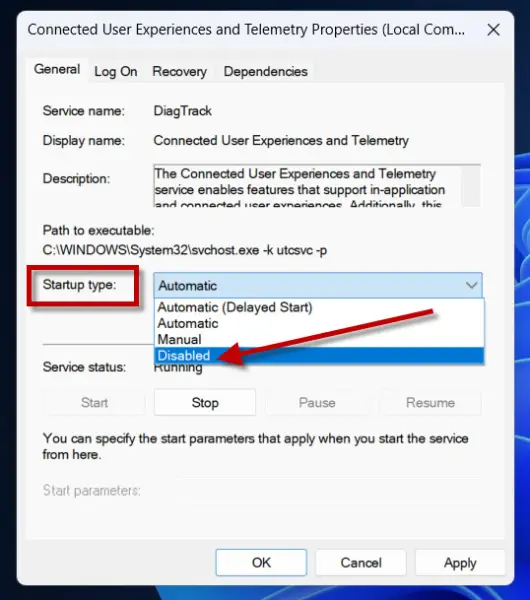
7. Once completed, this service will no longer start automatically upon booting your computer.
The Impact of Disabling the Service
For older laptops, this adjustment can lead to an immediate and noticeable performance boost. By freeing up system resources, your machine can feel lighter and more responsive. In contrast, newer and more powerful systems might not experience drastic improvements, but they can still benefit from reduced background activity.
By taking this simple yet effective action, you’re not just enhancing your Windows 11 experience; you’re also optimizing the longevity and functionality of your hardware. Make the change today and experience a smoother, faster PC.


