
Firefox is introducing an innovative Tab Notes feature that transforms how you organize and annotate your browser tabs. This sticky note functionality allows you to attach custom text to individual tabs, making it easier to keep track of important information, research notes, and quick reminders without cluttering your bookmarks or browser history.

If you’re an advanced Firefox user, you can enable this experimental feature right now before its official public release. This guide walks you through the process and explores the practical applications that make Tab Notes a game-changer for productivity.
Table of Contents
What Is Firefox Tab Notes?
Tab Notes is a new Firefox feature that lets you add sticky notes directly to browser tabs. When you hover over a tab, an “Add Note” option appears in the tooltip, allowing you to jot down thoughts, summaries, or reminders specific to that page.
Key Features of Tab Notes
- Easy access: Click “Add Note” from the tab tooltip or right-click context menu
- Quick editing: Modify or delete notes using the “Update Note” option
- Persistent: Notes remain attached to tabs throughout your session
- Simple interface: Straightforward text box for typing your notes
How to Enable Tab Notes in Firefox: Step-by-Step Instructions
Enabling the Tab Notes feature requires accessing Firefox’s hidden configuration page. Follow these steps to activate it:
1. Open Firefox on your computer, type about:config in the address bar and press Enter
2. Firefox displays a warning message about advanced settings. Click “Accept the Risk and Continue” to proceed to the advanced configuration page.
3. Locate the preference search box at the top of the about:config page. Type notes (with a period) to filter preferences
4. Look for the preference named browser.tabs.notes.enabled
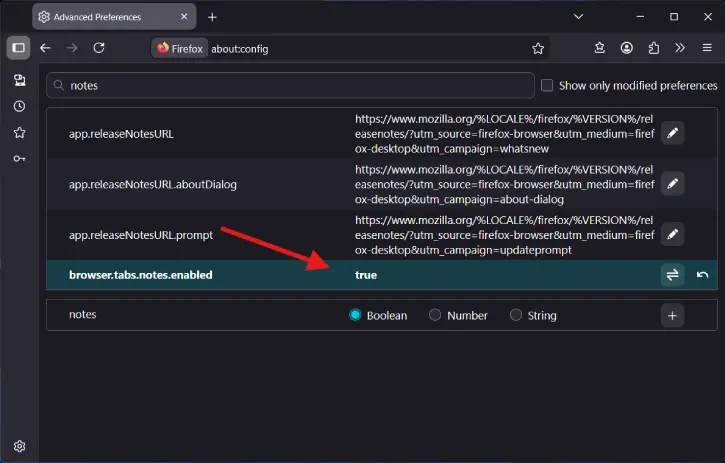
5. To enable Tab Notes, double-click the preference or click the toggle icon next to browser.tabs.notes.enabled to change its value to True
6. To disable Tab Notes later, simply change the value back to False.
7. The feature activates immediately – no browser restart required.
How to Use Tab Notes in Firefox
Once enabled, using Tab Notes is intuitive:
2. To add a note to a Tab, hover your mouse over any tab in Firefox
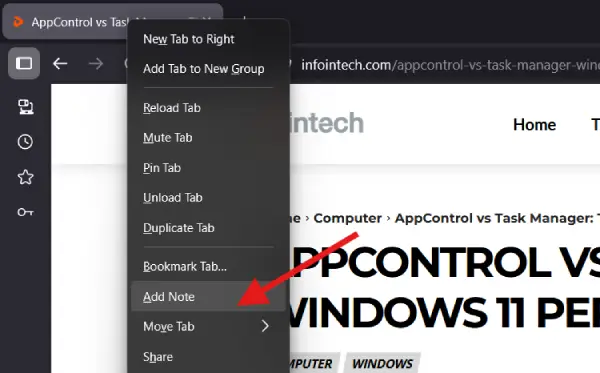
2. Click the “Add Note” option in the tab tooltip

3. Alternatively, right-click the tab and select “Add Note” from the context menu
4. Type your desired note in the text box that appears
5. Click “Save” to attach the note to the tab

6. The note remains accessible by hovering over the tab anytime
7. To edit and remove the note, right-click on the tab with an existing note
8. Select “Update Note” from the context menu
9. Choose “Edit Note” to modify the text or “Delete Note” to remove it completely
ALSO READ: Firefox’s New Trust Panel Icon in Address Bar: How to Enable it
Practical Use Cases for Firefox Tab Notes
Tab Notes works best when you have multiple tabs open and need quick reference information. Here are 10 practical applications:
- Quick reminders: Add to-do items or follow-up tasks tied to specific pages
- Research notes: Summarize article content or capture key findings from sources
- Login hints: Store non-sensitive credential reminders or password recovery hints (never store full passwords)
- Content summaries: Write brief overviews so you can skim through many tabs quickly
- Code snippets: Save useful code excerpts, quotes, or reference materials
- Task tracking: Mark which tabs represent completed work versus pending tasks
- Bookmark explanations: Add notes to bookmarked pages explaining why you saved them
- Collaboration guides: Include instructions on what to review when sharing URLs with colleagues
- Page comparisons: Annotate differences when comparing multiple similar pages side-by-side
- Session organization: Label tabs as “done,” “review later,” or “priority” for better workflow management
Note: The Tab Notes feature is currently in development and testing phase. The feature will eventually become available to all users without manual configuration. Following Mozilla’s typical development cycle, experimental features usually reach stable releases within 2-6 months of initial testing, though this timeline varies.
Data Privacy
Since Tab Notes are stored locally within your Firefox profile, your notes remain on your device. However, if you sync Firefox across devices, be mindful of what information you store in tab notes.
Why Tab Notes Improves Browser Productivity
Traditional methods of organizing browser information – bookmarks, history, extensions – require switching between tools or opening new windows. Tab Notes integrates note-taking directly into the tab interface, eliminating friction and keeping your workflow focused.
This is particularly valuable for:
- Researchers comparing multiple sources simultaneously
- Developers debugging across several documentation pages
- Project managers tracking tasks across different tools and pages
- Students annotating educational resources
- Content creators gathering reference materials from multiple sites
Final Thoughts
The Firefox Tab Notes feature represents a thoughtful approach to browser organization, addressing a real pain point for power users who juggle multiple research sources, documentation, and reference materials. By embedding sticky notes directly into tabs, Mozilla is reducing context-switching and helping users maintain better workflow continuity.
Have you tested Firefox’s Tab Notes feature? Share your experience and suggestions in the comments below—we’d love to hear how you’re using this innovative new capability.

