
Secure Boot is a UEFI feature that ensures only trusted software and drivers run when your Windows 11 PC starts. It helps protect your system from malicious software such as rootkits, bootkits, and game cheats, enhancing system integrity and defending against low-level attacks.
Some of the Secure Boot certificates installed by device makers in 2011 will expire in June 2026, so Microsoft released replacement certificates in 2023. Installing those replacements keeps your PC able to boot normally and continue receiving security updates.
This post explains, in simple language, how to check whether your Windows 11 PC already has the new, 2023 Secure Boot certificates and how to apply the update yourself if needed. Follow the steps carefully, back up important files, and save your BitLocker recovery key before changing firmware-related settings.
Table of Contents
Why this Matters
Secure Boot uses cryptographic certificates so firmware trusts only signed boot components.
Several Microsoft certificates issued in 2011 begin expiring June–October 2026. If a PC still uses them, firmware could stop trusting some boot components.
Microsoft began distributing replacement certificates (UEFI/Windows CA 2023) via Windows Update. Installing the update prevents future boot or update problems.
Which 2011 certificates were expiring
- Microsoft Corporation KEK CA 2011 — expires June 24, 2026
- Microsoft Corporation UEFI CA 2011 — expires June 27, 2026
- Microsoft Option ROM UEFI CA 2011 — expires June 27, 2026
- Microsoft Windows Production PCA 2011 — expires October 19, 2026
Quick roles:
- KEK: allows firmware to accept updates to Secure Boot trust lists.
- UEFI CA / Option ROM / Windows PCA: tell firmware which bootloaders, EFI modules, and Windows binaries are trusted.
Before you start (important)
- Back up important files.
- Save your BitLocker recovery key (if BitLocker is enabled).
- Update your PC’s BIOS/UEFI first—older firmware may not support the new certificates.
- You’ll need an administrator account on Windows.
How to check if your PC already has the 2023 Secure Boot certificates
1. Open Start, type PowerShell, right‑click Windows PowerShell (or Windows Terminal) and choose Run as administrator.
2. Paste and run this command:
[System.Text.Encoding]::ASCII.GetString((Get-SecureBootUEFI db).bytes) -match 'Windows UEFI CA 2023'
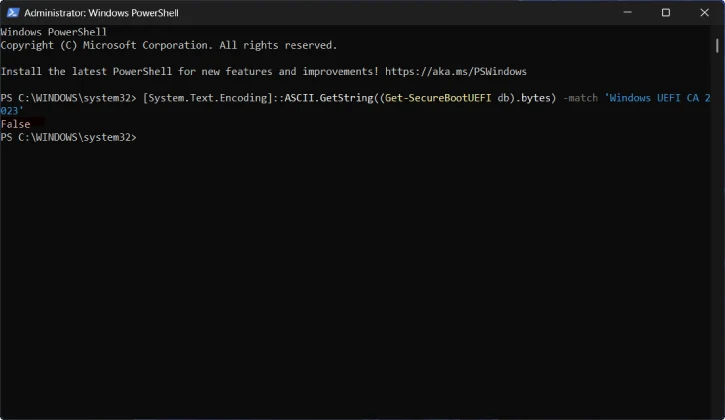
- If it returns True → your PC already has the 2023 certificate (good; valid until 2053).
- If it returns False → your PC is likely still using the older 2011 certificates and may need the update.
ALSO READ:How to Enable Secure Boot on Windows 11 to Fix Battlefield 6 Launch Issues
How to Install the new Secure Boot Certificates (Manual Method)
Windows and your PC maker usually push this update automatically via Windows Update. If you prefer to trigger it yourself, follow these steps.
1. Open PowerShell as administrator (Start → type PowerShell → Run as administrator).
2. Tell Windows to prepare the certificate update:
reg add HKEY_LOCAL_MACHINE\SYSTEM\CurrentControlSet\Control\Secureboot /v AvailableUpdates /t REG_DWORD /d 0x5944 /f
3. This registry value signals Windows to deploy the full set of Secure Boot certificate updates.
4. Start the Windows task that applies the Secure Boot update now:
Start-ScheduledTask -TaskName "\Microsoft\Windows\PI\Secure-Boot-Update"
(If you don’t run this, Windows will apply the task automatically—usually within about 12 hours.)
5. Reboot twice:
- Reboot 1: Windows updates the boot manager.
- Reboot 2: Windows writes the new certificates into your UEFI firmware.
6. After the two reboots, re-open an elevated PowerShell and re-run the check command:
- True = new certificate installed.
- False after several reboots = your firmware may not support the new certificate; check your PC/motherboard maker’s support pages for a BIOS/UEFI update.
If you use BitLocker
- BitLocker can block firmware from writing new keys. Suspend BitLocker for two reboots before doing the update:
Suspend-BitLocker -MountPoint "C:" -RebootCount 2 - This suspends BitLocker protection for two reboots; protection resumes automatically afterwards.
Troubleshooting tips
Check for a BIOS/UEFI update from your PC or motherboard manufacturer if the new certificate won’t install.
If the PC won’t boot after the update, use your BitLocker recovery key or the manufacturer’s BIOS recovery instructions.
If the PowerShell check still returns False after firmware updates, contact your PC maker for support—some older hardware may require vendor-specific actions.
Summary (what to do now)
If the PowerShell check shows True: nothing else required – your PC already has the 2023 certificates. If False: update Windows (install January 2026 and later security updates), update your BIOS/UEFI from the manufacturer, or run the manual steps above. Keep BitLocker recovery key handy and suspend BitLocker for the two reboots when applying the update.
Keeping Windows Update enabled and installing firmware updates from your PC maker are the easiest ways to stay protected and avoid boot problems before June 2026.


