
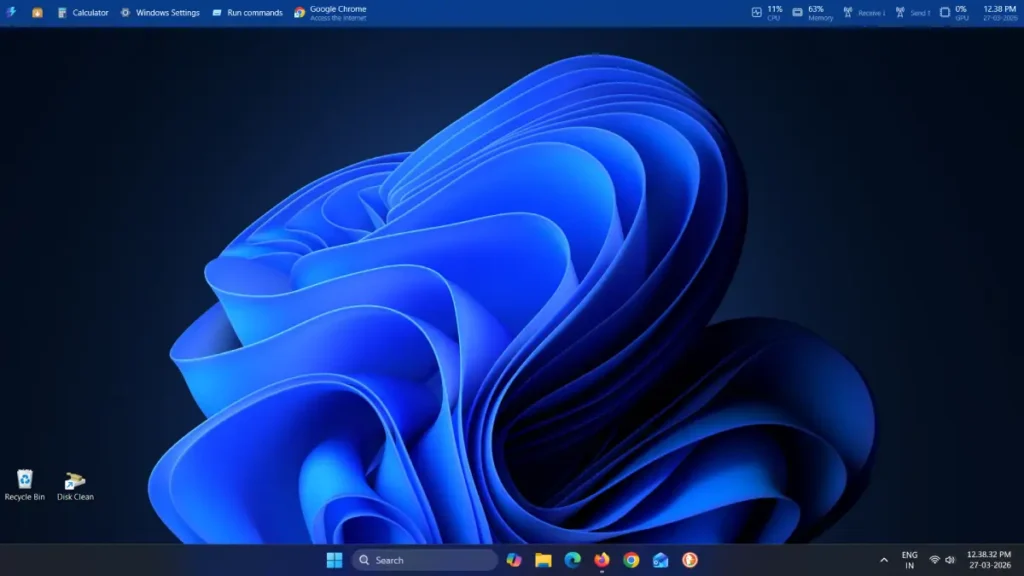
Did you know that Windows 11 has a second taskbar that you can place at the top or side of your screen? You can add apps, system components, and even monitor system resources like CPU usage, memory consumption, GPU activity, and more from this new taskbar. I’m talking about the Command Palette Dock, available in the latest version of PowerToys (version 0.98).
If you’re looking to streamline your workflow and reduce friction in your daily computing, this feature is worth exploring. Let’s dive into what it is, how to set it up, and whether it can truly complement your Windows 11 experience.
Table of Contents
What is the Command Palette Dock?
The Command Palette Dock is a customizable toolbar (via Microsoft Dev blog) that brings together several powerful features in one place. At its core, it’s built on PowerToys’ existing Command Palette—a quick-access launcher like Spotlight on macOS that lets you search for apps, run system commands, and trigger utilities from a single search box.
What makes the Dock special is its flexibility, customization and monitoring capabilities. Unlike the Windows 11 taskbar, which is fixed to the bottom of your screen (may change in future update), the Command Palette Dock can be positioned on the top, left, bottom or right edge of your display. It also displays live system statistics including CPU usage, GPU performance, memory consumption, and network activity—all at a glance.
Think of it as macOS’s hybrid approach: a menu bar for quick access combined with a Dock for your favorite tools, all rolled into one intelligent interface.
How to Enable Command Palette Dock in PowerToys
Getting started with the Command Palette Dock is straightforward. Here’s the step-by-step process:
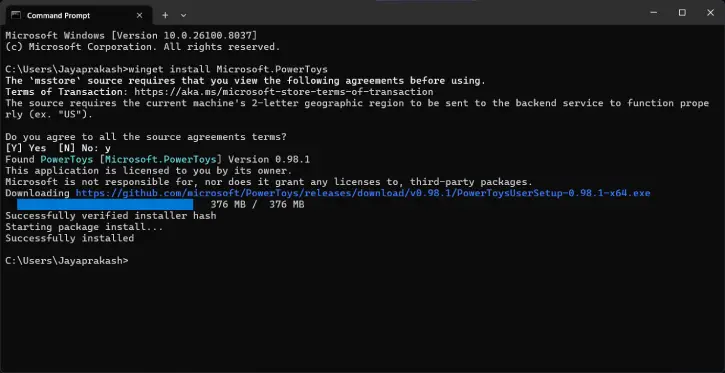
Step 1: If you don’t have PowerToys installed yet, you can download it from the Microsoft Store, GitHub, or via WinGet. The installation package is approximately 377MB.
Step 2: To install using WinGet, open Command Line or PowerShell and run: winget install Microsoft.PowerToys
Step 3: After installing the PowerToys, open it and click “System Tools” in the left sidebar.
Step 4: Select “Command Palette” and click “Command Palette Settings” on the right side
Step 5: Find “Dock (preview)” and toggle “Enable Dock” to on
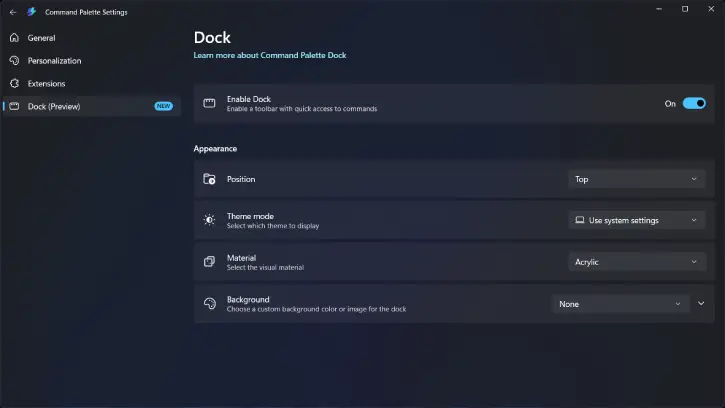
That’s it—the Dock will appear instantly on your screen, typically at the top by default. No restart required.
Customize Command Palette Dock to Make it Your Own
The real power of the Command Palette Dock lies in its customization. You have several options to tailor it to your preferences:
- Change position: Switch from Top to Left, Right, or Bottom—something the standard Windows 11 taskbar can’t do yet
- Theme: Toggle between light and dark modes
- Background style: Choose between the default Acrylic look or a transparent design
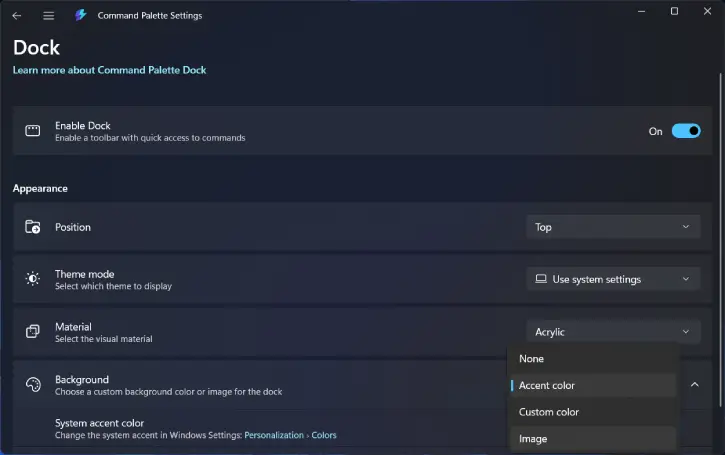
- Custom backgrounds: Add a solid color or even an image to match your wallpaper
- Icon only mode: For a cleaner aesthetic, right-click the dock, select Edit, then right-click any extension and disable “Show titles” for an icon-only view: This minimalist approach looks especially polished on modern displays.
Default Pinned Items on the Dock
Microsoft includes several useful items pre-pinned to the Dock to demonstrate its capabilities:
Left Side: Quick Access Tools
- Command Palette Shortcut: Opens the search interface where you can: Launch apps instantly (just type, for example “Task Manager”, “PowerShell”)
- Perform quick calculations (for example, “125*8”)
- Run system commands
- Access built-in utilities
- WinGet Integration: A user-friendly UI for app discovery and installation without touching the command line. Simply type “vscode” or “powertoys” to see package details, versions, and repository links.
Right Side: System Monitoring
- Live Resource Stats: Interactive widgets displaying: CPU usage, GPU performance, Memory consumption, and Network activity
- Click any stat to see an animated real-time graph, or jump directly to Task Manager for deeper insights.
- Clock and Date: Copyable time information for quick reference.
Extending Functionality with Pinned Commands
The Dock truly shines when you customize it with frequently used commands and apps. The process is simple:
- Open Command Palette using Win + Alt + Space
- Search for anything (apps, command, etc.) you want to pin
- Pin it by pressing Ctrl + K or using the “More” menu
- Rearrange items by dragging and dropping
- Right click any unnecessary item to unpin
Popular items to pin include:
- Clipboard History (for managing copied content)
- Search Files (for quick file management)
- Frequently used apps
- Specific commands or actions
Community Extensions:
PowerToys ships with built-in extensions, but you can expand functionality by installing community extensions from WinGet or the Microsoft Store. This transforms the Dock from a simple launcher into a full-fledged workflow tool tailored to your specific needs, whether you’re a developer, designer, content creator, or power user.
Can the Command Palette Dock Replace the Windows 11 Taskbar?
Short answer: No, and that’s a good thing. The Windows taskbar still handles critical functions that the Dock doesn’t replace: System tray icons, notifications and alerts, Quick Settings access, Background app management, App pinning and Window Search.
Instead of replacement, I think the Dock can be used as a complementary—much like macOS, which uses both a Menu Bar and a Dock simultaneously. Each tool serves a specific purpose.
What the Dock Does Better
The Command Palette Dock excels at reducing friction. Once properly configured, you’ll:
- Stop relying on the Start menu for everything
- Eliminate manual app searching
- Access frequently used tools instantly
- Monitor system health without opening Task Manager
Important Factors to Consider Before Using Dock
| Consideration | Details |
| Screen Space | Takes up real estate, especially on top/bottom placement. Less noticeable on large monitors or 16:10 displays. |
| Resource Usage | The Command Palette process typically uses 200–260 MB of RAM plus some CPU cycles. Negligible on desktop systems with ample RAM, but worth considering on laptops or low-power devices. |
| Battery Impact | If you’re on battery, the constant monitoring and process running may affect longevity. Desktop users won’t notice. |
Bottom line: If you’re plugged in or using a desktop with sufficient RAM, the Dock is a no-brainer. Laptop users should weigh their priorities.
Why This Matters: Windows Improvements in 2026
The Command Palette Dock represents Microsoft’s renewed commitment to improving Windows. While still in preview, it’s one of the most practical additions to the operating system in years. It shows that Microsoft is listening to user feedback and willing to innovate beyond the traditional taskbar paradigm.
The March 2026 PowerToys 0.98 update also brought: new keyboard manager, improvements to CursorWrap, enhanced ZoomIt (screen zoom, annotation, and recording), and various other utility upgrades. But the Dock is the standout feature—and for good reason.
Final Thoughts
The Command Palette Dock won’t replace your taskbar, but it will absolutely change how you interact with Windows. It’s a thoughtfully designed tool that bridges the gap between Windows’ traditional interface and modern, efficient workflows inspired by macOS.
Whether you’re a power user seeking to optimize productivity or someone looking to reduce clicks and keystrokes, the Command Palette Dock deserves a spot in your Windows 11 setup. It’s free, it’s reversible (just disable the toggle), and it’s one of those rare features that genuinely improves your computing experience.
Give it a try. You might be surprised at how much it changes your daily workflow.


