

Back in the days of Windows 95 and DOS, defragmenting was a regular maintenance task every PC user knew: run the Disk Defragmenter to gather scattered file fragments so the hard drive’s read/write head didn’t have to jump all over the platters. That real, tangible speed boost made defragmentation feel essential—until solid-state drives (SSDs) changed everything.
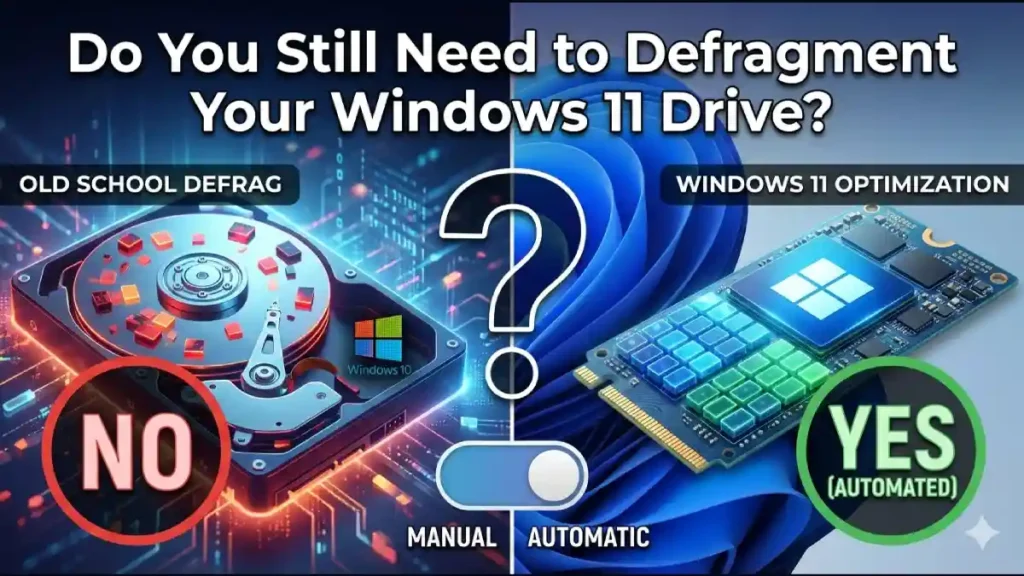
What Fragmentation was and why it Mattered
Traditional hard drives (HDDs) store data on spinning magnetic platters. As files are created, modified, and deleted, their data can become split across many physical locations on the disk—fragmented. When the drive needs to read a fragmented file, the read/write head must move to each fragment, increasing latency and slowing performance. Defragmenting rearranged those fragments so related data sat close together, reducing head movement and improving access times.
Why SSDs Made Defragging Obsolete for Most Users
SSDs use flash memory with no moving parts. They can access any location on the drive in essentially the same time, so fragmentation does not slow read performance the way it does on HDDs. Even if files are split into many fragments, the SSD’s access speed remains consistent.
What Windows 11’s “Defrag” Tool Actually Does
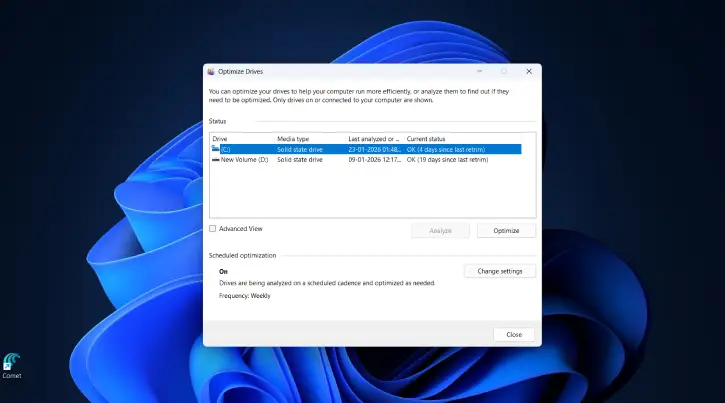
Windows no longer calls the tool Disk Defragmenter — it’s now Optimize Drives. If you type “defrag” you’ll still find it, but its behavior depends on the drive type:
For HDDs: Optimize Drives performs traditional defragmentation to consolidate fragmented files and improve access times.
For SSDs: Optimize Drives issues a TRIM command, which tells the SSD which blocks are no longer in use so the drive can erase them in advance. That makes future writes faster and helps preserve SSD lifespan.
Windows 11 (like recent Windows versions) runs TRIM automatically on SSDs by default—typically once a week—so manual optimization isn’t required.
ALSO READ: What Are M.2, SATA, PCIe, and NVMe SSDs and How to Choose Compatible SSD For Your Motherboard
Should You Use it Manually?
HDD owners: Yes—scheduled defragmentation can still help HDD performance. Let Windows run it automatically or run Optimize Drives occasionally if you notice slowdowns.
SSD owners: No manual defrag needed. Let Windows handle TRIM automatically. Manually clicking Optimize won’t harm anything (it will send TRIM), but it’s unnecessary.
Quick Action Steps
- Open Start → type “defrag” → select Optimize Drives.
- Check the “Media type” column to see HDD vs SSD.
- For HDDs: enable scheduled optimization or run Optimize now.
- For SSDs: ensure scheduled optimization is enabled (Windows runs TRIM weekly); no manual defrag required.
Conclusion
Defragmentation was crucial for HDDs, but with SSDs it’s largely obsolete. Windows 11’s Optimize Drives intelligently runs traditional defrag on HDDs and TRIM on SSDs, and it automates TRIM by default—so most users don’t need to worry about it.

