

Windows 11 includes dark patterns – prechecked boxes, persistent recommendations, hidden defaults – that steer users toward data collection, ads, and Microsoft services. These reduce control, slow systems, and expose data. Here is how to control dark patterns in Windows 11.
What Are Dark Patterns in Windows 11?
Dark patterns are a sort of tricks that push users toward choices that benefit the platform. In Windows 11 they appear as pre-checked boxes, persistent recommendations, promotional tips, and hidden defaults that collect diagnostics, show ads, or promote Microsoft services. These designs make accepting defaults easy and opting out hard, gradually nudging users to share more data, see more ads, and use bundled apps.
On a practical level dark patterns in Windows 11 reduce control, slow systems with background services, and expose personal data to targeted advertising or third parties. The good news is that most of these can be undone with a few focused Settings changes, uninstalling unwanted apps, and a careful initial setup.
Settings You Must Change in 2026 on your Windows 11 to Stop Dark Patterns (Ads, Tracking, and Hidden Tricks)
Follow this step-by-step guide to stop dark patterns. It helps you remove recommendations, stop tracking, and reclaim control. Apply these changes on a new or existing Windows 11 PC.
Notifications — Stop unsolicited tips and app prompts
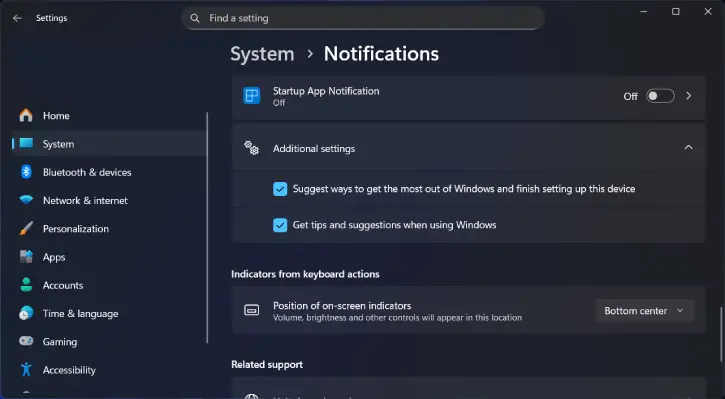
- Open Settings (Windows + I) → System → Notifications.
- For each app, turn off notifications you don’t need.
- Expand Additional settings and turn off:
- Show the Windows welcome experience after updates and when signed in to show what’s new and suggested
- Suggest ways to get the most out of Windows and finish setting up this device
- Get tips and suggestions when using Windows
Privacy & security — Turn off personalization and ad IDs
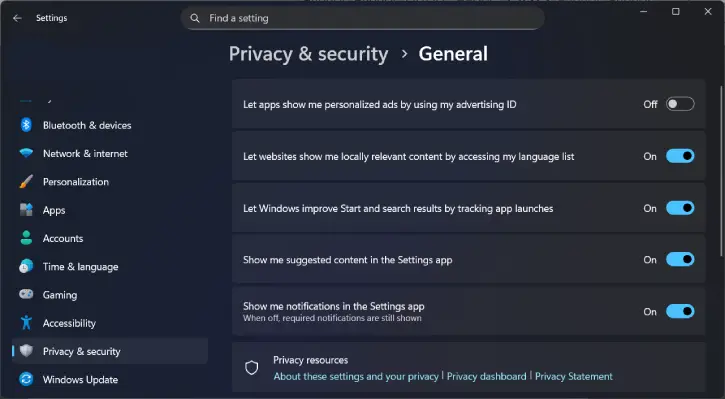
- Settings → Privacy & security → General and turn off the following.
- Let apps show me personalized ads by using my advertising ID
- Let websites show me locally relevant content by accessing my language list
- Let Windows improve Start and search results by tracking app launches
- Show me suggested content in the Settings app
- Show me notifications in the Settings app
- Also disable online speech recognition and Custom inking & typing dictionary if you don’t use voice/handwriting features.
Diagnostics & feedback — Limit data sent to Microsoft
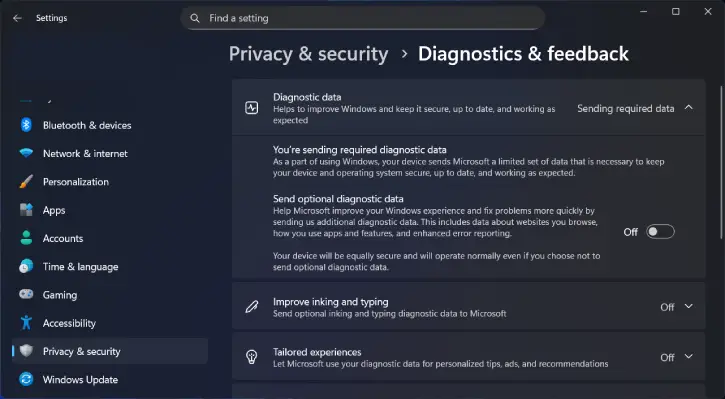
- Settings → Privacy & security → Diagnostics & feedback.
- Under Diagnostic data, turn off Send optional diagnostic data.
- Turn off Improve inking and typing and Tailored experiences.
- Ensure Diagnostic Data Viewer is off and use Delete diagnostic data to remove previously collected data.
Default browser — Stop links from forcing Edge
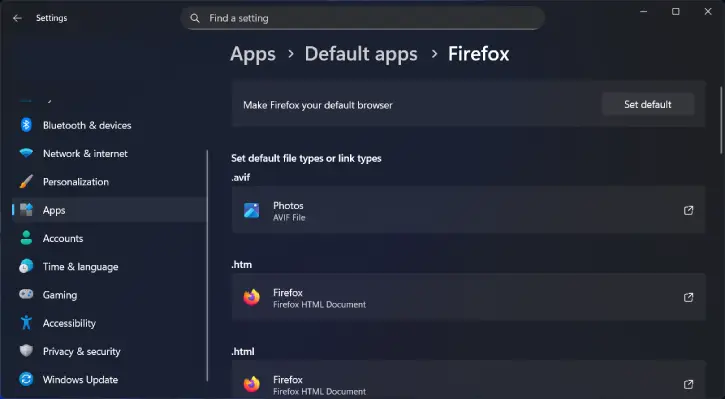
- Settings → Apps → Default apps.
- Select your preferred browser → Set default.
- Under “Set defaults by file type or link type,” change .htm, .html, HTTP, HTTPS, and any Edge-specific link types to your chosen browser.
App permissions — Revoke unnecessary access
- Settings → Privacy & security → App permissions.
- Review categories (Camera, Microphone, Location, Documents, etc.) and revoke permissions for apps that don’t need them.
- Consider turning off permissions globally for categories you never use.
ALSO READ: How to See Startup and Shut Down History of a Windows 11 PC
Search — Remove personalized suggestions and history
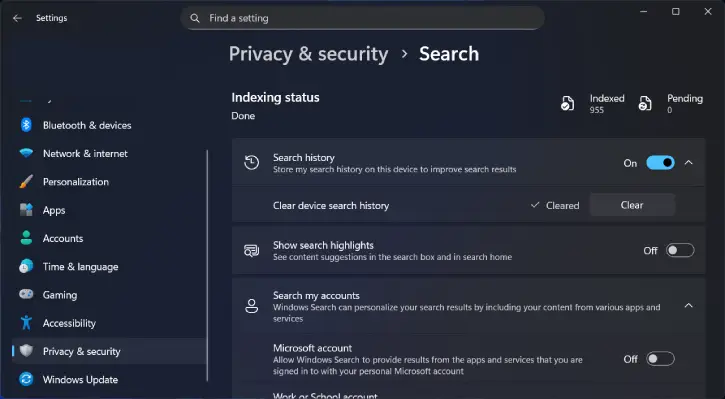
- Settings → Privacy & security → Search.
- Turn off Search history and clear stored search history.
- Turn off Show search highlights.
- Under Search my accounts, disable Microsoft account and Work or School account options.
Start menu — Remove recommendations and recent items
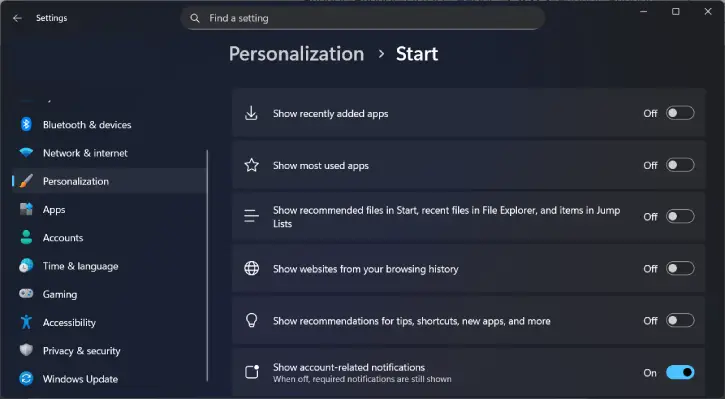
- Settings → Personalization → Start and turn off the following
- Show recommended files in Start, recent files in File Explorer, and items in Jump Lists
- Show websites from your browsing history
- Show recommendations for tips, shortcuts, new apps, and more
Lock screen — Disable tips, widgets, and promotional content
- Settings → Personalization → Lock screen.
- Under Personalize your lock screen, uncheck Get fun facts, tips, tricks, and more.
- Remove unwanted widgets (Daily Wonder, Daily Discovery) via the ⋯ menu → Remove
Uninstall bloatware — Remove preinstalled and suggested apps
- Settings → Apps → Installed apps.
- For each unwanted app, click ⋯ → Uninstall.
- If unsure, quickly search the app name online before removing.
Automatic app updates — Pause automatic Store updates
- Open Microsoft Store → profile icon → Store settings.
- Turn off App updates (pauses updates for 1–5 weeks).
- Turn off Personalized experiences in Store settings.
- 11) Startup apps — Speed boot and stop background nags
- Settings → Apps → Startup.
- Disable apps you don’t want launching at boot.
Disable core services (advanced) — Stop hidden telemetry services
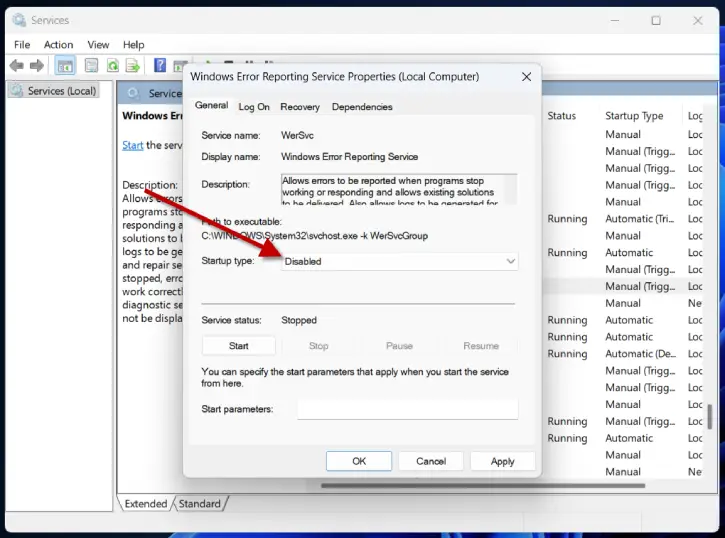
- Press Windows + R → services.msc.
- For Windows Error Reporting Service: right-click → Properties → Startup type: Disabled → Stop → Apply → OK.
- Optionally disable Windows Biometric Service if you don’t use biometrics, and SysMain if you’re on an SSD. Restart after changes.
Set up new PCs carefully — Avoid trapped defaults
During initial setup, pay close attention to privacy screens. Decline or disable diagnostic sharing, advertising ID, tailored experiences, and any promoted services such as Microsoft 365 or Xbox Game Pass that you don’t want.
Conclusion
In short, Windows 11 includes numerous design choices that subtly steer users toward data sharing, Microsoft services, and preinstalled apps—often by making opt-outs obscure or default choices prominent. While these dark patterns can erode control, degrade performance, and expand data exposure, they are not inevitable. With a deliberate initial setup, a handful of Settings adjustments, removal of unwanted apps, and periodic privacy checks, most unwanted behaviors can be reversed, restoring a leaner, more private, and more efficient PC experience. Staying aware of these patterns and applying a few targeted fixes turns passive acceptance into active control.

