

Windows 11 keeps a log of every startup and shut down events, which can help you see when the computer was started or shut down. This information can be useful for troubleshooting certain issues or understanding how often your computer is used. You can access this history through the Event Viewer or executing a simple command.
If you want to know how often your Windows 11 computer was turend on or turned off or troubleshoot certain startup/shut down issues of a PC, then here is how to see when your computer turns on (starts up) and when it turns off (shuts down).
Follow the step-by-step guide to access startup and shut down history in Windows 11.
How to Access Startup and Shut down Data of a Windows 11 PC?
With Event Viewer, a tool in Windows that shows detailed logs of system events, you can view the startup and shut down history of your Windows 11 PC. Here is how use the tool.
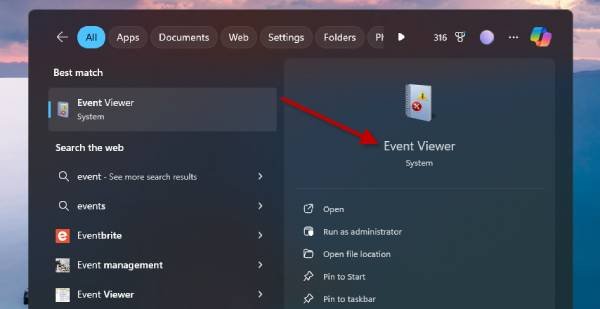
1. In Windows search, type “Event Viewer” and click the Event Viewer app from the search result.
2. On Event Viewer, select Windows Logs and click System.
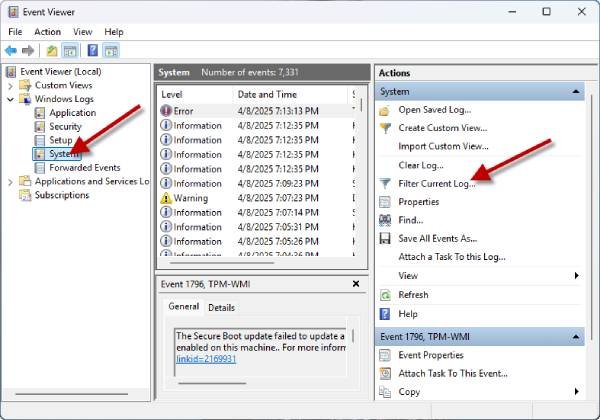
3. On the right pane of under Actions, double-click on “Filter Current Log” option.
4. Now, enter the Event IDs 6005 (startup log) and 6006 (shut down log) on “Filter Current Log” window and click OK.
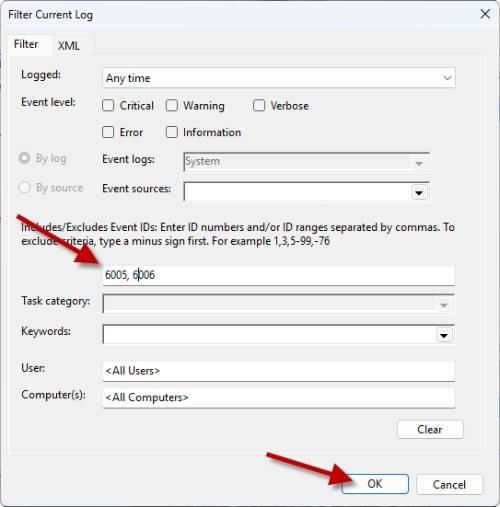
5. You will see all your start-up and shut down history of Windows 11.
Note that event IDs 6005 and 6006 are used to track normal Windows startup and shutdown events.
ALSO READ: 4 Methods to Fix Settings App Crash/Closing Itself on Windows 11
For unexpected shutdowns caused by errors, such as a Blue Screen of Death (BSOD), restarts, partial shutdowns, or system crashes, you need to check different event IDs.
For instance, event ID 1074 is recorded when a manual shutdown or restart is initiated, like after applying a system update. Event ID 6008 indicates that the previous shutdown was unexpected.
How to Check Startup and Shut Down History Using Command Prompt in Windows 11?
1. Open Command Prompt as administrator on your Windows 11 PC.
2. Execute the command wevtutil qe system “/q:[System [(EventID=6005)]]” /rd:true /f:text /c:1 | findstr /i “date” to view the start up log.
3.To view the shutdown history, execute the command wevtutil qe system “/q:[System [(EventID=6006)]]” /rd:true /f:text /c:1 | findstr /i “date”
4. Execute the command wevtutil qe System /q:"*[System[(EventID=6005 or EventID=6006 or EventID=6008 or EventID=1074)]]" /f:text /c:10 to retrieve the last 10 entries for the specified event IDs.
That is all how you can check the startup and shut down history of a Windows 11 PC using Windows built-in Event View tool and Command Prompt utility.

