

Solid-state drives (SSDs) are dramatically faster than hard drives, but they don’t stay at peak speed forever. If your system feels sluggish—longer boot times, slow file transfers, or apps that take too long to open—the SSD is often blamed. The good news is that you can fix a slow SSD without replacing the drive.
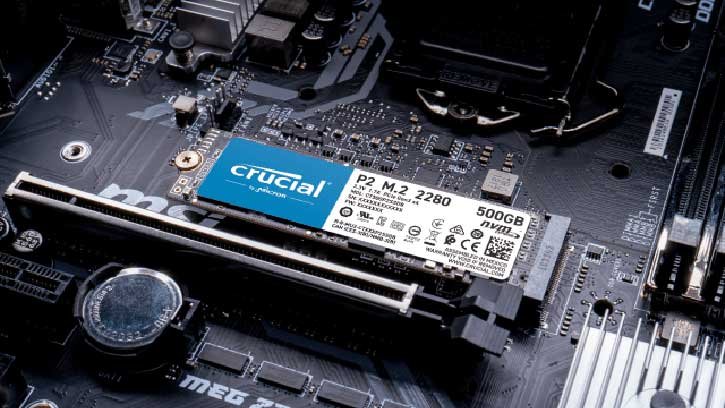
This guide covers the common causes of SSD slowdown and how to fix each one quickly. Before deciding to replace a SSD, check below things to identify the real cause for the slowness.
Give your SSD breathing room: Keep 10–20% free
Why it matters
SSDs erase and rewrite data in blocks. When the drive is nearly full, the controller has fewer empty blocks to shuffle data, causing write amplification and slower writes.
Symptoms
Slow file copies, longer installs, and general sluggishness when the drive is over ~90% full.
Fixes
- Free up space until at least 10–20% of the drive is empty.
- Move large game libraries, 4K video files, or archives to a secondary drive or external storage.
- On Windows, enable Storage Sense to remove temporary files automatically.
- Use a disk-usage analyzer (e.g., WizTree) to find and delete or relocate large files.
Make sure TRIM is enabled
Why it matters
TRIM tells the SSD which blocks are no longer in use so the drive can erase them in the background and maintain write performance.
How to check and enable TRIM on Windows
Open Command Prompt as administrator and run the command: fsutil behavior query DisableDeleteNotify
Result 0 = TRIM enabled.
Result 1 = TRIM disabled — enable with: fsutil behavior set DisableDeleteNotify 0
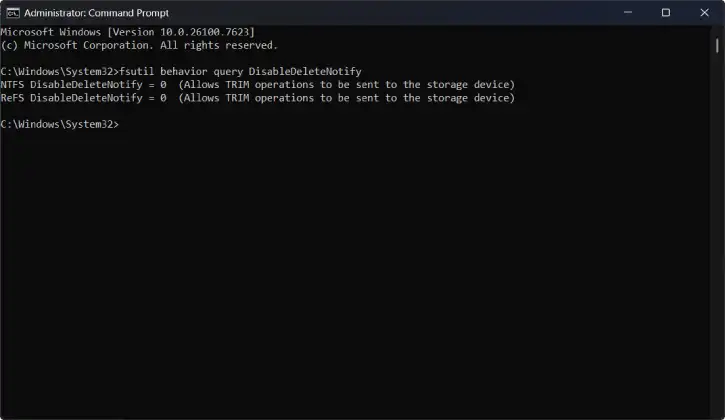
Note: TRIM helps but can’t fully compensate for an overfilled drive—free space still matters most.
Update your SSD firmware
Why it matters
Manufacturers release firmware updates that fix bugs and improve how the drive handles wear and performance. Outdated firmware can cause slowdowns or instability.
How to update
1. Download and run your drive maker’s tool: Samsung Magician, Crucial Storage Executive, Intel Memory and Storage Tool, etc.
2. Check the firmware section and follow prompts to update.
Enable write caching for better responsiveness
Why it matters
Write caching buffers incoming data to make everyday operations feel snappier. Windows may disable it on removable drives to prevent data loss from power loss, but for internal SSDs it’s usually beneficial.
How to enable (Windows)
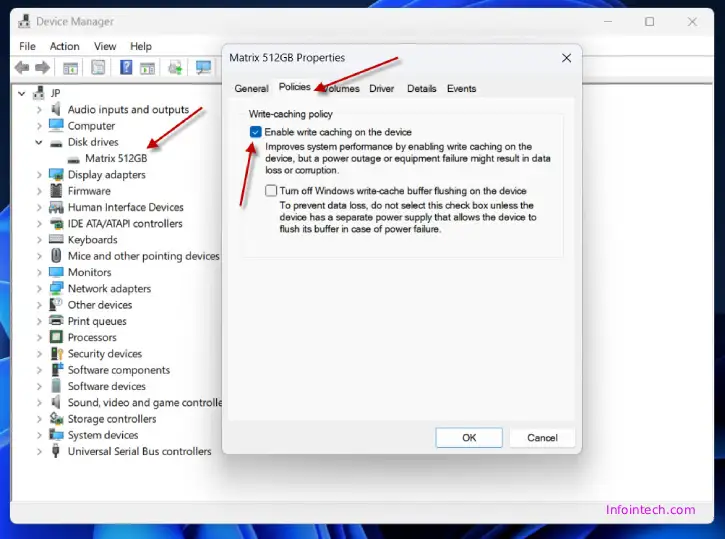
- Open Device Manager → Disk drives → right-click SSD → Properties.
- Policies tab → check Enable write caching on the device → OK.
- Caveat: write caching risks data loss on sudden power loss; use a UPS for critical systems.
Fix thermal throttling on NVMe drives
Why it matters
High-end NVMe SSDs can heat up during sustained workloads and throttle performance to prevent damage. Throttling shows as high initial speeds that drop dramatically during long transfers.
How to spot and fix it
1. Monitor temps with apps like CrystalDiskInfo or manufacturer tools. Sustained temps >70°C often indicate throttling.
2. Install an M.2 heatsink or use a motherboard with a built-in M.2 cooler.
3. Improve case airflow, reposition the drive if possible, or add a small fan.
Check SSD health and remaining lifespan
Why it matters
SSDs have finite write cycles. Worn NAND cells reduce performance and eventually cause failure; catching issues early prevents data loss.
How to check
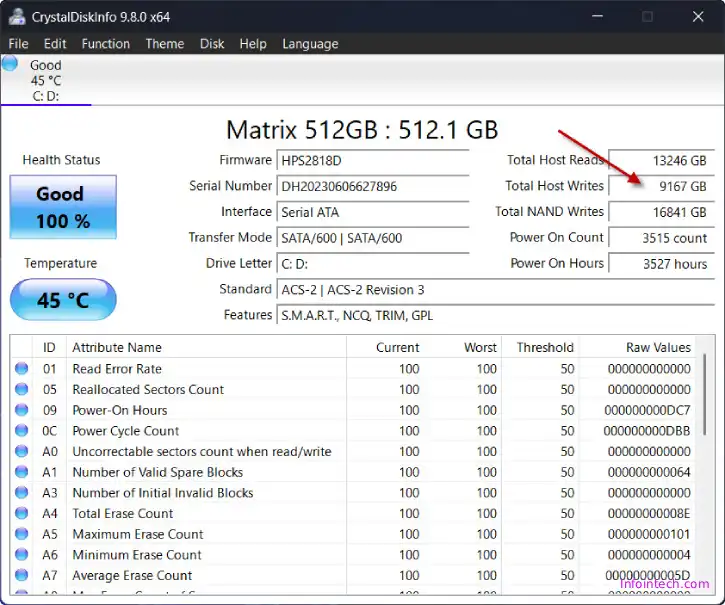
- Run CrystalDiskInfo (or your vendor’s tool).
- Look at Health Status and Total Host Writes.
- Compare Total Host Writes to the drive’s TBW (terabytes written) spec.
Action thresholds
- If health drops under ~70–80% or TBW approaches the rated limit, back up data and plan a replacement.
- Quick troubleshooting checklist
- Ensure at least 10–20% free space.
- Verify TRIM is enabled.
- Update SSD firmware using vendor software.
- Enable write caching for internal SSDs (consider UPS).
- Check temperatures during heavy use; add an M.2 heatsink if >70°C.
- Monitor health/Total Host Writes; back up and replace if health <70–80%.
Conclusion
SSD slowdowns are usually fixable with simple maintenance: free up space, confirm TRIM, update firmware, enable write caching for internal drives, manage temperatures, and monitor health. These steps restore day-to-day responsiveness and extend the life of your SSD—often without buying a new drive.

