
Task Manager has been the standard tool for monitoring system performance on Windows for decades. Users rely on it to check processor usage, memory consumption, disk activity, and network performance in real time. While Microsoft has refreshed its design to match the modern Windows 11 interface, the core functionality remains largely unchanged.
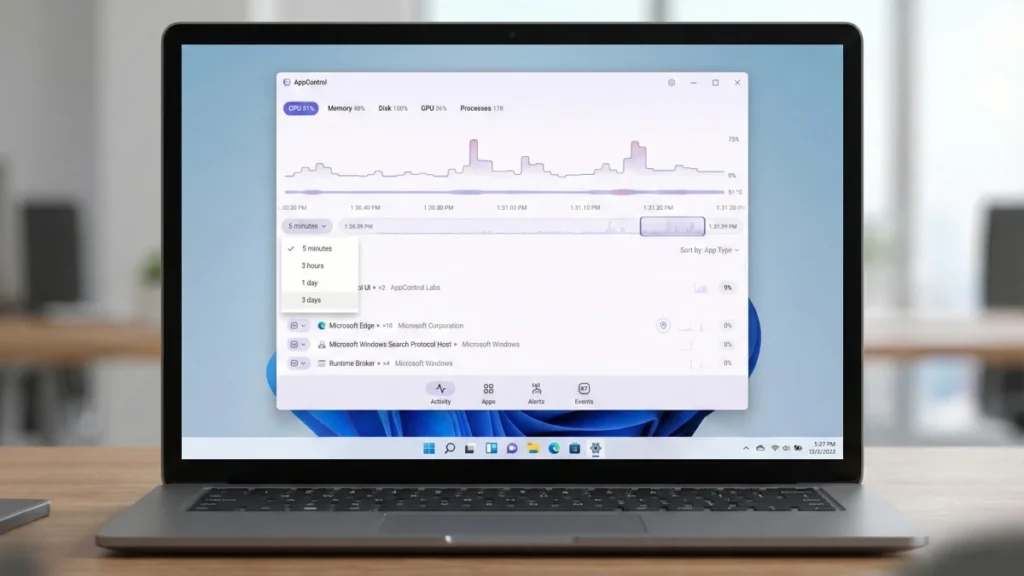
Now, a new competitor called AppControl is changing how Windows users monitor system activity—not by replacing Task Manager, but by introducing capabilities that make performance troubleshooting significantly more powerful. If you’ve ever wondered why your computer slowed down hours ago or which app caused an unexpected memory spike, AppControl offers answers that Task Manager simply cannot provide.
Table of Contents
What Is AppControl?
AppControl is a system monitoring tool for Windows 11 designed to make long-term performance tracking easier to understand. Rather than focusing exclusively on real-time activity like Task Manager does, AppControl records and visualizes usage history so you can see exactly how your system behaved hours or even days earlier.
This fundamental difference transforms how users troubleshoot performance issues. Instead of trying to catch a spike as it happens, you can slide back through time to pinpoint exactly when a problem occurred.
Task Manager only displays performance activity in short intervals—typically around 60 seconds. If a processor spike happened earlier, it’s gone forever. This limitation makes troubleshooting inconsistent problems incredibly frustrating. Did your system slow down because of a background process? When exactly did it happen? Task Manager won’t tell you.
How AppControl Solves This Problem
AppControl records system activity for up to three days, fundamentally changing how you diagnose performance issues. You can:
- Identify random processor spikes by reviewing historical data instead of waiting for them to happen again
- Detect memory leaks by tracking when an application’s memory consumption began climbing
- Pinpoint overnight slowdowns caused by background processes or scheduled tasks
- Correlate events by seeing exactly which app launched when resource usage changed.
Simply hover over the graph in the “Activity” tab to see which apps were consuming resources at any moment in time. Click a specific point, and the graph pauses, allowing you to analyze that exact period in detail.
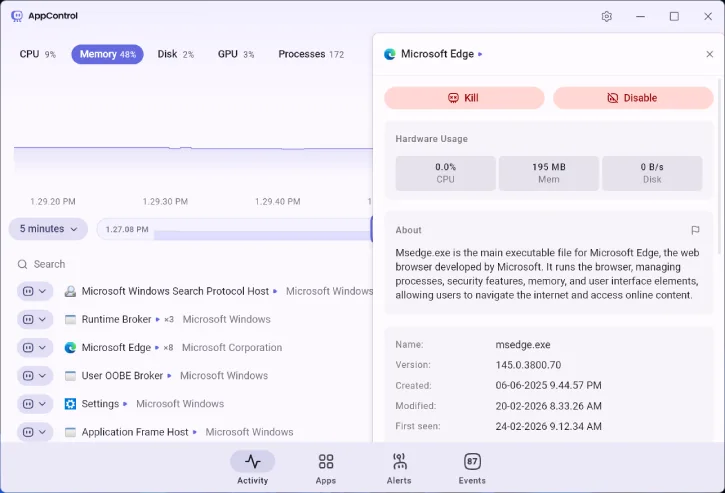
Beyond Real-Time Monitoring: Behavioral Tracking
AppControl goes beyond traditional performance monitoring by tracking app launches and changes in system behavior—something Task Manager does not do.
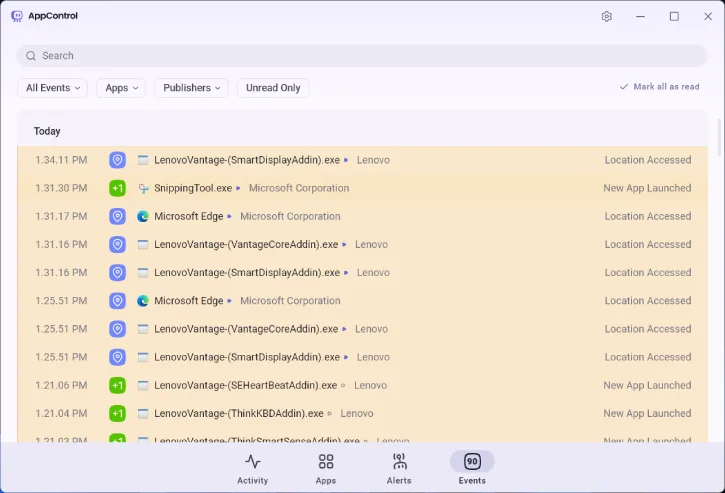
App Launch Logging
The tool logs when applications start, making it easier to:
- Identify unexpected background launches you didn’t authorize
- Confirm exactly when a program initiated activity
- Correlate app launches with processor or memory spikes
System Alerts and Events
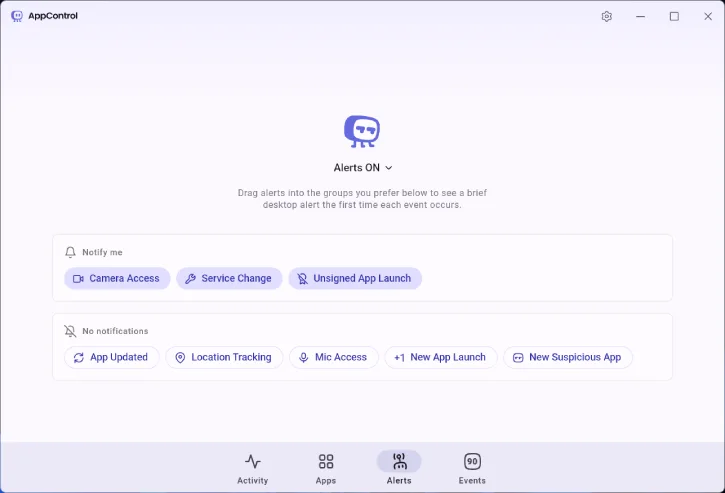
The “Alerts” tab notifies you when apps take specific actions, such as: Accessing your camera or microphone, modifying system services and triggering other system-level events
The “Events” tab records a complete log of system activity, including app startups, hardware access attempts, and other monitored changes. Together, these features create a behavioral layer of visibility that Task Manager simply cannot match.
AppControl Still Includes Traditional Monitoring
Despite its focus on historical analysis, AppControl doesn’t abandon real-time performance monitoring. You can still:
- View processor usage in real time
- Monitor memory consumption as it happens
- Track disk activity and network performance
- Search for specific apps and processes
- Review detailed hardware usage information
- For everyday performance checks, the familiar live monitoring experience remains fully available.
ALSO READ: How to Optimize Windows 11 for Enhanced Performance on Older PCs
AppControl Isn’t a Full Replacement for Task Manager
AppControl excels at monitoring and historical analysis, but it lacks several advanced capabilities that power users rely on.
AppControl does not include:
- Service management tools for controlling Windows services
- Deep inspection of subprocess hierarchies for advanced process management
- Low-level system management features available in Task Manager
- Process termination capabilities (though you can still use Task Manager for this)
- Startup impact management for controlling which apps launch at boot
- Task Manager remains the essential tool for system control. If you need to terminate a frozen application, manage startup programs, or work directly with system services, Task Manager is still your go-to option.
Who Should Use AppControl?
AppControl is perfect for anyone who wants deeper visibility into their computer’s behavior without navigating Task Manager’s technical complexity. It’s especially valuable if you:
- Have ever wondered why your device slowed down earlier in the day
- Want to know which app suddenly started consuming more memory
- Suspect something launched in the background without your knowledge
- Prefer visual timelines and historical context over real-time snapshots
- Need to troubleshoot inconsistent performance issues
The Verdict: Complementary, Not Replacement
AppControl is not a replacement for Task Manager—it’s a complementary tool. Task Manager remains essential for system control and real-time checks. However, when it comes to understanding long-term system behavior and troubleshooting persistent issues, AppControl offers a more advanced, practical approach to monitoring.
The ability to review system activity from hours or days ago transforms performance troubleshooting from guesswork into precision diagnostics. If you’ve ever spent hours trying to figure out why your computer behaved strangely at some point in the past, AppControl’s historical visibility alone may justify installing it.
For performance troubleshooting, clarity, and context, AppControl is worth trying. Keep Task Manager for system control, and use AppControl for understanding what your system is actually doing over time.
Conclusion
Windows 11 users now have a powerful new option for system monitoring. While Task Manager handles real-time performance checks and system management, AppControl fills a critical gap by providing historical context and behavioral tracking that modern troubleshooting demands. Together, they create a more complete picture of your system’s health and performance.


