

Changing the default search engine in Microsoft Edge is a simple process that can be done on desktop computers, Android devices, and iPhones. By following the steps outlined in this article, you can easily switch from Bing to your preferred search engine. Whether you prefer Google, Yahoo, or any other search engine, Microsoft Edge allows you to customize your browsing experience to suit your needs.
Microsoft Edge is a popular web browser that is used on various platforms, including desktop computers, Android devices, and iPhones and offers various features like AI image editing, Copilot integration, sleeping tab, and more. By default, Microsoft Edge uses Bing as its search engine. However, if you prefer to use a different search engine, for example Google, Duckduckgo, etc., you can easily change the default search engine in Microsoft Edge. In this article, we will guide you through the process of changing the default search engine in Microsoft Edge for desktop, Android, and iPhone.
Changing the Default Search Engine in Microsoft Edge for Desktop
If you are using Microsoft Edge on your desktop computer, follow these steps to change the default search engine:
- Open Microsoft Edge on your desktop.
- Click on the three-dot menu icon in the top-right corner of the browser window.
- From the drop-down menu, select “Settings”.
- In the Settings menu, click on “Privacy, search, and services” in the left-hand sidebar.
- Scroll down and click “Search and connected experiance” option.
- Next, click the “Addressbar and search” option, and next to the “Search engine used in the address bar” section, click on the drop-down menu.
- Select your preferred search engine from the list.
- Close the Settings tab.
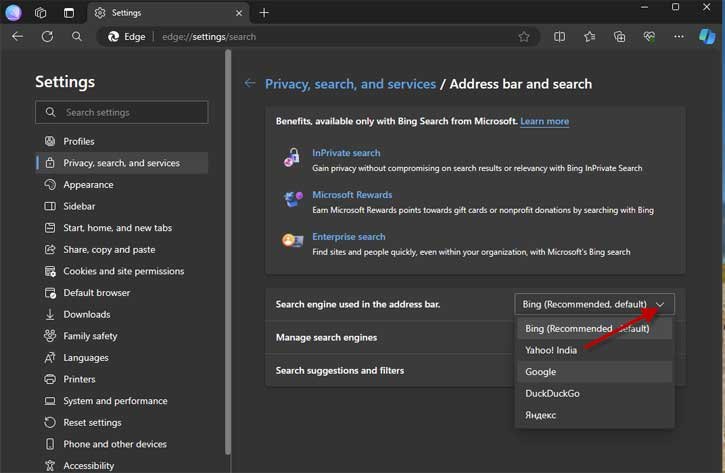
After following these steps, your selected search engine will be set as the default search engine in Microsoft Edge for desktop.
Changing the Default Search Engine in Microsoft Edge for Android
If you are using Microsoft Edge on your Android device, here’s how you can change the default search engine:
- Open the Microsoft Edge app on your Android device.
- Tap on the three-dot menu icon in the bottom-right corner of the browser.
- From the menu, select “Settings”.
- In the Settings menu, tap on “Default search engine”.
- Choose your preferred search engine from the list.
- Close the Settings menu.
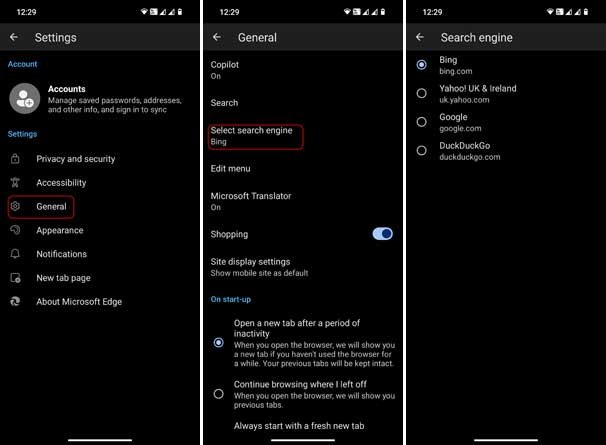
Once you have completed these steps, the selected search engine will be set as the default search engine in Microsoft Edge for Android.
ALSO READ: What is QUIC Protocol and How to Disable it in Chrome, Firefox & Edge
Changing the Default Search Engine in Microsoft Edge for iPhone
If you are using Microsoft Edge on your iPhone, you can follow these steps to change the default search engine:
- Open the Microsoft Edge app on your iPhone.
- Tap on the three-dot menu icon in the bottom-right corner of the browser.
- From the menu, select “Settings”.
- In the Settings menu, tap on “Default search engine”.
- Choose your preferred search engine from the list.
- Close the Settings menu.
After completing these steps, the selected search engine will be set as the default search engine in Microsoft Edge for iPhone.
Note: This article was first published in March 2024, and updated in April 206 with minor changes.
Conclusion
Whether you prioritize privacy, search accuracy, or seamless integration with other tools you use daily, Microsoft Edge makes it easy to set up your search experience exactly as you want it. Take a few moments to make this adjustment now, and you’ll benefit from a more customized browsing experience every time you search the web. Remember that changing the default search engine only affects the search engine used in the address bar.

