

Printing a Word document without comments, annotations and markup is simpler than you might think. With just a few quick adjustments to your print settings, or temporarily hiding comments in your document, you can ensure your document prints cleanly without any comments appearing on the page. Follow these steps to get started.
Why You Need to Print Without Comments and Markup
When collaborating on Microsoft Word documents, Track Changes and comments are invaluable tools for team feedback. However, printing a document with all markup visible can look unprofessional and may expose confidential notes you don’t want in hard copies. Whether you’re preparing a final document for distribution or need a clean version for records, knowing how to exclude comments from your Word printout is essential.
In Microsoft Word document, tt is very easy to remove comments from your print output and it takes just a few clicks and doesn’t permanently delete them from your document.
Method 1: Remove Comments During Printing (Fastest Way)
This is the quickest method if you want to keep comments in your document but exclude them from this specific print job.
1. Open your Word document and click File in the menu
2. Select Print to open the Print dialog
3. Look for the Settings section and click the dropdown menu (typically labeled “Print All Pages“)
4. Uncheck “Print Markup” – this option is selected by default
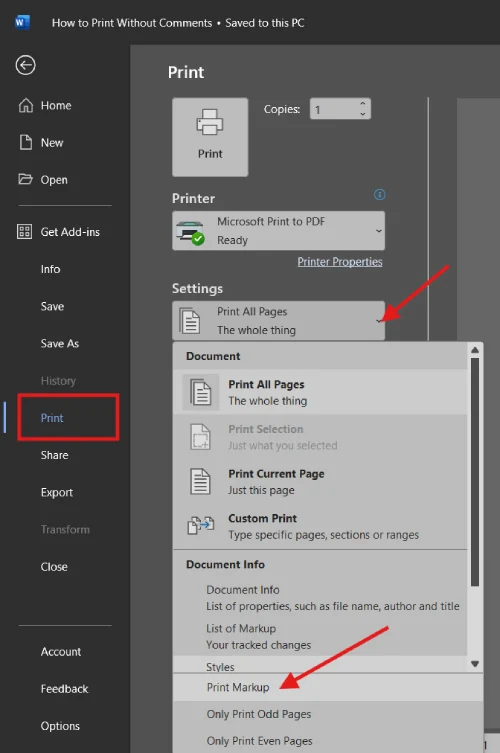
5. Review the print preview on the right side – you should see comments and tracked changes have disappeared
6. Click Print to output your comment-free document
This approach is ideal because it only affects the current print job – your original document retains all comments and tracked changes for future reference.
ALSO READ: How to Hide Text in Microsoft Word and LibreOffice Writer Documents
Method 2: Hide Comments Before Printing (Alternative Approach)
If you prefer to temporarily hide comments and markup in your document before printing, follow these steps:
1. Open Word and navigate to the Review tab in the Word ribbon
2. Locate the Tracking section at the top
3. Click the markup display dropdown menu (showing “All Markup,” “Simple Markup,” or similar, may vary with Word version)
4. Select “No Markup” from the options
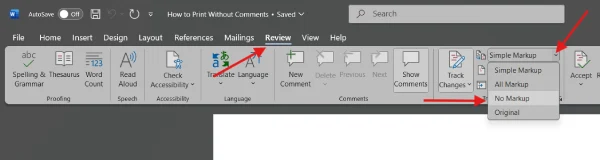
5. All tracked changes and comments will immediately disappear from your document view
Important: Once you’ve printed your document, comments won’t automatically reappear. To restore yor word document markup visibility, return to the Review tab > Tracking section, click the dropdown menu again and select “All Markup” or “Simple Markup” (depending on your preference).
Pro Tips for Professional Document Printing
Print Comments Separately for Review
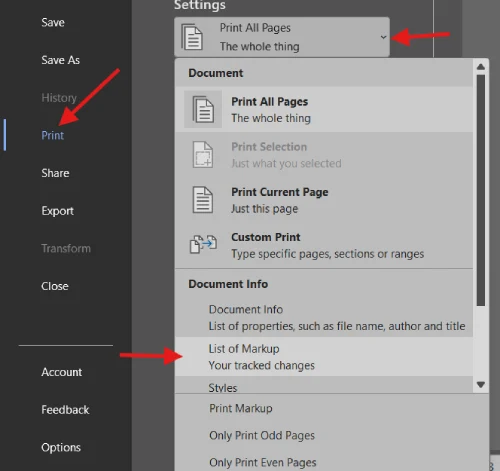
If you need to review comments without printing them in your document, Word allows you to print comments on a separate page.
Go to File > Print > Settings and select “Print All Pages” dropdown, then choose “Print Markup Only” or “List of Markup” to create a separate comments report.
Use Simple Markup for Cleaner Viewing
Before printing, try switching to “Simple Markup” view in the Review tab. This reduces visual clutter while keeping comments accessible, making it easier to determine if you want to include them in your printout.
Set Default Print Preferences
If you frequently print without comments, you can set this as your default: Open Print settings, uncheck “Print Markup”. This preference may persist for future print jobs (behavior varies by Word version)
Common Questions About Printing Without Comments
Q: Will hiding comments delete them from my document?
A: No. Hiding comments or excluding them from print only affects the display or printout—the comments remain in your document and can be restored anytime.
Q: Can I print only the comments without the document text?
A: Yes. In Print settings, select “List of Markup” or “Print Markup Only” to generate a separate report of all comments for review.
Q: Does this work for tracked changes?
A: Yes. The “Print Markup” setting controls both comments and tracked changes, so unchecking it removes both from your printout.
Q: What if I can’t find the “Print Markup” option?
A: Ensure you’re using a recent version of Microsoft Word. Older versions may have slightly different menu labels, but the option to exclude markup during printing exists in Word 2016 and later.
Final Thoughts
Printing Word documents without comments is straightforward once you know where to look. Whether you choose to exclude comments at print time or temporarily hide them in your document, you now have the tools to produce clean, professional printouts. Remember: these methods don’t delete your comments – they simply keep them out of your hard copies while preserving them for future collaboration and review.

