

HomeExcelHow to Use SORTBY Function in Excel to Sort Data in Ascending/Descending...

How to Use SORTBY Function in Excel to Sort Data in Ascending/Descending Order

Published on

If you have ever had trouble with Excel data—spending much time sorting manually, for example, student grades or trying to line up invoices by due date—you understand how frustrating it can be. The SORTBY function, introduced in Excel 2021 makes sorting data much easier.

SORTBY allows you to sort one list based on the values in a completely different column in ascending or descending order. The best part of this Excel function is that it updates automatically whenever your data changes.

How SORTBY Function Works and How to Use it

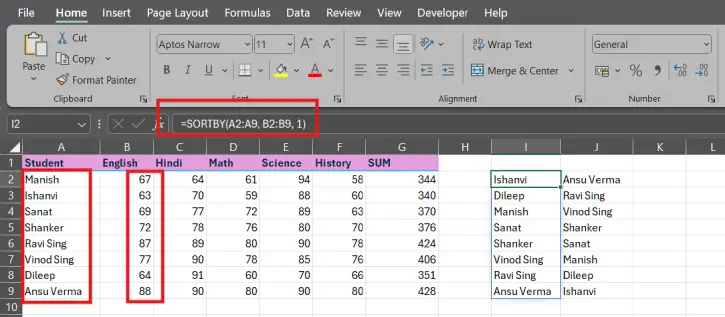
Imagine you are managing a classroom. Column A contains the students names and Column B contains their exam marks. You want to see who the top performers are. SORTBY solves this instantly.

It is surprisingly simple. Just click into a cell, type the formula given below, and press Enter:

=SORTBY(A2:A9, B2:B9, 1)
How to Use SORTBY Function in Excel

Where:

A2:A9: This is the list you want to see (the student names).

B2:B9: This is the engine that does the work (the exam marks).

1: This tells SORTBY to sort in ascending order ( to highest).

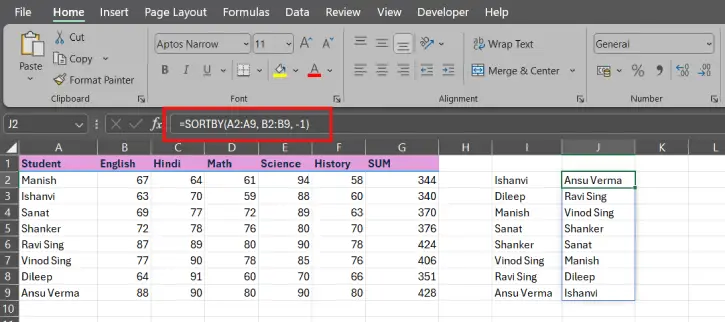
For descending order enter -1 [=SORTBY(A2:A8, B2:B8 -1)]
SORTBY function Excel 2

Once you press Enter the list will rearrange themselves based on those marks.

Where This Is Useful in the Real World

SORTBY is not for teachers. It is a tool for almost any project:

  • Billing: Sort invoice descriptions by their date.
  • Sales: Rank your customers by how much they’ve spent.
  • Inventory: Organize products from lowest to stock levels.
  • HR: Sort employees by their start date or salary.
  • Planning: Order your to-do list by the closest deadline.

Troubleshooting SORTBY Errors

If your formula does not work and getting parse errors, it is usually one of these four situations:

1. The #NAME? Error

    This usually means your version of Excel is too old to recognize SORTBY.

    The Fix: Update to Office 2021 or Microsoft 365. If you cannot update you must use the Data → Sort menu.

    2. The #VALUE! Error

      This happens when SORTBY gets confused by the size or type of your data.

      The Fix: Make sure your two ranges are the length. If your names go from A2 to A9, your marks must go from B2 to B9. Also double-check that you have not accidentally included your header row in the range.

      3. The #SPILL! Error

        SORTBY is trying to give you the list but something (like a random piece of text or another formula) blocks the cells below.

        The Fix: Clear the cells underneath your formula so that data can spill down.

        4. The Data Is Not Actually Sorting

          If the list looks the same as before check your parameters.

          The Fix: Ensure you used 1 or -1. Also check if your numbers are stored as text—SORTBY cannot sort numbers correctly if it thinks they are words.

          Pro Tips for Power Users

          Once you have learned the basics try these to really improve:

          • Mix and Match Functions

          You can put SORTBY inside functions like FILTER. For example if you only want to see students who scored above 70 sorted from highest to lowest:

          =SORTBY(FILTER(A2:A8, B2:B8 > 70) FILTER(B2:B8, B2:B8 > 70) -1)

          • Use Named Ranges

          of guessing what “A2:A8” means name your ranges “StudentNames” and “StudentMarks”. Your formula becomes easier to read:

          =SORTBY(StudentNames, StudentMarks, -1)

          • Be Specific, with Ranges

          While it may seem convenient to select the column (A:A) it can slow down your computer. It is always better to select the range you need (A2:A100).

          Why Bother With SORTBY?

          In the past sorting required risking the data order or spending a long time building a complex INDEX/MATCH formula. SORTBY removes the stress. Your original data stays where it is. The sorted list updates in time. It only takes one formula to set up. SORTBY is a faster and more organized way to handle your spreadsheets.

          JP
          JPhttps://infointech.com
          JP (Jayaprakash), how-to expert and web geek with twenty+ years of experience, shares his knowledge through blogging filled with practical tips and guidance to help you enhance your tech skills.

          Latest articles

          How to Fix IMPORTRANGE Function Not Working in Google Sheets

          If you use Google Sheets to manage a lot of data, you probably know...

          How to Digitally Sign a Google Docs: 4 Easy Methods for Any Document Type

          Google Docs is the best free alternative to Microsoft Word, offering every feature you...

          SUMIF in Google Sheets: Complete Guide with Formula Examples

          SUMIF is one of the most useful functions in Google Sheets for adding up...

          How to Clean Cluttered Data in Excel Using Power Query (Beginner’s Guide)

          Cleaning data takes a lot of time for anyone who works with spreadsheets especially...

          More like this

          How to Clean Cluttered Data in Excel Using Power Query (Beginner’s Guide)

          Cleaning data takes a lot of time for anyone who works with spreadsheets especially...

          Jump to New Cell (Down, Up, Left, Right) After Inputting Value in Excel and LibreOffice Calc

          If you spend any real time in Excel or LibreOffice Calc, you already know...

          Learn Excel’s WRAPROWS and WRAPCOLS Functions With Examples

          WRAPROWS and WRAPCOLS are two new functions of Excel 2024. This productivity feature lets...

          LEAVE A REPLY

          Please enter your comment!
          Please enter your name here

          This site uses Akismet to reduce spam. Learn how your comment data is processed.