

Many people are moving from Windows to Linux, often because their hardware no longer supports newer Windows versions. If you’re new to Linux and want to try it without changing your current Windows setup, SparkyOS is a good portable option.
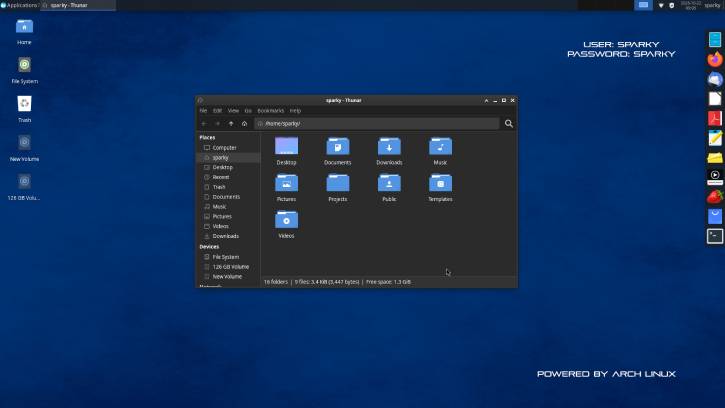
SparkyOS 2026.10 is an Arch-based Linux distro with Xfce, Linux kernel 7.2.11, and persistent USB storage. That means you can boot it straight from a USB disk and explore Linux without installing it on your PC.
Even though SparkyOS runs from USB, it still feels fast, simple, and full of useful features. It works like a regular Linux installation. You can install applications, update packages and the kernel, and save your files and settings directly to the USB drive. Everything is still there the next time you boot it up, even if you use it on a different computer.
How to Install SparkyOS and Launch it From USB Disk
In this guide, let us learn how to install SparkyOS Linux distro on a USB disk or Pendrive and lanuch it from your disk. You don’t need to maky any changes to your existing Windows installation.
Requirements:
- Any x86_64 UEFI compatible computer
- USB disk 16 GB or bigger
- User: sparky, Password: sparky, root > use sudo
Steps to Install SparkyOS on USB Disk
- Download the latest version of SparkyOS from the official website.
- Download Rufus or BalenaEtcher to create a bootable USB drive with SparkyOS.
- Connect a 15GB or more USB disk to your computer,run Rufus or BalenaEtcher on your PC.
- Select the
SparkyOS.imgfile, and click Start. The application will install the OS on your USB disk. - After the installation process completes, click Close and remove the USB drive from your PC.
- Now, connect your SparkyOS USB drive to your PC and restart your computer.
- Press F12 (this should work on most modern computers) to enter the boot menu. Select your SparkyOS USB drive.
- Your PC will now boot into SparkyOS with all its features.
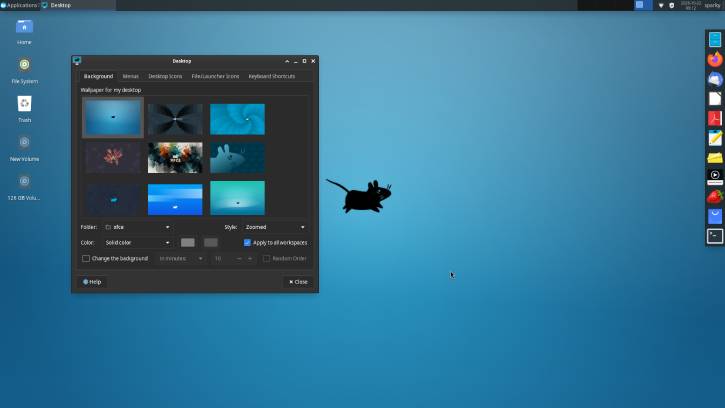
You can now connect your new Linux PC to a network, install or uninstall applications, change desktop wallpaper, icons, and perform other tasks, just as you would on a regular PC. Everything is still there the next time you boot it up, even if you use it on a different computer.
About SparkyOS
SparkyOS is an Arch based Linux operating system developed by the Debian-based team behind SparkyLinux. Version 2026.10 marks the first official release. What it makes different is that instead of installing Linux on your computer’s hard drive, SparkyOS lets you carry your entire operating system on a USB stick.
As said, SparkyOS uses Arch Linux as its foundation, paired with the lightweight Xfce desktop environment. It ships with Linux kernel 7.2.11 and gives you access to the AUR (Arch User Repository), complete with Yay for easy package management. This means you’re not limited to a fixed set of software — you can install pretty much anything the Arch ecosystem offers.
FYI, while Arch is the foundation for this first version, SparkyOS isn’t locked to Arch Linux — they envision building portable variants on other distributions including Debian down the line.

