

Google Chrome now lets you capture high-resolution frames from YouTube videos natively. Before, you’d usually need a browser extension or a screen capture tool like Snipping Tool. With Chrome’s new media controls on desktop version, screenshot YouTube videos is much easier.
Chrome browser for desktop now has a new “save video frame” option that lets you grab high-resolution stills as PNGs. It’s handy because it gives you a clean image without the browser window or playback controls getting in the way, so you don’t need to rely on a screen-capture tool. Here’s how to use it.
Steps to Capture Screenshots of YouTube Video
- Open Google Chrome on your PC and go to YouTube.
- Play a video and pause it on the exact frame you want to save.
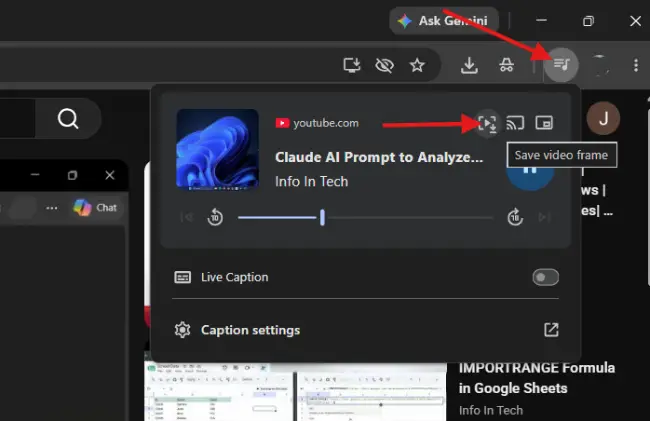
- Click the “Media controls” button (the music/video icon) in the top-right corner of the browser toolbar.
- Select the “Save video frame” button (see screenshot below) from the panel.
- Choose where to save the file, name it, and click Save.
After capturing the video frame, open the saved file in Photos app in Windows 11 or any other compatible image editor on your PC to view, crop, edit, or share it easily.
Note: Some YouTube videos or playback conditions may not allow to capture frame capture. If you have not seen the media controls button in Chrome browser, check your browser is updated to latest version.
Final Thoughts:
Chrome’s built-in screenshot tool makes the whole process much easier. Instead of dealing with third-party apps or spending extra time cropping out distractions, I can capture exactly what I need in just a few seconds. The result is a clean, polished image that’s ready to use right away.
It’s a simple feature on the surface, but it saves a lot of time in practice, especially when making tutorials or showing how something works. If you often grab frames from video content, it’s the kind of small convenience that adds up fast.

