

Recently, I published an article on how to enable and use Windows 11’s built-in VPN on your PC without installing any VPN app. If you want to use this VPN protection on your smartphone, smart TV, Fire TV Stick, or other devices without installing an app, there is a workaround.
If you already have a paid VPN, you can use it on your TV, Fire TV Stick, and other devices without installing the VPN app by using this workaround. However, make sure you disable automatic protocol selection and choose the OpenVPN protocol in the VPN app.
In this guide, let’s learn how to set up and use your own VPN hotspot to share your internet with other devices. This way, you can share your Windows 11 VPN with your smartphone or other devices without installing a VPN app on each device.
Steps to Create Your Own VPN Hotspot on Windows 11
1. Press Win + I to open the Settings app on Windows 11 and click ‘Network & internet’.
2. Select ‘Mobile hotspot’ and switch on it. You will see username and password for the hotspot, you can edit it make it easier to remember.
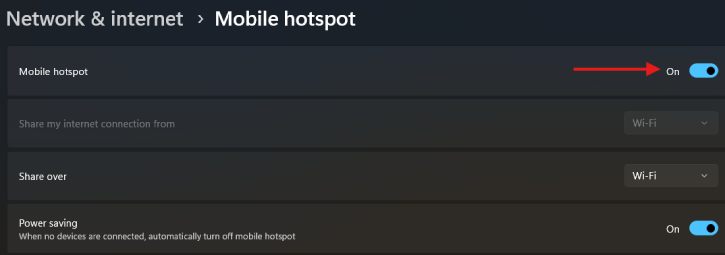
3. Now, you will need to link your VPN connection to your ‘Mobile hotspot’. First, turn on VPN connection on Windows 11 (or in your VPN app)
4. Next, in Windows 11’s search box, type network and click on ‘View network connections’.
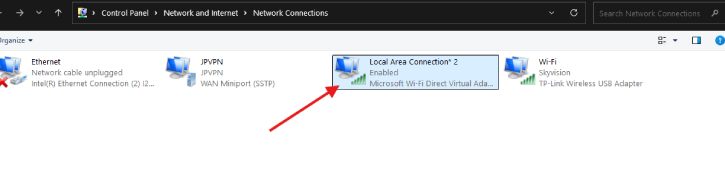
5. This will display all the network adapters on your Windows 11, including your Wi-Fi network and new hotspot.
[The hotspot name will confusingly be labelled Local Area Connection in your computer. But the ‘Virtual Adapter’ in its description confirm it].
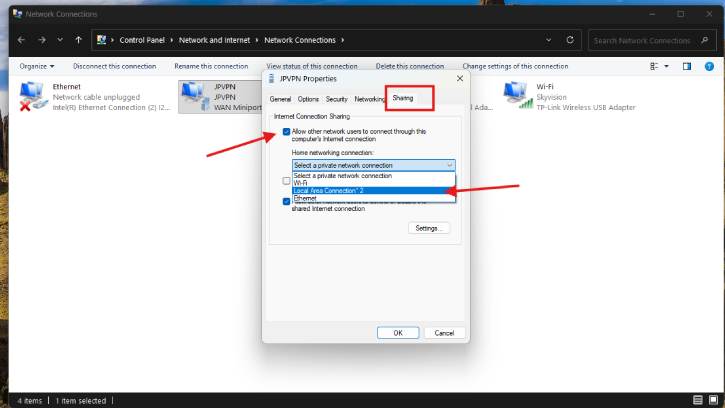
6. Now, right-click on your VPN connection, chose Properties and click the Sharing tab (see screenshot below).
7. Tick the box ‘Allow other network users to connect through this computer’s Internet connection’.
8. Next, click the dropdown menu, select your virtual adapter/ mobile hotspot (here Local Area Connection) and click OK.
9. Now you can connect this VPN mobile hotspot to any other devices at your home or office.
You have created a VPN hotspot on your Windows 11 PC. Now you can connect all devices to the hotspot, whether they support VPNs or not. And the great news is that you can overcome the restriction of using VPN on your Wi-Fi router.
How to Connect Your Devices to the VPN Hotspot
- Open the Wi-Fi settings on your phone or any other device.
- You will see the new virtual router in the list of available networks.
- Select it, enter the password and it will connect instantly.
- To ensure the VPN was doing its job, visit www.ipleak.net in your mobile or TV browser and verify your location.
- It should be the location you have choose for VPN.
Final thought:
A VPN hotspot is a simple way to extend your Windows 11 VPN protection to devices that don’t support VPN apps, making secure browsing easier across your home.

