

WhatsApp, the popular social messaging platform, offers several privacy and security features to protect its users. One of the newest additions is Scam Alert, a feature designed to warn you when messages from unknown senders may be suspicious.
In this guide, let us learn how to enable Scam Alert feature in WhatsApp. As of this writing, Scam Alert is available on Android and iOS devices in a limited number of countries. This feature is currently not available in WhatsApp Web and desktop app. Check if the feature is supported in your region before attempting to enable it.
How to Enable WhatsApp Scam Alert Feature
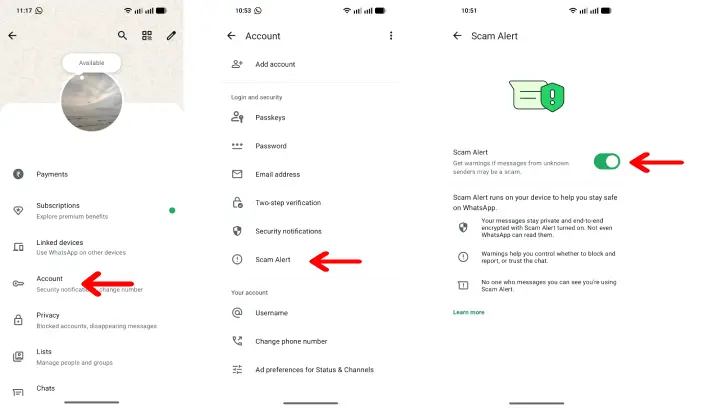
1. Update your WhatsApp app to latest version on Android or iOS.
2. Next, launch WhatsApp and select Settings.
3. In Settings, tap on Account option.
4. Scroll down, and tap on the Scam Alert option to turn on or off the feature.
Now, let us learn how the Scam Alert works in WhatsApp. Scam Alert helps you identify conversation patterns commonly used by scammers. When you receive a message from someone you don’t know, the feature analyzes and alerts you if the message appears suspicious.
If you get the scam warning, you can block or report the message directly to WhatsApp. If you think it isn’t a scam or suspicious, you can tap Trust to dismiss the warning and continue the conversation normally.
FYI, Scam Alert keeps everything on your phone, like your voice messages transcripts and translations. Nothing gets sent anywhere else. And, your personal messages stay encrypted end-to-end, so they’re truly private. WhatsApp can’t read them, it’s just between you and the people you’re talking to.
Final Thought
WhatsApp’s Scam Alert flags suspicious messages that appear to be scams or phishing attempt, and warns you before opening potentially dangerous links. However, this feature does not replace your own judgment. Always verify requests before sharing personal or financial information.

