Tag: Social media

  • How to Enable WhatsApp Scam Alert Feature

    How to Enable WhatsApp Scam Alert Feature

    WhatsApp, the popular social messaging platform, offers several privacy and security features to protect its users. One of the newest additions is Scam Alert, a feature designed to warn you when messages from unknown senders may be suspicious.

    In this guide, let us learn how to enable Scam Alert feature in WhatsApp. As of this writing, Scam Alert is available on Android and iOS devices in a limited number of countries. This feature is currently not available in WhatsApp Web and desktop app. Check if the feature is supported in your region before attempting to enable it.

    How to Enable WhatsApp Scam Alert Feature

    1. Update your WhatsApp app to latest version on Android or iOS.

    2. Next, launch WhatsApp and select Settings.

    3. In Settings, tap on Account option.

    4. Scroll down, and tap on the Scam Alert option to turn on or off the feature.
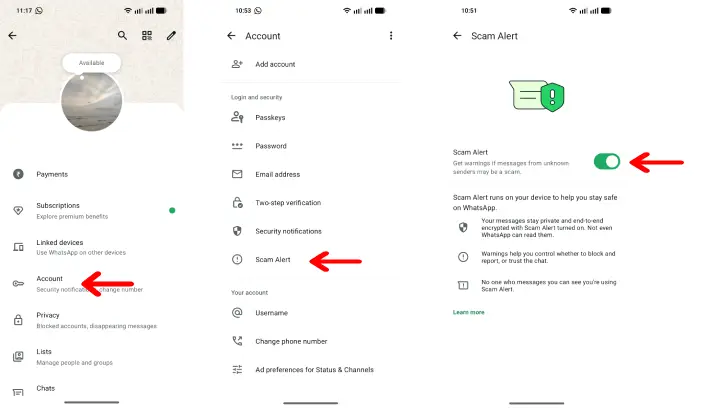
    Enable WhatsApp Scam Alert Feature

    Now, let us learn how the Scam Alert works in WhatsApp. Scam Alert helps you identify conversation patterns commonly used by scammers. When you receive a message from someone you don’t know, the feature analyzes and alerts you if the message appears suspicious.

    If you get the scam warning, you can block or report the message directly to WhatsApp. If you think it isn’t a scam or suspicious, you can tap Trust to dismiss the warning and continue the conversation normally.

    FYI, Scam Alert keeps everything on your phone, like your voice messages transcripts and translations. Nothing gets sent anywhere else. And, your personal messages stay encrypted end-to-end, so they’re truly private. WhatsApp can’t read them, it’s just between you and the people you’re talking to.

    Final Thought

    WhatsApp’s Scam Alert flags suspicious messages that appear to be scams or phishing attempt, and warns you before opening potentially dangerous links. However, this feature does not replace your own judgment. Always verify requests before sharing personal or financial information.
  • WhatsApp Advanced Chat Privacy: How to Enable & Disable This Feature

    WhatsApp Advanced Chat Privacy: How to Enable & Disable This Feature

    Advanced chat privacy is a powerful new privacy feature of WhatsApp that puts you in control of your most sensitive conversations. Whether you’re protecting personal messages or managing a group chat, this feature prevents your chats from being shared or exported outside of WhatsApp. Here’s how to enable or disable in WhatsApp private or group chat.

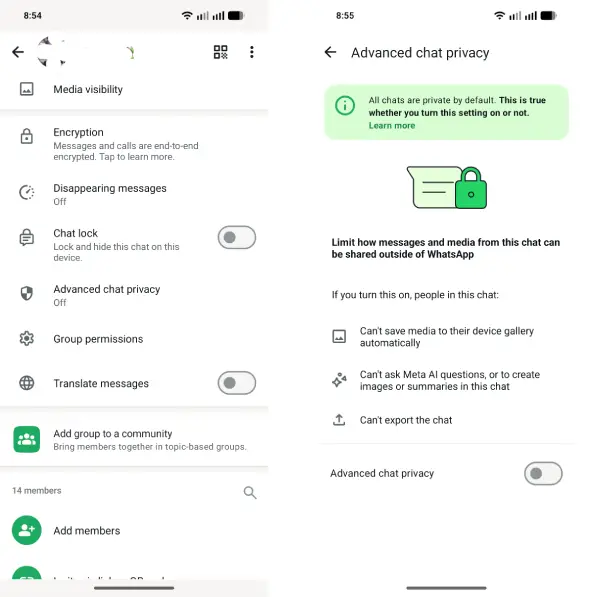
    Before get into the article, let us learn whats is WhatsApp advanced chat privacy. It is a built-in security feature designed to restrict how your messages and media can be shared outside of WhatsApp. When enabled on a specific chat or group chat, photos and videos sent in the chat won’t automatically save to your device gallery. Meta AI cannot access, summarize, or create images based on this chat’s content, and chats cannot be exported or shared outside of WhatsApp.

    This feature is available on both Android and iOS devices and can be enabled individually for each chat or group. For group conversations, only group admin can enable or disable advanced chat privacy.

    How to Enable WhatsApp Advanced Chat Privacy

    Advanced Chat Privacy is disabled by default, so you’ll need to activate it manually for each conversation. Before you start, ensure your WhatsApp is updated to the latest version.

    1. Open WhatsApp on your phone

    2. Navigate to the chat you want to secure (individual or group)

    3. Tap the contact or group name at the top of the screen

    4. Scroll down to find the Advanced Chat Privacy option

    5. Toggle the switch to enable the feature

    enable-whatsapp-advanced-chat-privacy

    Once activated, all three protections take effect immediately.

    To disable WhatsApp advanced chat privacy,

    • Open WhatsApp on your phone
    • Navigate to the chat where you enabled the feature
    • Tap the contact or group name at the top
    • Scroll down to Advanced Chat Privacy
    • Toggle the switch to disable the feature

    Note that WhatsApp does not currently offer a bulk option to enable or disable Advanced Chat Privacy across multiple chats simultaneously. You must manage this setting individually for each conversation. While this requires more manual effort, it also gives you control over which chats need the extra protection.

    Conclusion

    Advanced Chat Privacy empowers you to secure individual conversations without affecting your entire WhatsApp experience. By enabling this feature selectively, you maintain flexibility while protecting your most sensitive chats from unwanted sharing, AI analysis, or export. Remember that it requires manual activation for each chat and can only be managed by group admins in group conversations.