Tag: WhatsApp

  • How to Enable WhatsApp Scam Alert Feature

    How to Enable WhatsApp Scam Alert Feature

    WhatsApp, the popular social messaging platform, offers several privacy and security features to protect its users. One of the newest additions is Scam Alert, a feature designed to warn you when messages from unknown senders may be suspicious.

    In this guide, let us learn how to enable Scam Alert feature in WhatsApp. As of this writing, Scam Alert is available on Android and iOS devices in a limited number of countries. This feature is currently not available in WhatsApp Web and desktop app. Check if the feature is supported in your region before attempting to enable it.

    How to Enable WhatsApp Scam Alert Feature

    1. Update your WhatsApp app to latest version on Android or iOS.

    2. Next, launch WhatsApp and select Settings.

    3. In Settings, tap on Account option.

    4. Scroll down, and tap on the Scam Alert option to turn on or off the feature.
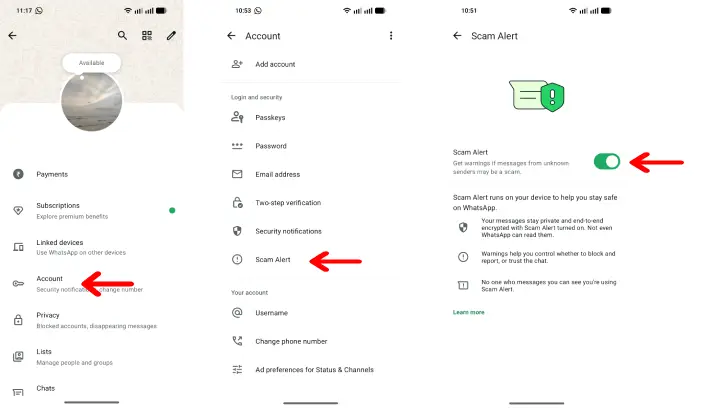
    Enable WhatsApp Scam Alert Feature

    Now, let us learn how the Scam Alert works in WhatsApp. Scam Alert helps you identify conversation patterns commonly used by scammers. When you receive a message from someone you don’t know, the feature analyzes and alerts you if the message appears suspicious.

    If you get the scam warning, you can block or report the message directly to WhatsApp. If you think it isn’t a scam or suspicious, you can tap Trust to dismiss the warning and continue the conversation normally.

    FYI, Scam Alert keeps everything on your phone, like your voice messages transcripts and translations. Nothing gets sent anywhere else. And, your personal messages stay encrypted end-to-end, so they’re truly private. WhatsApp can’t read them, it’s just between you and the people you’re talking to.

    Final Thought

    WhatsApp’s Scam Alert flags suspicious messages that appear to be scams or phishing attempt, and warns you before opening potentially dangerous links. However, this feature does not replace your own judgment. Always verify requests before sharing personal or financial information.
  • WhatsApp Advanced Chat Privacy: How to Enable & Disable This Feature

    WhatsApp Advanced Chat Privacy: How to Enable & Disable This Feature

    Advanced chat privacy is a powerful new privacy feature of WhatsApp that puts you in control of your most sensitive conversations. Whether you’re protecting personal messages or managing a group chat, this feature prevents your chats from being shared or exported outside of WhatsApp. Here’s how to enable or disable in WhatsApp private or group chat.

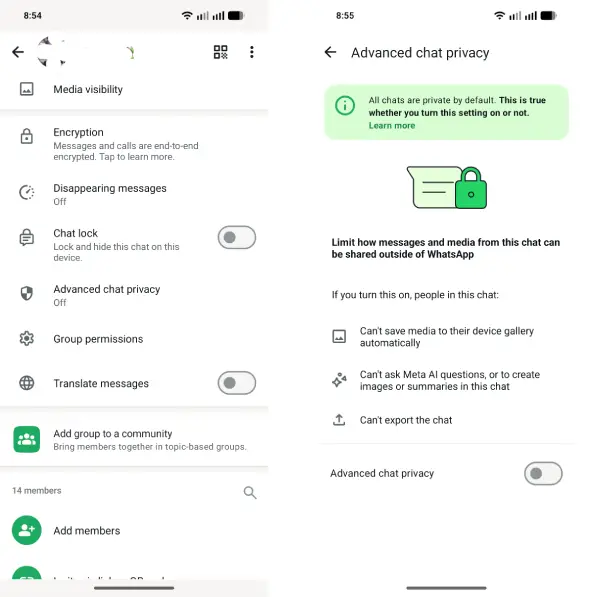
    Before get into the article, let us learn whats is WhatsApp advanced chat privacy. It is a built-in security feature designed to restrict how your messages and media can be shared outside of WhatsApp. When enabled on a specific chat or group chat, photos and videos sent in the chat won’t automatically save to your device gallery. Meta AI cannot access, summarize, or create images based on this chat’s content, and chats cannot be exported or shared outside of WhatsApp.

    This feature is available on both Android and iOS devices and can be enabled individually for each chat or group. For group conversations, only group admin can enable or disable advanced chat privacy.

    How to Enable WhatsApp Advanced Chat Privacy

    Advanced Chat Privacy is disabled by default, so you’ll need to activate it manually for each conversation. Before you start, ensure your WhatsApp is updated to the latest version.

    1. Open WhatsApp on your phone

    2. Navigate to the chat you want to secure (individual or group)

    3. Tap the contact or group name at the top of the screen

    4. Scroll down to find the Advanced Chat Privacy option

    5. Toggle the switch to enable the feature

    enable-whatsapp-advanced-chat-privacy

    Once activated, all three protections take effect immediately.

    To disable WhatsApp advanced chat privacy,

    • Open WhatsApp on your phone
    • Navigate to the chat where you enabled the feature
    • Tap the contact or group name at the top
    • Scroll down to Advanced Chat Privacy
    • Toggle the switch to disable the feature

    Note that WhatsApp does not currently offer a bulk option to enable or disable Advanced Chat Privacy across multiple chats simultaneously. You must manage this setting individually for each conversation. While this requires more manual effort, it also gives you control over which chats need the extra protection.

    Conclusion

    Advanced Chat Privacy empowers you to secure individual conversations without affecting your entire WhatsApp experience. By enabling this feature selectively, you maintain flexibility while protecting your most sensitive chats from unwanted sharing, AI analysis, or export. Remember that it requires manual activation for each chat and can only be managed by group admins in group conversations.

  • Add WhatsApp’s New “Happy New Year 2026” Sticker to Your Status: Step by Step Guide for 2026

    Add WhatsApp’s New “Happy New Year 2026” Sticker to Your Status: Step by Step Guide for 2026

    As 2026 approaches, millions of WhatsApp users are preparing to share their pre- and post-New Year celebration moments using the app’s Status feature. WhatsApp rolling out ‘Happy New Year 2026’ stickers pack, which you can add to your status update.

    This guide explains how to add the festive ‘Happy New Year 2026’ sticker to your WhatsApp status, helping you spread holiday cheer and celebrate the upcoming year.

    Add WhatsApp’s New “Happy New Year 2026” Sticker to Your Status

    Currently, WhatsApp is rolling out new stickers to celebrate 2026 through its beta app version. If you have an Android smartphone, ensure you install WhatsApp version 2.26.1.4.

    You can join the WhatsApp beta program on the Google Play Store to download the beta version. Alternatively, if joining through the Play Store is not possible, you can sideload the beta APK file. To do this, visit the APK Mirror website and download the beta APK for WhatsApp. If you prefer convenience, simply click this link to download the APK file directly to your device.

    ALSO READ: How to Use WhatsApp’s Built-in Feature to Translate Messages

    How to Add WhatsApp’s New ‘Happy New Year 2026’ Status Sticker

    1. Open WhatsApp on your Android phone and tap the Updates tab at the bottom.

    2. Tap Add Status (camera icon).

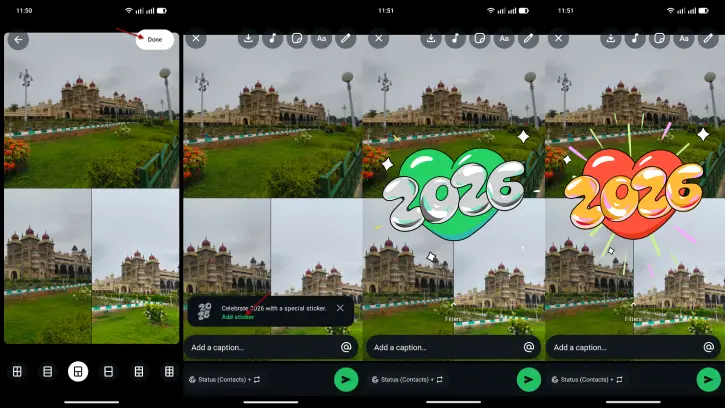
    3. Select Layout (you’ll see a small “2026” animation over the Layout option).

    4. Choose up to six images to include in the layout.

    5. Pick your layout style and tap the white Done button.

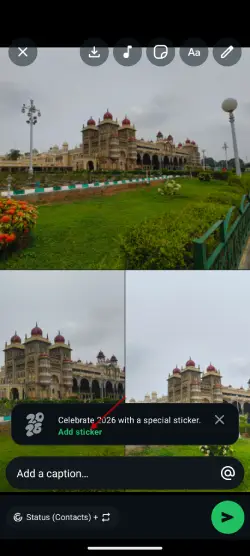
    6. On the next screen, add a caption. When the “Celebrate 2026 with a special sticker” pop-up appears, tap Add Sticker.

    Add WhatsApp’s New “Happy New Year 2026” Sticker to Your Status

    7. A green sticker reading “2026” will be added to your layout.

    8. To move or resize the sticker, pinch and drag it.

    9. To change the sticker color, tap the sticker gently.

    Alongside the new 2026 sticker for your WhatsApp Status, WhatsApp has launched a fresh Happy New Year sticker pack. This pack features 14 stickers, including one specifically for adding to your status, and it has a total size of approximately 488 KB. To access the sticker pack, open any chat and tap the Emoji icon located to the left of the text field.

    Tap the stickers tab and then click the icon with the + symbol in the bottom right corner. Here, you can find all the new stickers released by WhatsApp under the “All Stickers” tab. In the “Your Stickers” tab, you’ll see all the sticker packs you’ve installed or downloaded from the Google Play Store.

    Conclusion

    As 2026 approaches, countless WhatsApp users are gearing up to share their pre- and post-New Year celebration experiences using the app’s Status feature. WhatsApp has launched a new ‘Happy New Year 2026’ sticker pack that users can add to their status updates, making it easier to spread festive cheer.

  • How to Use WhatsApp’s Built-in Feature to Translate Messages

    How to Use WhatsApp’s Built-in Feature to Translate Messages

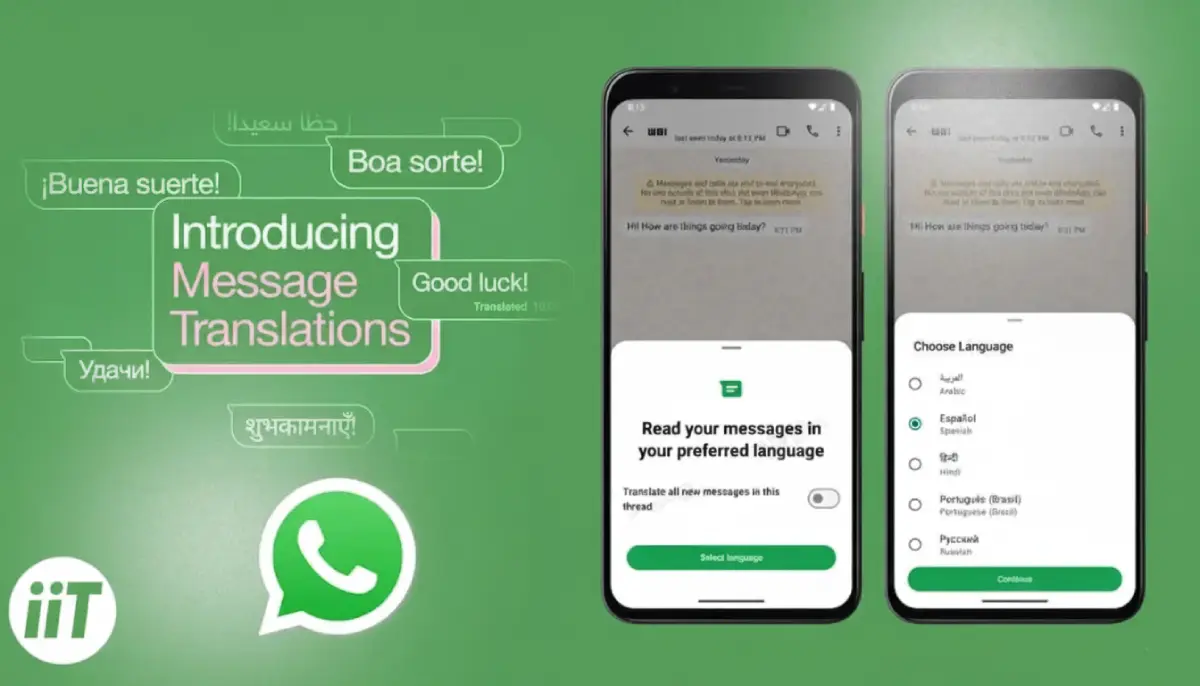
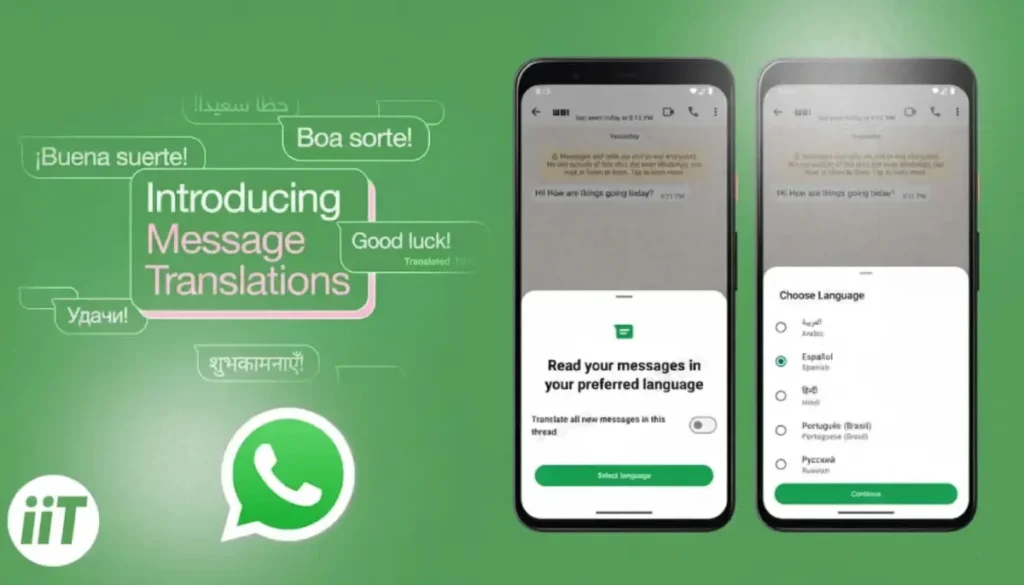
    WhatsApp now includes a built-in message translation feature, allowing you to chat without concerns about foreign languages. This functionality enables over 3 billion users across 180 countries to communicate without language barriers.

    How to use the WhatsApp message translation feature

    WhatsApp’s new message translation feature allows users to express themselves in their own language without relying on third-party translation apps. With this feature, you can easily translate incoming messages that are in different languages.

    This feature simplifies communication by allowing seamless interaction across languages, enhancing the overall messaging experience for users worldwide. Here is how to use the in-app message translation feature in WhatsApp.

    How to use the WhatsApp message translation feature?

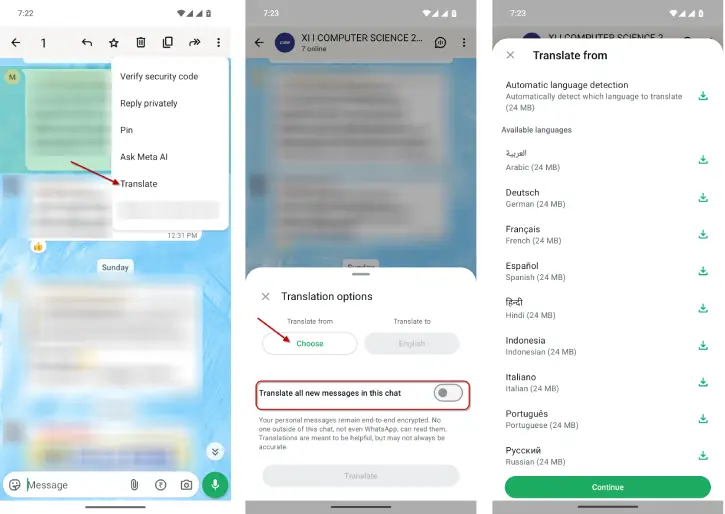
    1. Launch WhatsApp and go to the chat where you received a message in a foreign language.

    2. Long press on the message you want to translate.

    3. Tap on the three-dot menu icon located at the top-right corner of the screen.

    4. From the menu that appears, select the Translate option.

    How to use the WhatsApp message translation feature

    5. Choose the language of the original message and the language you want to translate it into.

    6. To apply translation setting for future messages in the chat, turn on the “Translate all new messages in this chat” option.

    7. To see the message in its original language or change the translation language, long press the message again and tap on “View translation” option.

    Note that this feature is available on Android and iOS devices. On Android you can enable automatic translation feature. This means you no longer need to translate each message separately.

    Currently, Android users have access to 9 languages for the translation feature, while iOS users benefit from support for over 19 languages. Meta is expected to introduce additional languages in future updates, enhancing communication options further.

    Conclusion

    WhatsApp has evolved into a comprehensive communication platform, offering texting, voice and video calls, status sharing, and AI features. Recently, it introduced an in-app message translation feature, further simplifying communication for users worldwide and enhancing the overall experience.

  • How to Use Google Nano Banana in WhatsApp to Edit Photos

    How to Use Google Nano Banana in WhatsApp to Edit Photos

    Nano Banana, the AI image editing tool from Google DeepMind, can transform your photos into artistic masterpieces. Its ability to create breathtaking visuals has excited people in the AI community. What is more it is free to use, simple and really fast.

    Use Nano Banana in WhatsApp

    Now, Google Nano Banana, also known as the Gemini 2.5 Flash Image model, is available on WhatsApp. This means you don’t need to use the Gemini app to access Nano Banana. This guide will show you how to create Nano Banana images in WhatsApp.

    Benefits of Using Gemini Nano Banana in WhatsApp

    Google’s Gemini Nano Banana is a powerful, fast, and free tool for image generation. Integrating it into WhatsApp offers a user-friendly experience, making it accessible to anyone familiar with the messaging platform.

    Using Nano Banana in WhatsApp simplifies the process of creating images. You can generate stunning visuals effortlessly, just like chatting with a friend, enhancing convenience and encouraging creativity without needing to switch between different apps.

    How to Use Nano Banana Image Editor in WhatsApp

    If you’re curious about how to use it, here’s a step-by-step guide. To achieve the best results with AI image editing tools like Nano Banana, it’s essential to craft clear and specific prompts.

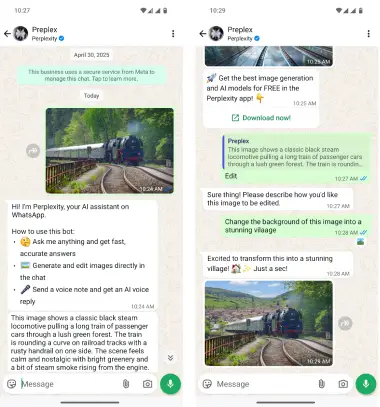
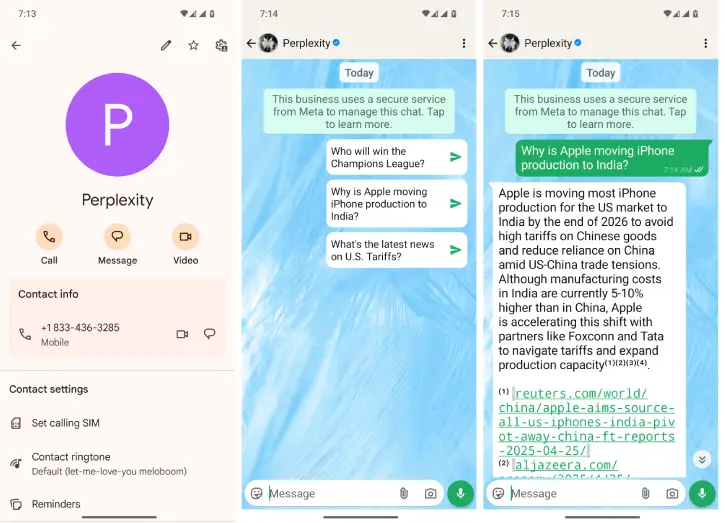
    1. Save the Perplexity AI number (+1 (833) 436-3285) on your phone or visit its WhatsApp chat page.

    2. Tap the “Clip” icon and choose the image you want to edit.

    3. Write your prompt and press enter to generate images.

    4. Wait a few seconds for the chatbot to send you the edited image.

    5. To save the image, tap on it, then tap the three dots, and select the “Save” button. Your image will be saved on your device.

    Use Google Nano Banana Image Editor in WhatsApp

    Note that Perplexity has not announced if the WhatsApp version will be entirely free. However, it is expected that there will be a basic free plan available with minimal limitations. Users who require more extensive usage may need to purchase additional credits.

    Conclusion

    The Gemini Nano Banana outshines the typical AI tool, offering an exceptional combination of fast, user-friendliness, and cutting-edge features. With its recent launch on WhatsApp, accessing its capabilities has become even easier and more enjoyable. You can now unleash your ideas, creativity, and imagination right within your favorite messaging app.

  • How to Restore WhatsApp Chats and Media Without Google Drive

    How to Restore WhatsApp Chats and Media Without Google Drive

    WhatsApp allows you to back up your chats and media to Google Drive, which you can use to restore your data when reinstalling the app or switching to a new phone. However, if you haven’t enabled Google Drive backup, you will lose all your chats when you reinstall or set up WhatsApp on a new phone.

    Restore WhatsApp chats without Google Drive

    In this guide, we will learn how to back up your WhatsApp chats and media files without using Google Drive. This method is particularly useful if you encounter an issue when restoring chats from Google Drive backup.

    If you cannot use your Google Drive backup transfer your chats to WhatsApp, it will automatically create a new backup that includes only 2-3 of your most recent chats.

    In this case, the below steps may help you restore your old chats, ensuring everything goes smoothly.

    ALSO READ: How to Use the Perplexity AI Chatbot on WhatsApp

    How to Restore WhatsApp Chats and Media Without Using Google Drive

    1. First, open any file manager app on your old phone (the one on which you were previously using WhatsApp).

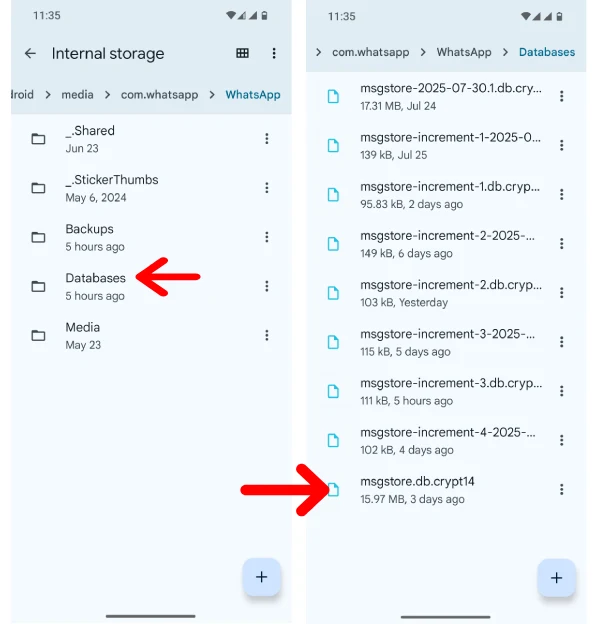
    2. Next, navigate to Internal Storage > Android > media > com.whatsapp > WhatsApp > Databases.

    3. You will see the msgstore.db.crypt14 file, most often located at the bottom of the page.

    [msgstore.db.crypt14 file is the latest WhatsApp backup that the app has made; the other files (YYYY-MM-DD.1.db.crypt14) are older backups]

    Restore WhatsApp chats without using Google Drive

    4. Copy the msgstore.db.crypt14 file and transfer it to the new device where you want to install WhatsApp.

    5. After installing WhatsApp on your new phone, navigate to Internal Storage > media > com.whatsapp > WhatsApp > Databases.

    6. If you do not see a Databases folder, create a new one and paste the msgstore.db.crypt14 file into this folder.

    7. ow, relaunch WhatsApp, and you will receive a prompt to restore data from internal storage.

    8. Tap Restore. The data will be restored from the msgstore.db.crypt14 file, and the process will take some time.

    Backing up your WhatsApp chats and media without Google Drive is essential for preserving important conversations. By following the outlined steps, you can successfully restore your old chats, ensuring you don’t lose valuable information during app reinstallation or phone changes.

  • How to Use the Perplexity AI Chatbot on WhatsApp

    How to Use the Perplexity AI Chatbot on WhatsApp

    Perplexity has expanded its services to WhatsApp, making it easier for users to access the AI assistant through the widely-used messaging platform without the need to download a separate app. In this guide, let us learn how to utilize Perplexity AI on WhatsApp.

    Perplexity AI

    Perplexity’s WhatsApp integration provides a convenient way to quickly and efficiently chat with the AI assistant. This functionality is also available for ChatGPT.

    Of course, WhatsApp has its Meta AI chatbot, but users who prefer the unique capabilities of Perplexity AI can now interact with it directly within the WhatsApp interface. This allows for seamless communication for those who rely on WhatsApp, eliminating the need for app installations or account sign-ups.

    How to Use the Perplexity AI Chatbot on WhatsApp

    1. Open the Phone app or Contacts app on your smartphone and save the number +1 (833) 436-3285. You can assign any name (for example Preplexity) to this contact.

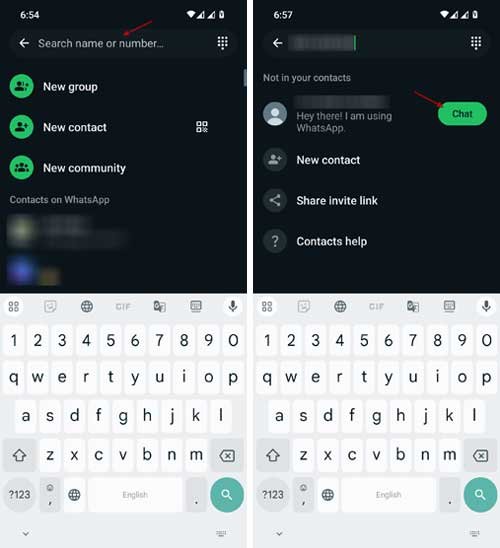
    2. Start a new WhatsApp chat using the saved phone number

    [If the contact doesn’t appear, enter the number in the search bar and select Perplexity’s name to initiate the chat.]

    3. Once connected, you can ask questions, conduct research, summarize lengthy message, and even create custom AI images in WhatsApp.

    Use Perplexity AI on WhatsApp

    ALSO READ: How to install Perplexity AI App on Windows 11

    Benefits of Using Perplexity AI on WhatsApp?

    • Get immediate responses to your queries without switching apps.
    • It helps you enrich your discussions and explore new ideas.
    • Offers a seamless experience within the WhatsApp environment.
    • From research to creative ideas, Perplexity AI can assist with a wide range of tasks.

    Perplexity AI in WhatsApp lets you ask questions and receive instant answers for any subject you like, all within the familiar WhatsApp interface. This feature is useful, especially for those who prefer to use a single, unified messaging app for their daily communication needs.

    That’s all how to use Preplexity AI inside WhatsApp. This integration not only simplifies your communication but also empowers you to make the most of your interactions.

  • WhatsApp Lets You Send Messages Without Saving Phone Number (How to)

    WhatsApp Lets You Send Messages Without Saving Phone Number (How to)

    WhatsApp allows you to send messages to unsaved numbers. This is an useful feature for WhatsApp users, as it can come in handy in various situations. For example, when you want to share your location with a delivery person or if you need to provide information about a product or service to a potential client.

    In this guide, let us learn how to send messages to unsaved numbers or non-contacts on WhatsApp. This method does not require any tricks, and it is also a time-saving process compared to the method we used before. WhatsApp officially allows you to send messages or chat with unsaved phone numbers.

    How to Chat on WhatsApp Without Saving Phone Number?

    1. First, copy or note down the phone number you want to message on WhatsApp.

    2. Next, open WhatsApp on your phone and tap the Chat icon to start a new chat.

    3. In the ‘Search name or number’ search bar, enter the phone number you want to send the message.

    4. If the number has a WhatsApp account, a Chat button will appear at the top.

    5. Tap the ‘Chat’ button next to the phone number to send a message or share location.

    Chat on WhatsApp without saving phone number

    That is all how to send messages on WhatsApp to unsaved numbers or non-contacts. When you search for the number, you’ll also get options like saving it to your contacts from WhatsApp or sharing an invite link.

    FYI, WhatsApp recently introduced several new features to enhance the user experience. Meta AI on WhatsApp, message translation, improved voice and video calling, status reactions, disappearing messages, View Once, multi-device supports, improved group chat, etc., are some of the new features of WhatsApp.