

In this guide, we will explain how to set WhatsApp as your default calling and messaging app on an iPhone. With the latest iOS update (version 18.2), Apple has introduced support for third-party apps to be set as the default for calls and messages. This means that iPhone users can now choose WhatsApp or other apps as their primary app for both calling and messaging.
With the iOS 18.2 update, Apple has enabled users to set default apps for various categories, including email, messaging, calling, browser, keyboard, and more. Until recently, however, WhatsApp was not among the available options for default apps. Now, with the latest version 25.8.74 of WhatsApp for iOS, the app has added support for this feature, allowing users to set it as the default for both messaging and calling.
To set WhatsApp as default for calls and messages on iPhone, you need to update your phone to latest iOS 18.2, as well as update WhatsApp to version 25.8.74 or up.
How to Set WhatsApp as Default Calling/Messaging App on iPhone
- First, update or install latest version of WhatsApp from App Store.
- Now, open the Settings app on your iPhone, tap Apps and select Default Apps.
- To set WhatsApp as the default messaging app, choose Messaging and set it to WhatsApp.
- To set WhatsApp as the default calling app, select Calling, and set it to WhatsApp.
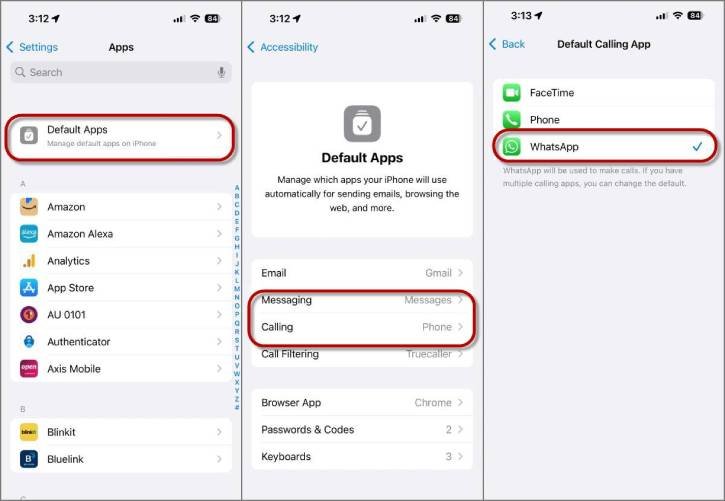
You have successfully set WhatsApp as your default calling and messaging app. Now, when you tap a number in your call log, WhatsApp will be the primary option instead of the regular phone calls. This will launch WhatsApp and initiate the call over the internet.
Similarly, if you select a number to send a message (from call logs, contacts, or apps like Safari), your iPhone will open WhatsApp instead of iMessage or SMS.
It’s important to note that when you access the call log (Recents) app and tap a number, it will still make a regular call unless the call history entry is specifically from WhatsApp.
To make a WhatsApp call, you will need to open the contact card and then select the number. Additionally, regular calls and SMS messages will continue to be received through the default Phone and Messages apps unless the sender is using WhatsApp.

