

Cleaning data takes a lot of time for anyone who works with spreadsheets especially when you import files from sources such as CSV files, PDFs and more. Messy data can slow you down, and add mistakes into your analysis. However, Excel Power Query can automate this process turning hours of work into just a few clicks.
In this guide, let us learn how to use Excel Power Query to clean data efficiently so you can spend less time organizing and more time analyzing.
When you work with data from multiple sources, such as CSV files, PDFs, or other Excel workbooks, the information rarely arrives in a format you can use immediately in your spreadsheet.
You’ll encounter:
- Duplicate entries that skew your analysis
- Extra spaces and inconsistent formatting
- Spelling mistakes and mismatched information
- Disorganized columns that require manual sorting
- Inconsistent data types that cause calculation errors
Without proper cleaning, these issues compound. You end up copying data back and forth between files, making mistakes, and wasting valuable time on repetitive tasks.
What Is Power Query in Excel and How to Use It?
Power Query is Microsoft Excel’s built-in data transformation tool that automates the data cleaning process. Instead of manually sorting through hundreds or thousands of rows, Power Query handles the heavy lifting for you. It helps you do the followings:
- No coding required — Everything is point-and-click
- Repeatable workflows — Once you set up your cleaning steps, you can apply them to new data automatically
- Visual feedback — You see changes in real-time before they’re applied
- Combines multiple files — Merge data from different sources seamlessly
- Removes duplicates instantly — No more hunting for repeat entries
Step-by-Step: How to Use Power Query to Clean Data
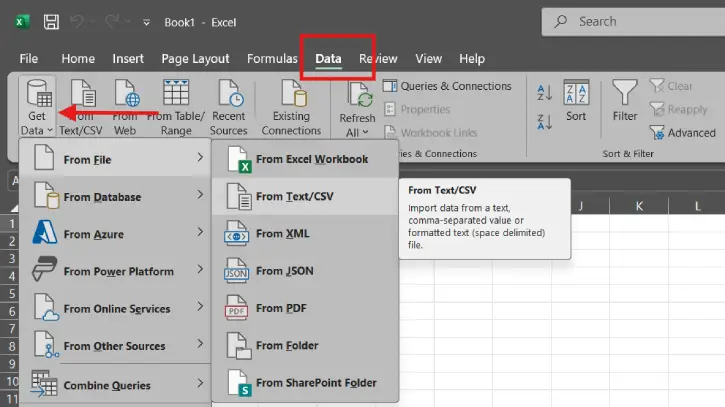
Step 1: Launch Excel, navigate to the Data tab > Get Data > From File. Choose your data source: CSV files, PDF, Excel workbooks, or another file type and click Import button.
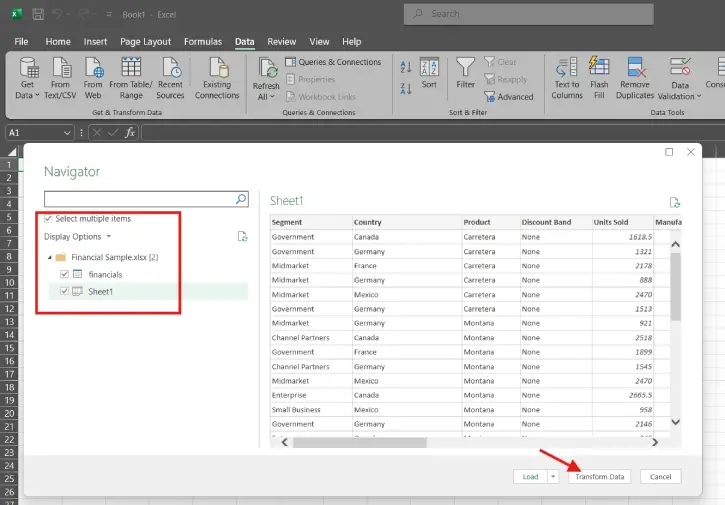
Step 2: A preview window will appear showing you how your data will look when imported. If everything looks good, select items (you can select multiple items) and click Transform Data.
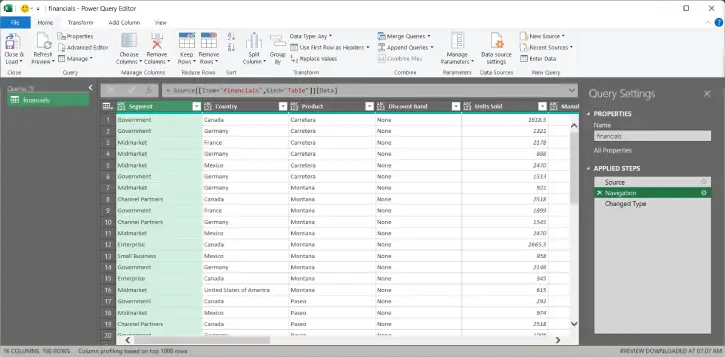
Step 3: Now, the Power Query editor will open, displaying your messy data. On the right side of the screen, you’ll see the Query Settings panel, which is your control center for cleaning.
Here are the most common cleaning tasks you can perform:
Remove Extra Spaces
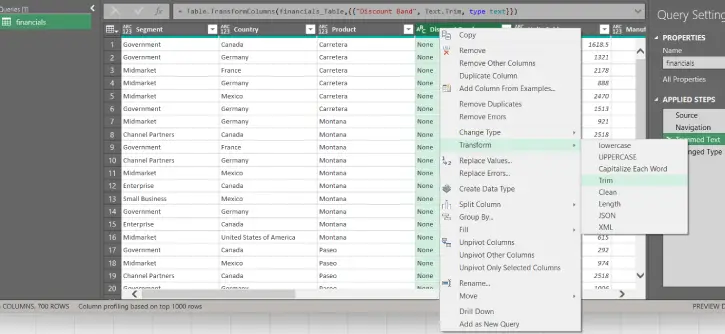
- Right-click on any column header
- Select “Transform” → “Trim”
- This removes all leading, trailing, and extra spaces
Fix Spelling and Standardize Text
Highlight the column with inconsistent entries
Use “Replace Values” to fix common mistakes
Convert text to proper case (Title Case, UPPERCASE, or lowercase)
Remove Duplicate Entries
- Select all your data columns
- Go to “Home” → “Remove Rows” → “Remove Duplicates”
- Choose which columns to check for duplicates
Reorganize and Delete Columns
- Right-click any column you don’t need
- Select “Delete”
- Drag columns to reorder them
Split or Merge Columns
- Use “Split Column” if you need to separate first and last names
- Use “Merge Columns” to combine information
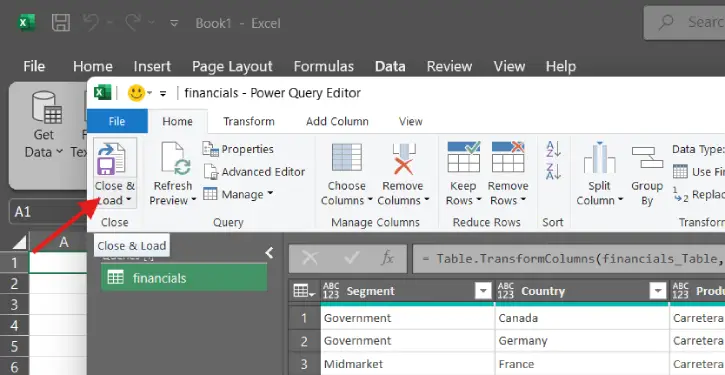
Step 4: Once you’ve made all your changes, click Close & Load in the top-left corner. Your cleaned, organized data will automatically populate into a new Excel table.
Pro Tips for Beginners
Start Small: If you’re new to Power Query, begin with a simple cleaning task like removing duplicates. Once you’re comfortable, try combining multiple columns or removing extra spaces.
Use Preview Mode: Always review the preview before clicking “Transform Data.” This catches errors early and saves time.
Save Your Queries: Excel remembers your cleaning steps. If you get new data in the same format, you can reuse the same query—just point it to the new file.
Combine Multiple Files: Power Query can merge data from several files at once. This is a game-changer for teams working with data from different departments.
Common Mistakes to Avoid
- Not reviewing the preview — Always check before proceeding
- Deleting columns too quickly — Make sure you really don’t need a column before removing it
- Forgetting to remove duplicates — This step can dramatically improve data quality
- Inconsistent data types — Ensure dates, numbers, and text are formatted the same way across all rows
Conclusion
Cleaning messy data doesn’t have to be painful. With Excel’s Power Query, you can automate repetitive tasks and transform cluttered spreadsheets into organized, analysis-ready datasets in just a few minutes. Whether you’re working with customer data, sales records, or survey responses, the steps outlined in this guide will help you streamline your workflow and eliminate costly errors.
Start with a small dataset today, and you’ll quickly see how much time Power Query can save you—time you can spend on actual analysis instead of data entry.

