

Sometimes you may want to know the word count in your Google Slides. Knowing the word count helps you stay within time limits, meet assignment requirements, and maintain audience attention. Most presenters aim for 25–30 words per slide to keep content clear and engaging. Here is how to check word count in Google Slides.

Google Slides doesn’t have a built-in tool for checking text count. However, there are simple workaround to do it using Google Docs. Since tracking word count is important for effective presentations, you should check it before presenting. Here is how to do it.
How to See Word Count on Google Slides
1. First, open your Google Slides presentation that you want to check text count.
2. Highlight the text you want to count by clicking and dragging your mouse over it, then copy the text.
3. After copying it, open a new Google Docs document and paste the copied text using the shortcut Ctrl + V (Windows) or Cmd + V (Mac).
4. Next, go to “Tools” in the menu bar and click on “Word count” to see the total number of words in your pasted text.
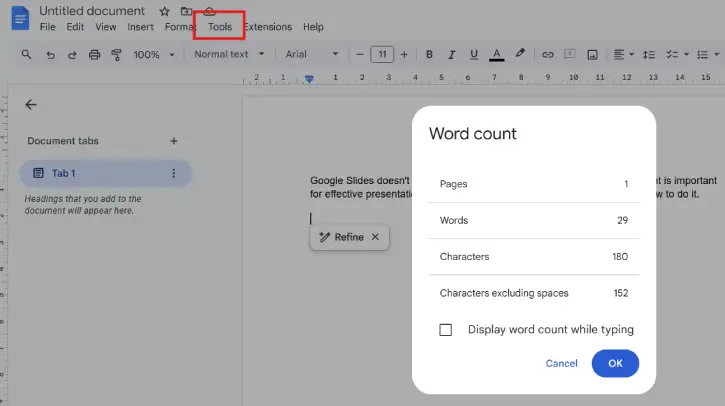
After finishing these steps, a small pop-up will appear in Google Docs displaying the character count. This pop-up provides not only the total number of words but also details such as the number of pages and characters, among other metrics.
ALSO READ: How to Add or Remove Watermarks in Google Docs
FAQ
Q: Why doesn’t Google Slides have a built-in word counter?
A: Google Slides is designed primarily for visual presentations rather than text-heavy documents. The platform prioritizes design and layout over detailed text metrics, which is why word count functionality isn’t included natively.
Q: What’s the ideal word count per slide?
A: Most presenters aim for 25–30 words per slide to keep content clear, readable, and engaging for your audience. This guideline helps prevent overcrowding and maintains focus on visual elements.
Q: Can I check word count for multiple slides at once?
A: The method described requires checking slides individually by copying and pasting text into Google Docs. If you have many slides, you may need to repeat the process for each one, or copy all text at once and paste it together into Google Docs.
Q: Is there a faster way to check word count in Google Slides?
A: For a quicker alternative, you could copy all text from your presentation at once and paste it into Google Docs to get a total count. However, if you need counts per individual slide, the manual method is necessary.
Conclusion
While Google Slides lacks a native word counter, checking your presentation’s word count is a straightforward process using Google Docs. By following the simple copy-paste method outlined above, you can easily monitor your text and ensure each slide adheres to the 25–30 word guideline for optimal clarity and audience engagement.

