

HomeExcelJump to New Cell (Down, Up, Left, Right) After Inputting Value in...

Jump to New Cell (Down, Up, Left, Right) After Inputting Value in Excel and LibreOffice Calc

Published on

If you spend any real time in Excel or LibreOffice Calc, you already know that speed isn’t just about typing faster—it’s about eliminating tiny pauses. One of the most underrated ways to work quicker is learning how spreadsheet navigation keys behave after you enter data. Below are the shortcut keys to jump to new cell (down, up, left, right) in Excel and Calc.
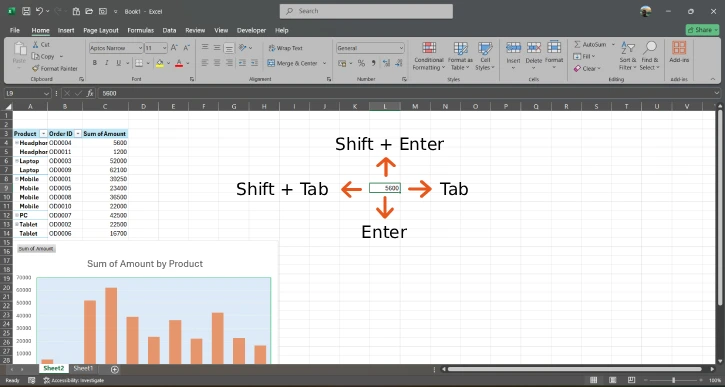
Most people rely on Enter to jump to new cell. You type a value into a cell, press Enter, and the cursor jumps to the next cell down. That default behavior is great when you’re filling a column, but it can slow you down if your workflow naturally moves across a row or column, and needs to move upward or sideways.

Shortcut to Jump to New Cell in Excel

Shortcut to Jump to New Cell (Down, Up, Left, Right)

Here’s the practical set of keys you’ll use constantly:

  • Enter: Moves the cursor down one cell (to the cell directly below).
  • Tab: Moves the cursor to the right one cell.
  • Shift + Tab: Moves the cursor to the left one cell.
  • Shift + Enter: Moves the cursor up one cell.

That might sound obvious, but the real advantage comes when you stop thinking of the keyboard as “typing” and start treating it as “navigation.” Instead of using the mouse to click the next location, you can keep your hands on the keyboard and maintain a smooth working.

Why this matters for everyday work

Consider common tasks:

1. Creating a table or form: Often you fill fields left to right. Pressing Tab lets you move across the row without stopping.

2. Logging repeated entries: If you’re recording items in a column (like dates, product IDs, or values), Enter keeps you moving downward quickly.

3. Correcting mistakes: When you notice you typed something in the wrong cell, using Shift + Tab or Shift + Enter can pull you back to the previous location instantly.

4. Reviewing totals and inputs: Moving up with Shift + Enter can be useful when you’re cross-checking a series without breaking your pace.

The best part is that these shortcuts help you avoid “context switching.” Every mouse click means you’re momentarily away from typing. Keyboard navigation keeps your cognitive flow intact—especially when you’re entering dozens or hundreds of cells.

A small workflow tip: match the key to your data direction

A simple habit can make a big difference: decide whether you’re moving vertically or horizontally based on how your data is structured.

  1. If your template is column-driven, rely on Enter.
  2. If your template is row-driven, rely on Tab.
  3. If you’re working backward (reviewing or fixing), use Shift + Tab or Shift + Enter.
  4. Once you do this consistently, you’ll feel the difference quickly. It’s like changing from “point-and-click” to “keyboard-first.”

Extra useful tricks to consider

To go one step further, pay attention to what happens when you’re editing formulas or data:

  • When editing values, these movement keys help you “commit” the entry and move on immediately.
  • If you use dropdowns, checkboxes, or structured inputs, consistent navigation keys prevent accidental stays in edit mode.
  • Even if you don’t change any settings, knowing the correct key for each direction is one of the fastest ways to boost productivity.

Conclusion

Excel and LibreOffice Calc both reward keyboard discipline. Instead of settling for only Enter (downward movement), take advantage of Tab, Shift + Tab, and Shift + Enter to move right, left, or up exactly when you need to. In the long run, these small improvements compound into real time savings—especially for repetitive data entry.

Ishanvi
Ishanvi
Ishanvi is a backend software engineer who mentors others to grow, combining deep technical expertise with a focus on practical, impactful solutions, continuous learning, and helping teams work smarter.

Latest articles

Google Sheets Keyboard Shortcuts: 16 Essential Commands for Faster Work

If you use Google Sheets every day, you already know the truth: clicking your...

Learn Excel’s WRAPROWS and WRAPCOLS Functions With Examples

WRAPROWS and WRAPCOLS are two new functions of Excel 2024. This productivity feature lets...

Excel’s Underrated Feature, Name Box, Actually a Productivity Tool

Have you ever used the Name Box in Excel? It is a small field...

How to Use the IMPORTRANGE Formula in Google Sheets

In this article, we will learn how to use the IMPORTRANGE formula in Google...

More like this

Learn Excel’s WRAPROWS and WRAPCOLS Functions With Examples

WRAPROWS and WRAPCOLS are two new functions of Excel 2024. This productivity feature lets...

Excel’s Underrated Feature, Name Box, Actually a Productivity Tool

Have you ever used the Name Box in Excel? It is a small field...

20 Excel Pivot Table Shortcuts Every Professional Must Know

Today's article reveals the most useful Excel Pivot Table shortcuts that every professional must...

LEAVE A REPLY

Please enter your comment!
Please enter your name here

This site uses Akismet to reduce spam. Learn how your comment data is processed.