

If you’re managing schedules or tracking deadlines in Google Sheets, a date picker can be a helpful option. Instead of manually typing out dates, you can just click a calendar and select the date you need. It might seem like a small thing, but it cuts down on typos and makes the whole process quite easier.
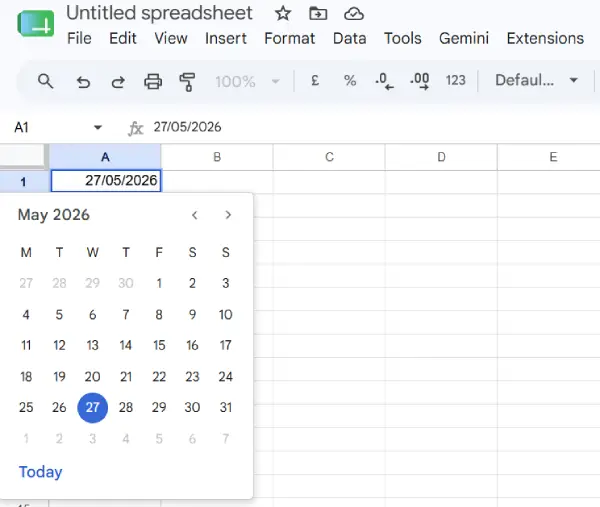
In this guide, you’ll learn how to insert the built-in date picker, use Sheets Smart Canvas feature to insert a date in cells, as well as an always-visible calendar add-on into your Google Sheets. Follow these steps, and you’ll have this feature up and running in no time.
Steps to Add a Built-in Date Picker in Google Sheets
1. First, highlight all the cells where you want to add the date picker or calendar.
2. Next, click the Data tab and select Data Validation.
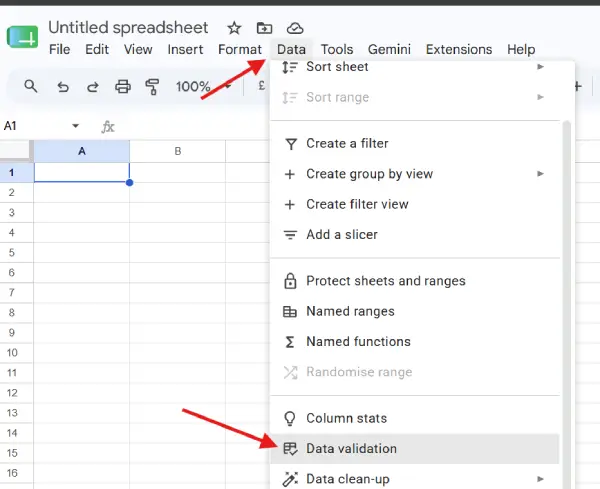
3. Under Data Validation rules, click +Add Rule.
4. Next, under Criteria, click the drop-down menu and select Is valid date.
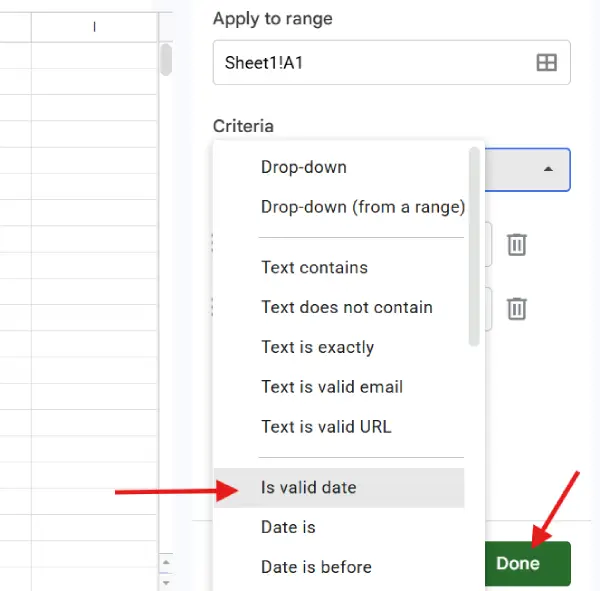
5. Click the Done button to apply the settings.
6. Now, double-click the cell, and a pop-up calendar will appear from there you can choose the date.
Steps to Format Dates in Google Sheets
Once you’ve added the date picker, you may want to ensure that all selected dates display correctly. Here’s how to do it.
Formatting Your Dates:
1. First, highlight your date cells.
2. Click the Format tab and select Number.
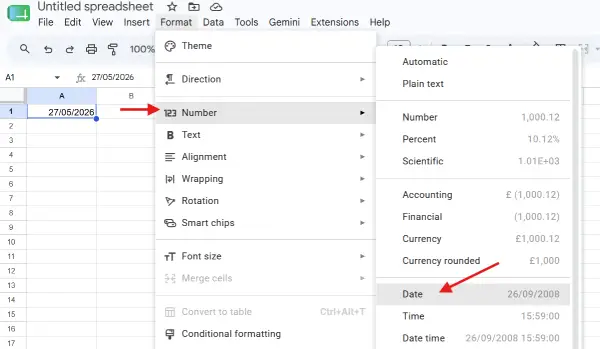
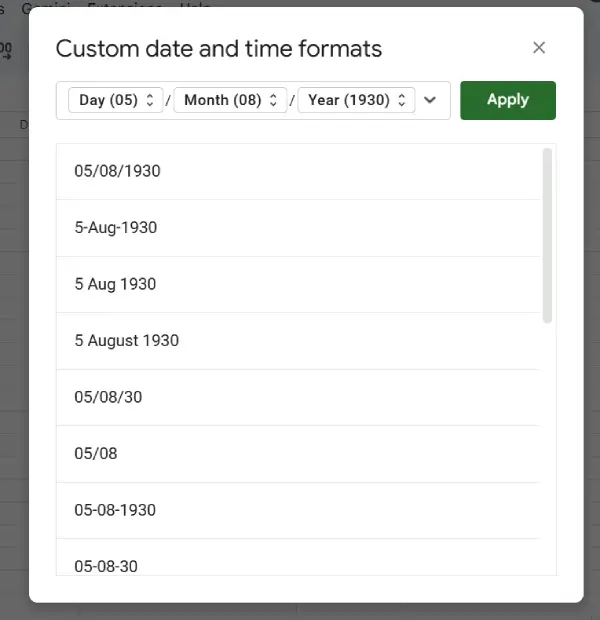
3. Next, either choose Date for the standard format, or select Custom date and time option to choose your preferred format (for example, DD/MM/YYYY or MM-DD-YYYY).
How to Use Google Sheets’ Smart Canvas Feature to Insert a Date
If you want to quickly add a date in a particular cell, you can use Google Sheets‘ Smart Canvas feature. You don’t need to set up complex rules.
Using the Smart Canvas Feature
1. Click into the desired cell and type @date and press Enter.
2. Click the Date option to bring up the calendar.
3. Select your date to add it in the selected cell.
Note: If you prefer a large, always-visible calendar sidebar rather than pop-ups in your cells, you can install a third-party add-on like Date Picker from Google Workspace. The add-on will open as a sidebar in your spreadsheet, allowing you to click a day and automatically stamp it into any selected cell. This option is ideal for frequent date entry tasks or when you need a calendar reference visible at all times while working.
Final Thought
Adding a date picker to your Google Sheets is a simple yet powerful way to boost your work. Whether you choose the native date picker, smart canvas feature, or a third-party add-on, you’ll save time and reduce errors in your spreadsheet management. Start implementing these steps today and experience faster, more accurate date entry.

