

By adding videos in your Excel spreadsheet you can explain what your spreadsheet data mean in a simple way. Instead of writing step-by-step instructions (that nobody reads), you can show your coworkers exactly how a formula works, how it done or highlight what those numbers actually signify.
This approach is a lifesaver for training new team members or documenting complex methodology. Rather than scheduling a call or creating a separate training deck, the answer is sitting right there in the spreadsheet they’re already using.
In this guide let us learn how to embed in videos in spreadsheet. Both Google Sheets and Excel make this surprisingly simple. All you need to link to videos hosted on YouTube, OneDrive, or similar platforms, keeping your file size lean and mean.
ALSO READ: Can Google Sheets Be Password Protected? A Complete Guide
Step by Step Instruction to Embed Videos in Excel Spreadsheet
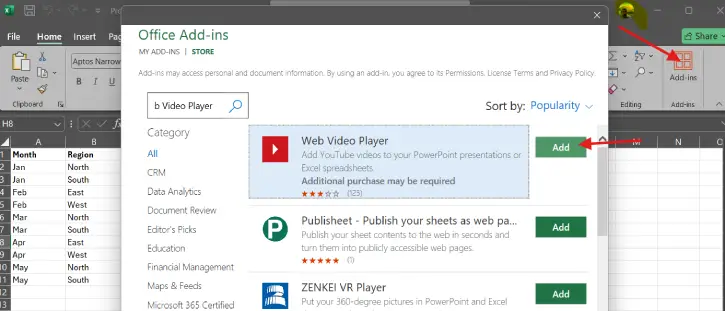
1. Open your Excel spreadsheet and find the Add-ins menu (top right corner)
2. Search for “Web Video Player” and click Add next to it. It will add a video player window in your spreadsheet.
3. Copy your YouTube or Vimeo video URL and paste into the field that appears
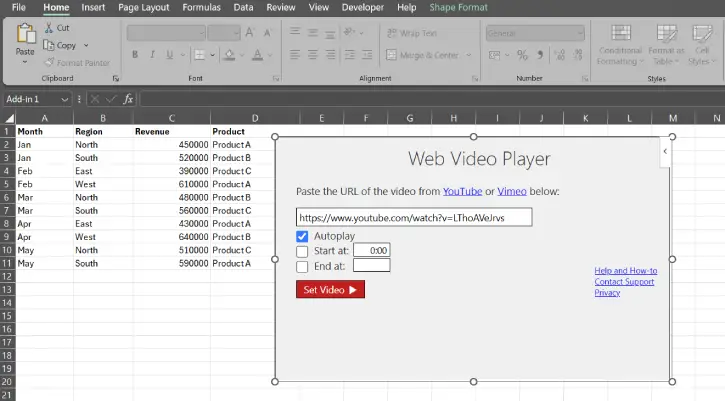
4. Customize your playback (optional, but worth it)
- To start playing video automatically, check the Autoplay box.
- To start video at a specific point or end early, set your start and end times.
- If you’d rather control when it plays, leave these blank—the video will wait for you to hit play.
5. Click “Set Video” and watch it appear in your spreadsheet
6. Hit play whenever you’re ready and resize the player by dragging the edges if needed
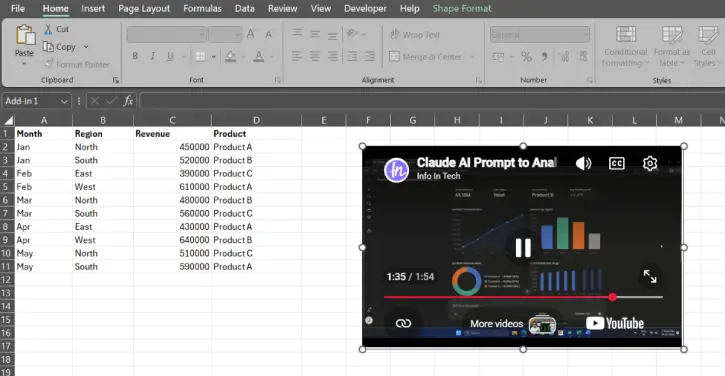
7. Save and close—your video stays put when you reopen the file. No re-embedding, no broken links. It just works.
FYI, Google Sheets also supports video embedding through similar methods, but the process varies slightly from Excel.
Final Thought
Embedding videos in spreadsheets helps your coworkers get the context they need without searching through documents. It saves time by showing instead of explaining. Whether you are onboarding a person or explaining a complicated process, a good video can be worth a thousand lines of text.

