

Google Sheets doesn’t have a built-in barcode feature, but you can generate barcodes using formulas, add-ons, Unicode font or by importing barcode images. Here is how you can quickly create functional barcodes (Code 39, Code 128 and EAN) in your spreadsheet.
FYI, there are two main barcode types out there. 1D barcodes are the traditional linear ones you see on products – like EAN codes (those 13-digit things on retail items), Code 39 (which handles letters and numbers), and Code 128 (the compact, alphanumeric option).
The 2D barcodes such as QR codes, Data Matrix codes, and PDF417s can hold massive amounts of data, which is why you find them on ID cards and driver’s licenses.
Each barcode type serves specific industry needs – 1D barcodes remain efficient for simple product identification, while 2D barcodes provide the flexibility and capacity required for complex data storage and modern digital applications. Now, let us learn how to create barcode in Google Sheets.
How to Create Code 39, Code 128 and EAN Barcodes Using Google Sheets
Method 1: Use a Barcode Add-On (Easiest)
The quickest solution is to install a barcode add-on from the Google Workspace Marketplace. This method requires no coding knowledge.
1. First, open Google Sheets and click on Extensions in the top menu
2. Select Add-ons > Get add-ons
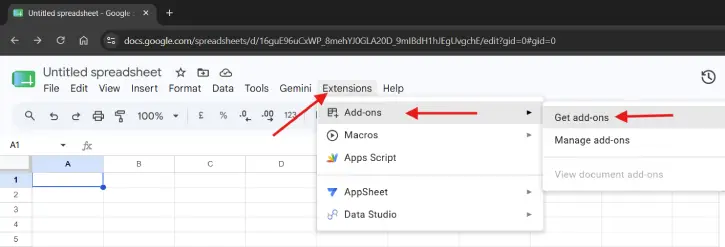
3. Search for “barcode” in the Google Workspace Marketplace
4. Choose a reputable add-on (for example, Barcode and QR Code generator by Digital Inspiration, or “Barcode Generator”)
5. Click Install and grant the necessary permissions
6. Return to your spreadsheet and click Extensions > select your barcode add-on
7. Follow the prompts to generate barcodes from your data
Advantages: This method does not require knowledge on formulas. Just click and generate. It supports multiple barcode formats, including Code 39, Code128, QR codes, UPC, EAN, etc.)
Method 2: Use a Barcode Font (Manual and Reliable)
You can install a barcode font on your computer and type barcode values directly into cells. This approach gives you full control and works offline.
1. Open Google Sheets, click on the Font dropdown menu and click More fonts.
2. Next, search for Libre Barcode 39, Libre Barcode 128 or IDAutomationHC39M and add it to Sheets.
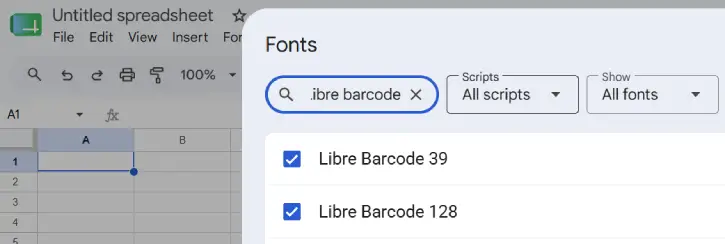
3. Now, type the barcode number or text in a cell
4. Select the cell and change the font to your barcode font (click the font dropdown in the toolbar and select the barcode font)
5. Adjust the font size to make the barcode readable (usually 24 – 48 pt works well)
Example:
a) If you’re using a Code39 font and want to create a barcode for product ID “ABC123”: Type ABC123 in a cell
Note: To use Code 39, you need to wrap your number with * asterisks. You can do this easily with this formula: ="*"&A1&"*" (For Code 128, this isn’t required)
b) Apply the Code39 font
c) The cell displays the barcode pattern
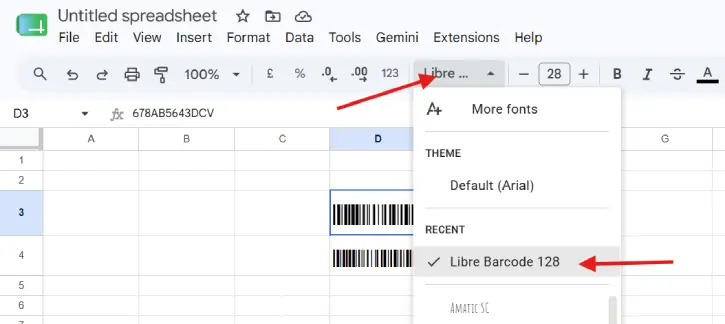
Advantages: This method works entirely offline, no internet connection needed. It does not require external services. You have precise control over barcode appearance and has minimal performance impact.
Method 3: Use Google Sheets Formulas with External APIs
For more automation, you can use a formula to generate barcode URLs from online barcode generators, then display them as images.
1. In a helper column, use a formula that constructs a barcode image URL. For example, using a free barcode API: =IMAGE("https://barcode.tec-it.com/barcode.ashx?data="&A1&"&code=Code128")
[Replace A1 with the cell containing your barcode data.]
2. Paste this formula into the column where you want barcode images to appear
3. Adjust the barcode type by changing the code=Code128 parameter (other options: Code39, EAN13, QR, etc.)
Example Formula Breakdown:
IMAGE() – Embeds an image from a URL into the cell“https://barcode.tec-it.com/barcode.ashx?data=” – Base URL of the barcode generator&A1& – Concatenates the value from cell A1"&code=Code128" – Specifies the barcode format
Advantages: It is fully automated. Barcodes update when data changes. No add-on installation is required and works with any barcode format supported by the API.
ALSO READ: 2 Methods to Copy Data From View Only Google Sheets File
Pro Tips
Choose the right barcode format. Code128 works well for most applications, while QR codes are ideal if you want customers to scan with mobile devices. EAN-13 and UPC are standard for retail products.
Test your barcodes before printing. Use a barcode scanner app on your phone to ensure they’re readable. Poor image quality or incorrect data encoding can prevent scanning.
Keep barcode data clean. Remove extra spaces, special characters, or line breaks that might prevent proper encoding. Different barcode formats have specific requirements (e.g., EAN-13 requires exactly 13 digits).
Back up your work. If using an API-based method, the external service could change or become unavailable. Keep a copy of your original data separately.
Consider file size. If you’re embedding many barcode images, your Google Sheets file may slow down. Use the barcode font method if performance becomes an issue.
Conclusion
The best method depends on your needs. For most users, a barcode add-on is the fastest solution, while barcode fonts work great for offline use. If you need real-time automation, formulas with barcode APIs offer flexibility for advanced users. Start with the method that matches your comfort level, and you’ll have functional barcodes in Google Sheets within minutes.

