

Every Friday afternoon, you’re doing the same thing: refresh your data, watch the pivot table recalculate, then spend the next 20 minutes digging through numbers to find five specific metrics. Copy, paste, format, send. Repeat next week.
It’s mind-numbing work for something that happens on a predictable schedule. And here’s the thing—Excel can handle this automatically. You’ve probably just never heard of the function that does it.
Meet GETPIVOTDATA: Your Report’s New Best Friend
GETPIVOTDATA is a function that pulls data straight from your pivot tables without referencing specific cells. Instead, it reads the structure of the table itself. This means when your pivot reorganizes, filters, or expands, your formulas keep working.
The syntax is straightforward:=GETPIVOTDATA(data_field, pivot_table, [field1, item1], [field2, item2], …)
Let’s break this down:
- data_field: The metric you want (like “Sum of Revenue”)
- pivot_table: Any cell inside your pivot table—Excel uses this to find the right table
- field-item pairs: Optional filters to get exactly what you need
Here’s a real example:=GETPIVOTDATA("Sum of Revenue", $K$6, "Region", "East", "Month", "March")
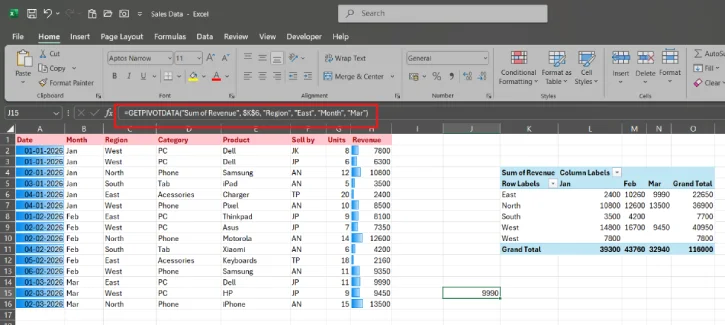
This formula grabs total revenue for the East region in March. If someone reorganizes the pivot table next week, it still works. It’s locked onto the structure, not the cell positions.
The Lazy Way to Write These Formulas
If typing out a long GETPIVOTDATA formula sounds tedious, don’t worry—you don’t have to. Just type an equals sign in any cell outside your pivot table, then click the cell inside the pivot that you want to reference. Excel writes the formula for you automatically.
Make It Dynamic (And Actually Useful)
Here’s where things get interesting. Instead of hardcoding “East” and “March,” you can use cell references. Set up dropdown menus in your report, then reference those cells in your formula:
=GETPIVOTDATA("Sales", $A$3, "Region", B1, "Month", B2)
Now when someone picks a different region or month from your dropdowns, the entire report updates instantly. No manual work. No copy-pasting. No hunting for numbers.
Building a Report That Maintains Itself
Once you’ve got the hang of dynamic formulas, you can build entire dashboards that refresh on their own. Set up your report layout once—headings, formatting, dropdowns, everything—then populate it with GETPIVOTDATA formulas pulling each number from your pivot.
When you need next week’s report? Just refresh the data source. Every single number updates automatically.
This approach is especially powerful for financial dashboards where the same structure repeats month after month. You can pull totals, subtotals, specific intersections—you can use up to 126 field-item pairs if you need to.
One more thing: if a value has been filtered out of your pivot and isn’t visible, GETPIVOTDATA returns a #REF! error instead of a stale number. That’s actually helpful because it alerts you immediately that something’s wrong, rather than letting a bad report slip through.
The Real-Talk Limitations
GETPIVOTDATA isn’t perfect for every situation. If you’re trying to drag a formula down a column to reference different rows in a pivot, the auto-generation gets in the way. In that case, just type the cell address manually instead of clicking it, and Excel will skip the auto-formula.
You can also turn off GETPIVOTDATA auto-insertion entirely in PivotTable Analyze > PivotTable Options if you need to.
FAQ
Q: Will GETPIVOTDATA work if I delete and rebuild my pivot table?
A: No. The formula is tied to the specific pivot table it references. If you rebuild it, you’ll need new formulas pointing to the new pivot.
Q: Can I use GETPIVOTDATA with multiple pivot tables in the same workbook?
A: Yes. Just point each formula to a different pivot table by referencing a cell in that table. Excel knows which pivot to pull from.
Q: What happens if I filter my pivot table?
A: GETPIVOTDATA respects filters. If a value is filtered out, you’ll get a #REF! error, which tells you the data isn’t available.
Q: Does this slow down my spreadsheet?
A: Not noticeably. GETPIVOTDATA formulas are efficient and won’t bog down your file.
Q: Can I use GETPIVOTDATA in conditional formatting or other advanced features?
A: Yes, it works anywhere you’d use a regular formula—conditional formatting, charts, other calculations, etc.
Conclusion
Your weekly report doesn’t need to be a manual chore. GETPIVOTDATA gives you a way to build reports that update themselves, no copy-pasting required. You set it up once, then let it do the work every reporting period.
If you’re spending more than a few minutes on your weekly reports, it’s worth learning this function. It’s not complicated, and it can genuinely save you hours every month.

