

WRAPROWS and WRAPCOLS are two new functions of Excel 2024. This productivity feature lets you quickly reorganize messy data lists into neat data blocks without manual copying. Here is how to use these two functions in Excel spreadsheet with simple examples.

If you’ve ever stared at a spreadsheet with 100+ items crammed into a single row or column, you know how painful it is to work with. Excel’s these two functions helps you organize cluttered data quickly. Whether you’re a data analyst, business manager, or spreadsheet enthusiast, WRAPROWS and WRAPCOLS save you time and frustration.
What Are WRAPROWS and WRAPCOLS and How to Use Them?
WRAPROWS and WRAPCOLS functions let you transform unwieldy lists into clean, readable data blocks in seconds—no copying, pasting, or manual rearranging required.
WRAPROWS takes a long horizontal list and splits it into multiple rows. WRAPCOLS does the same thing, but for vertical columns. The best part is that they’re very simple to use.
How to Use WRAPROWS in Excel Spreadsheet?
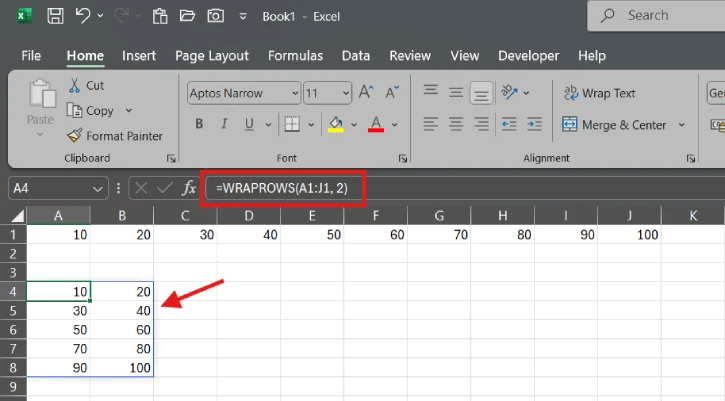
Let’s say you have numbers 10 to 1,00 stretched across cells A1 to J1—one long, hard-to-read row. Here’s how to fix it:
- Click on the cell where you want your new block to start (like A4)
- Type this formula:
=WRAPROWS(A1:J1,2) - Press Enter
That’s it. The 2 at the end tells Excel you want 2 numbers in each row. Suddenly, your messy row becomes a clean, organized block of data that’s actually easy to analyze.
Want 3 items per row instead? Change the 2 to a 3. Want 5? Use 5. The flexibility is yours.
How to Use WRAPCOLS in Excel Spreadsheet?
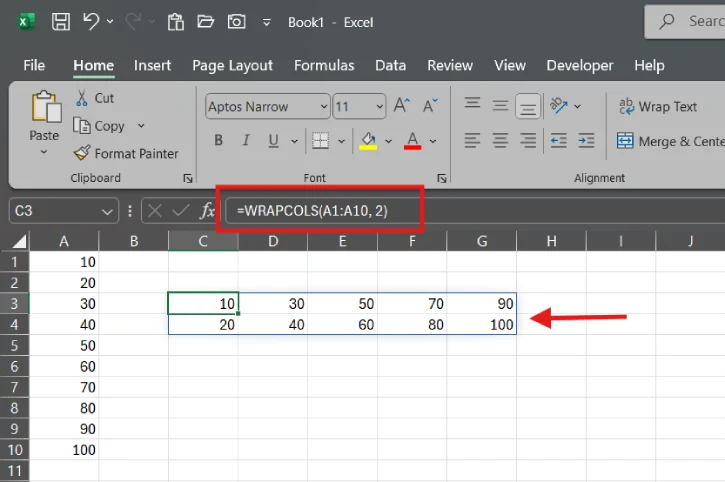
If you’re dealing with long vertical columns instead of rows, WRAPCOLS is your answer. The syntax is identical—just swap out WRAPROWS for WRAPCOLS, and it handles the rest.
No need to learn a whole new skill. If you can use WRAPROWS, you can use WRAPCOLS.
Why these functions matters? Before these functions, reorganizing data meant manually selecting and copying chunks of data, pasting them into new rows or columns. It consumes your valuable time. Now, one formula does all of that work for you.
Final Thought
Excel 2024’s WRAPROWS and WRAPCOLS functions are simple, powerful, and they solve a real problem that spreadsheet users face every day.

