

A signature in a Word document does a few important jobs. It shows who the file came from, helps confirm that it hasn’t been changed, and makes it harder for others to copy or use it without permission. As add signature in Google Docs, it is easy to digitally sign your word documents.
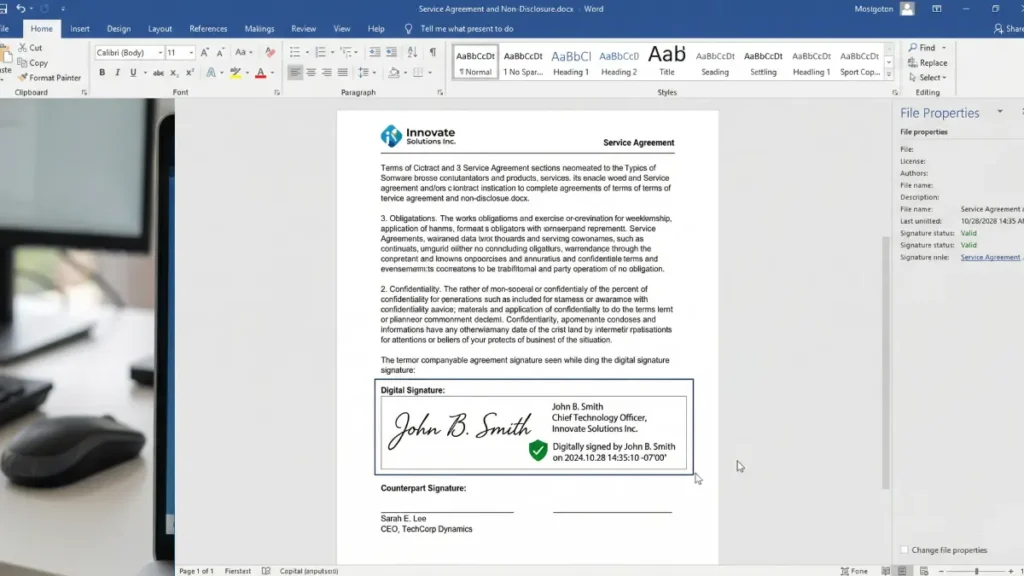
As said, a digital signature helps you trust that important files like contracts, reports, and plans are authentic and still exactly as they were meant to be. Follow the steps given below to know how to sign a word document
Steps to Digitally Sign Your Word Document
1. Open a document in Microsoft Word that you want to sign. Make sure the document is ready for editing. If it’s a shared document, turn it into editable and check with collaborators for any necessary permissions before proceeding.
2. Now, navigate to the “Insert” tab at the top menu bar in Word. Click on “Signature Line” from the dropdown menu to proceed.
A dialog box will appear where you’ll enter your details. Fill in the required fields, including: your name, your title or position, email and optional instructions for the signer (if applicable).

3. Next, click “OK” to insert the signature line into your document. Double-check that all information is correct, as these details will appear alongside your signature.
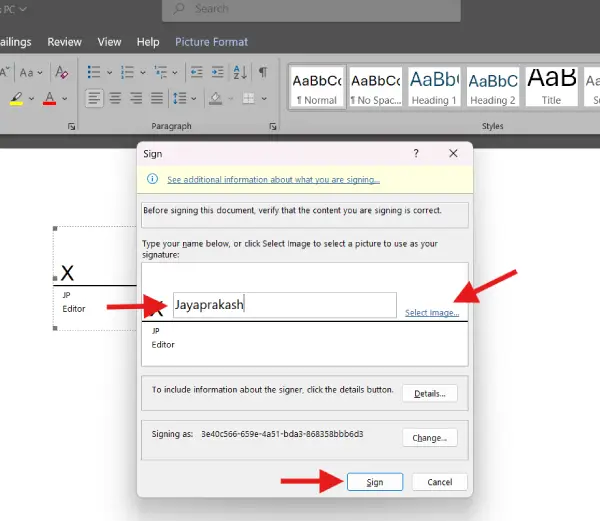
4. Now, double-click the signature line to activate the signing prompt.
- Enter your name (or choose your signature image file) and click “Sign” button to add your sign on the document. This is for formal documents.
- You can change signature certificate by clicking the “Change certificate” button from the same window. You can use this feature for legal documents, which rquires signature certificate obtained from trusted certificate authority (CA).
5. Once you’ve added your digital signature, save your document. Your Word document is now digitally signed and authenticated, providing recipients with assurance of its legitimacy.
FAQ:
Can I sign a Word document without a digital certificate?
Yes, you can insert a handwritten signature image into your document, but this is not a digital signature and doesn’t provide cryptographic security or proof of authenticity. It’s purely visual.
What if I don’t have a digital certificate?
You can obtain a digital certificate from a trusted certificate authority (CA) to create an official digital signature. Alternatively, you can use Microsoft’s self-signed certificate option to create a signature for personal or internal use, though it won’t be verified by an external authority. You can also use a handwritten signature image as a workaround.
How do I remove a signature from a Word document?
Right-click the signature line and select “Remove Signature” from the context menu to delete it from the document.
Final Thought
Digital signatures help prove a document is genuine and hasn’t been changed. They’re much harder to forge than handwritten signatures, making them useful for secure transactions and important agreements. They’re also legally recognized in many places, so people can sign contracts and approvals online without paperwork. This saves time, cuts costs, and keeps business moving faster.

