

Format Painter is a time-saving tool in Microsoft Office applications that lets you apply the same formatting, such as font style, size, color, and border styles quickly to multiple text, cells, or objects. If Format Painter is not working in Word, Excel, or PowerPoint, here is what you can do to fix the issue.
For several reasons Format Painter may not work in Microsoft Word, Excel, or PowerPoint. If you are using an incorrect or deprecated keyboard shortcut, faulty Esc key, experience issues or glitches in the Office application, installed add-ons conflicts, or if the file is encrypted and blocking you from editing it are the common reasons for this issue.
Fixes for Format Painter not working in Word, Excel and PowerPoint
Using Outdated Keyboard Shortcuts: If you are using the latest version of the Microsoft Office app, the shortcuts for Format Painter have changed.
- The latest version of Microsoft Office uses Ctrl+Alt+C (copy formatting) and Ctrl+Alt+V (paste formatting) for Format Painter. In older versions it was Ctrl+Shift+C/V.
Check for Faulty Esc Key: The Esc key is required to cancel Format Painter.
- If you can’t cancel Format Painter, your Esc key may not be working properly.
ALSO READ: How to Reset Microsoft Word to Default Settings: 3 Methods
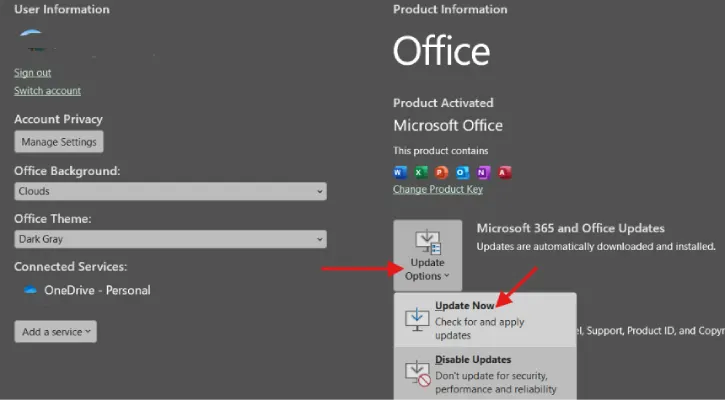
Update Microsoft 365: Sometimes Format Painter not working can be fixed by updating the app.
- To update Office, go to File > Account > Update Options > Update Now.
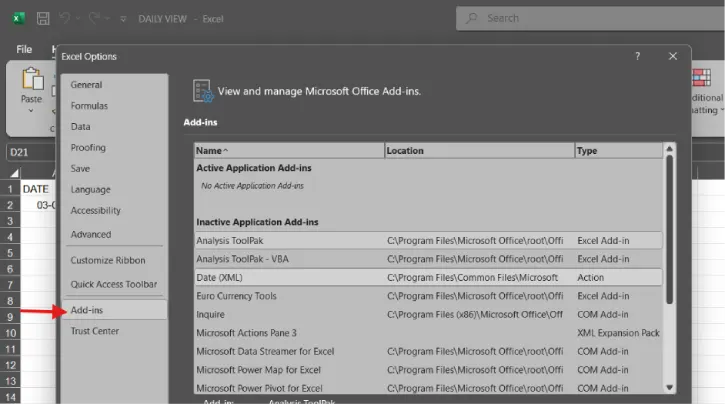
Add-ins Conflicts: A newly installed add-in in your Office application can cause Format Painter to stop working.
- First, disable all add-ins (File > Options > Add-ins tab), then test format painting, and re-enable them one at a time.
File Protection Is Enabled: You won’t be able to use the Format Painter feature on restricted files.
- To fix this issue, disable Restrict Editing in the Review tab and enter the password.
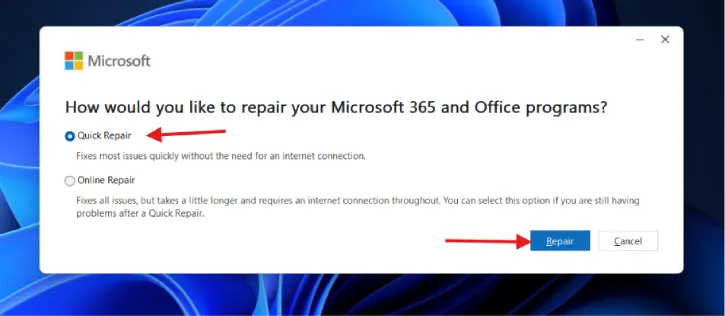
Corrupted Data: Corrupted or fragmented data may cause Format Painter issues.
- To fix it, reset the Office app or repair the installation via Windows Settings > Apps > Installed apps > Microsoft 365 > Modify > Quick Repair.
FYI, first, try the keyboard shortcuts. This fixes the issue in most cases. If that doesn’t work, check whether your Esc key responds, then proceed through the other troubleshooting steps in order of likelihood.
ALSO READ: How to Create a Custom Search Box in Excel (Step-by-Step Guide)
How to Use Format Painter Most Effectively in Microsoft Office
PowerPoint:
- Select the text or object with the formatting you want to copy, then click Format Painter in the Clipboard section of the Home tab.
- Your cursor will change to a paintbrush icon. Click on the text or object where you want to apply that formatting.
Excel:
- Select the cell containing the formatting you want to copy and press Ctrl+Alt+C (or click Format Painter in the Clipboard section).
- Next, select the target cell and press Ctrl+Alt+V to paste the formatting.
- This works for cell colors, fonts, borders, and number formats.
Word:
- Select the text with the formatting you want to replicate, press Ctrl+Alt+C, then highlight the text you want to format and press Ctrl+Alt+V.
- You can also click the Format Painter brush icon in the Clipboard group. This is especially useful for maintaining consistent heading styles, font sizes, or emphasis formatting across long documents.
That is all how to fix Format Painter not working issue and how to use this feature effectively in Microsoft Word, Excel and PowerPoint.
Conclusion Thought:
Format Painter is an essential productivity tool for maintaining consistent formatting across Microsoft Office documents. By understanding common issues and learning its usage, you’ll save significant time and ensure professional, cohesive document presentation effortlessly.

