

Reformatting Word documents by hand is a waste of your time. If you’re spending several minutes per document fixing mismatched fonts, inconsistent headings, and random spacing, you’re missing one of Microsoft Word’s most powerful features – the Design tab. It helps you stop reformatting chaos in Word documents.

The Design tab sits quietly between the Home and Layout tabs, overlooked by most users who resort to tedious manual formatting instead. But once you understand how it works, you’ll transform lengthy reports and collaborative documents in seconds rather than hours.
How the Design Tab in Word Saves Your Time?
The Design tab is Microsoft Word’s command center for document-wide formatting. Instead of tweaking individual paragraphs, fonts, and colors one by one, the Design tab lets you apply changes at scale across your entire document.
Think of it as the difference between painting a house one wall at a time versus using a paint sprayer. The Design tab is your sprayer.
The Design tab contains four interconnected tools – Themes, Style sets, Color sets and Font styles.
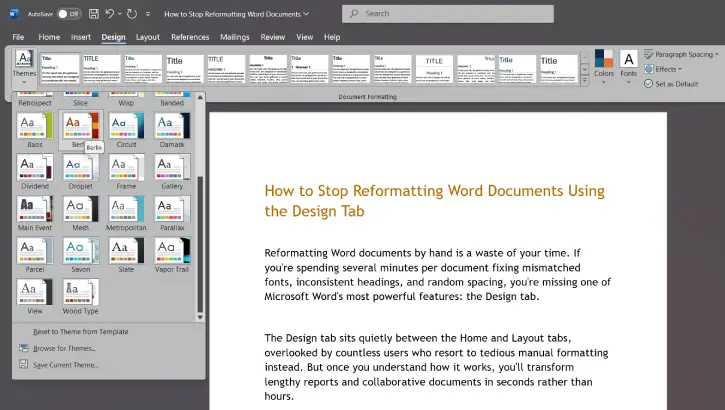
Themes: This is an instant visual transformation. Themes apply a harmonious combination of fonts, colors, and effects across your entire document at once. When you select a theme, every heading, body text, table, and shape updates automatically.
For example, instead of manually adjusting colors and fonts throughout a 50-page report, you simply click a theme. The heavy lifting is done for you.
Style Sets: This is the most underrated tool in Word. It apply pre-built formatting rules to every paragraph style in your document with a single click. This includes Heading 1, Heading 2, body text, captions, and more.
This is especially valuable in collaborative documents where multiple people contribute content. A single Style Set swap brings everything back to a uniform look instantly.
Color sets: It lets you swap your entire color palette, reassigns every accent color throughout your document at once. Need to shift from blue tones to green? One click handles it all. No hunting through individual paragraphs.
Fonts: It controls heading and body font pairs, then applies this pairing across your entire document. This eliminates the “multiple fonts” problem that happens when you paste content from different sources.
Why Most People Struggle with Word’s Design Tab
The Design tab in Word has one critical limitation. It only works on properly styled text.
If your document uses direct formatting- meaning someone manually applied bold, changed font sizes, or adjusted colors without using Word’s built-in styles – the Design tab won’t reach it. Your changes will look inconsistent because half the document isn’t using styles at all.
This is especially common with:
- Documents received from multiple collaborators
- Content pasted from websites or PDFs
- Files imported from other applications
- Documents where users faked headings by manually bolding and enlarging text
ALSO READ: How to Hide Text in Microsoft Word and LibreOffice Writer Documents
How to Fix the Direct Formatting Issue in Word
To fix the direct formatting issue, you can use Word’s Styles system. Before opening the Design tab, make sure your document uses proper styles. You can do it in the following ways:
1. Apply Styles Manually:
Select your headings and apply Heading 1 or Heading 2 from the Home tab’s Styles section. Apply Normal or Body Text to paragraphs. This takes a few minutes upfront but saves hours later.
2. Use AutoFormat as You Type Feature:
Let Word detect and tag your headings automatically: Go to File > Options > Proofing > AutoCorrect Options. Click AutoFormat As You Type > Enable Built-in Heading styles. Word will now recognize your headings and apply proper styling as you type.
3. Clean Up Direct Formatting:
If you receive a messy document, select the problematic paragraphs and press Ctrl + Space to clear direct formatting. Then reapply the correct style. It takes a few minutes, but everything that follows becomes effortless.
Conclusion
The Design tab transforms how you format documents, but only if your document uses styles properly. Master Word’s styles system first, then let the Design tab handle the heavy lifting. Once you make this shift, you’ll stop losing times per document to tedious manual formatting. You’ll create polished, consistent documents in seconds. And you’ll wonder how you ever managed without it.

