

Hiding text in Word documents can be really handy. It lets you keep content out of view without deleting it, which is useful for things like confidential details, notes you don’t want to print, or keeping a document looking cleaner. In this guide, you’ll learn how to hide and unhide text in Microsoft Word and LibreOffice Writer.
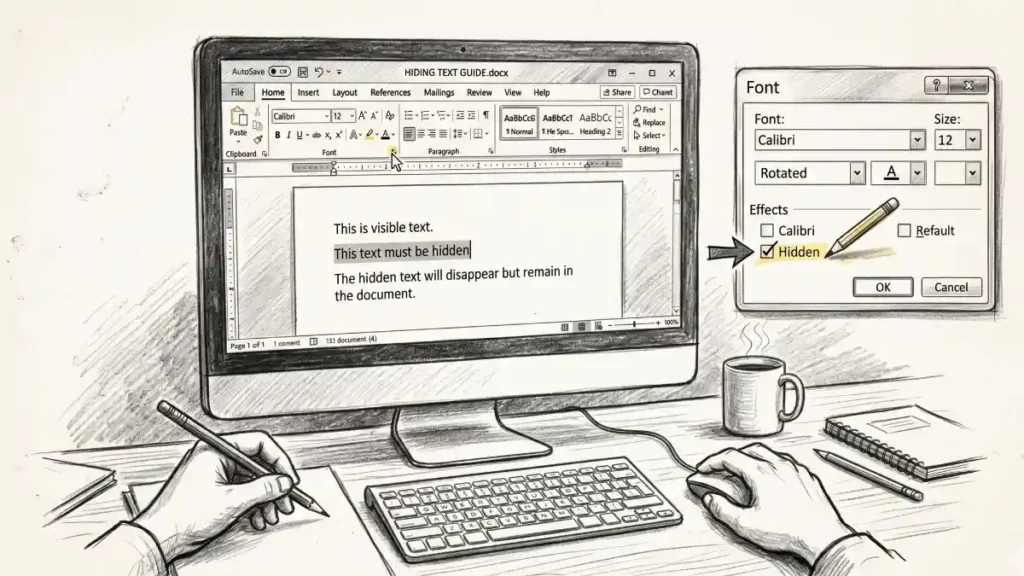
FYI, hiding text in Microsoft Word and LibreOffice Writer is pretty easy, but it’s not a real security measure. Anyone who has access to the document can usually unhide it if they know where to look. If you want to protect information for real, encryption or access controls are the better choice.
How to Hide Text in Microsoft Word
- Highlight the text you want to hide by clicking and dragging your cursor across it
- Press Ctrl+D to open the Font dialog box
- Check the “Hidden” checkbox in the dialog window
- Click OK to apply the changes
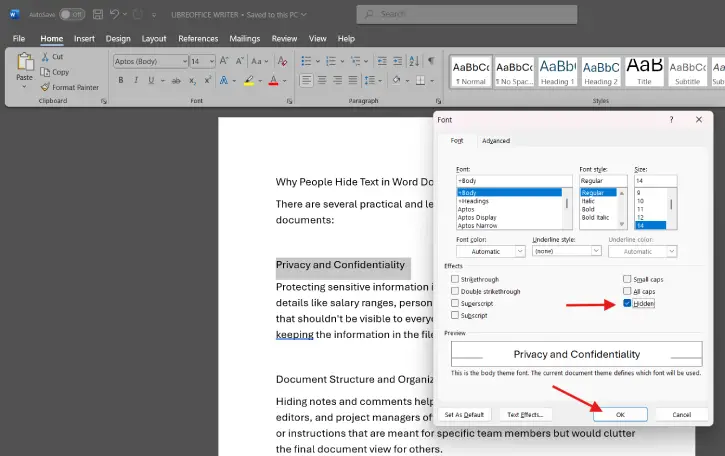
Your text will now disappear from view, though it remains in the document and will still be included if you print it (unless you’ve adjusted print settings).
To unhide the text in Microsoft Word:
- Press Ctrl+A to select all text in the document
- Press Ctrl+Shift+8 to display all hidden text
- All previously hidden content will now become visible again.
How to Hide Text in LibreOffice Writer
- Open your document in LibreOffice Writer
- Highlight the text you want to hide
- Right-click the selected text and choose “Character“
- Select “Character” again from the submenu
- Click on “Font Effects” in the left-hand menu
- Check the “Hidden” checkbox
- Click OK to confirm.
Your text will now be hidden from view. To reveal hidden text in LibreOffice Writer:
- Click “Tools” at the top menu bar
- Select “Options” (or press Alt+F12)
- Click “LibreOffice Writer” in the left-hand menu
- Select “Formatting Aids” from the submenu
- Check the “Hidden characters” checkbox
- Click OK
All hidden text will now become visible in your document.
Note: Hiding text can be useful, but it isn’t a real security feature. Anyone who can open the document may also be able to reveal hidden text if they know how. If the information is sensitive, protect it with encryption, password protection, or your organization’s access controls instead.
When Should You Hide Text in Word Documents? There are several legitimate reasons to use this feature:
- Managing confidential content that shouldn’t be immediately visible
- Controlling print output by hiding specific notes or instructions
- Keeping documents organized by concealing editorial comments
- Maintaining clean formatting while preserving reference material
- Protecting sensitive information from casual viewers (though not from determined users)
Final Thought
You can hide text in Word documents easily, which can be useful when you want to hide some text without deleting it or make the document cleaner. The process only takes a few seconds in Microsoft Word or LibreOffice Writer. Just keep in mind that this is mainly for convenience, not for security — if the information is truly sensitive, it’s better to use stronger protection.

