

Learn how to master the Paste Special feature in Microsoft Excel—a powerful tool for importing data from other Excel files, Google Sheets, and external sources. Rather than relying on the standard Ctrl + V paste command, Paste Special (Ctrl + Alt + V) gives you precise control over what gets pasted, keeping your spreadsheet organized and error-free.
Standard copy and paste (Ctrl + C and Ctrl + V) has significant limitations in Excel, where pasted data can be interpreted in multiple ways depending on context. This often leads to unwanted results that require cleanup afterward.
Regular paste imports everything—values, formulas, and formatting. Of course you can use built-in Excel features to clean up messy data, but Paste Special (Ctrl + Alt + V) lets you paste selectively, saving significant time and effort.
Paste Special Excel: The Complete Guide to Every Hidden Feature
Paste Special is Excel’s most underutilized feature—and it can cut your workflow time in half. Most users stick to Ctrl+V and miss out on powerful options that solve common spreadsheet problems instantly. Here’s everything you need to know to master this game-changing tool.
How to Access Paste Special in Excel
You have four ways to open Paste Special: Using the shortcut Ctrl + Alt + V, (the fastest method) Ctrl + Shift + V (available in recent Microsoft 365 builds), right-click after copying and select Paste Special from the context menu and click the dropdown arrow under the Paste button in the Home ribbon.
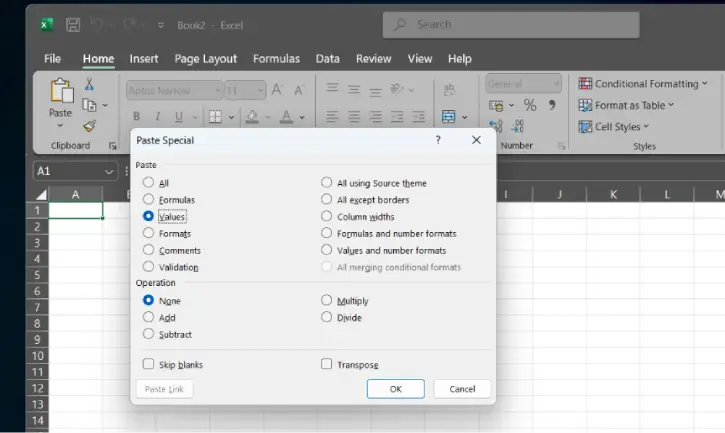
Once you open it, you’ll see a dialog box packed with options that transform how you work with data.
1. Paste Values Only: Remove Formulas and Keep Just the Numbers
You’ve spent time building a column of formulas—maybe a simple SUM or a complex VLOOKUP. Now you want to move those results somewhere else or share them with a colleague. You copy, paste, and suddenly: #REF! errors everywhere. The problem? Your formulas came along for the ride, and their cell references no longer work in the new location.
To use this feature:
- Copy your cells containing formulas (Ctrl + C)
- Navigate to your destination
- Open Paste Special (Ctrl + Alt + V)
- Select Values and click OK
Result: Only the numbers paste—no hidden logic, no broken formulas, no headaches.
2. Transpose: Flip Rows to Columns (and Vice Versa) Instantly
You receive data organized horizontally across rows, but your chart needs it organized vertically in columns. Or someone sent you a dataset in the “wrong” format, and manually rearranging hundreds of rows sounds like torture. Transpose solves this in seconds.
To use this feature:
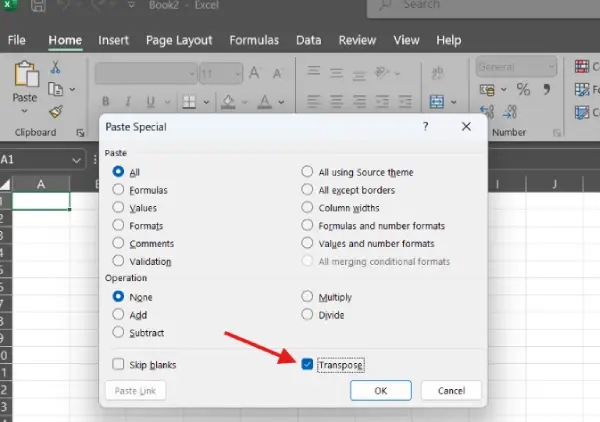
- Copy your data range (Ctrl + C)
- Open Paste Special (Ctrl + Alt + V)
- Check the Transpose checkbox at the bottom of the dialog
- Click OK
Result: All rows become columns and all columns become rows. Your data structure flips completely without any manual work.
Pro tip: Combine Transpose with Paste Values in the same action. This eliminates formulas from your source data while restructuring it for charting or reporting—all in one step.
3. Paste Operations: Do Math While Pasting (Add, Subtract, Multiply, Divide)
Imagine you have a column of 500 figures in thousands, and you need them all converted to millions. You could create a helper column with formulas, but that wastes space and takes extra steps. Paste Operations applies arithmetic automatically the moment you paste—no formulas needed.
How to use it
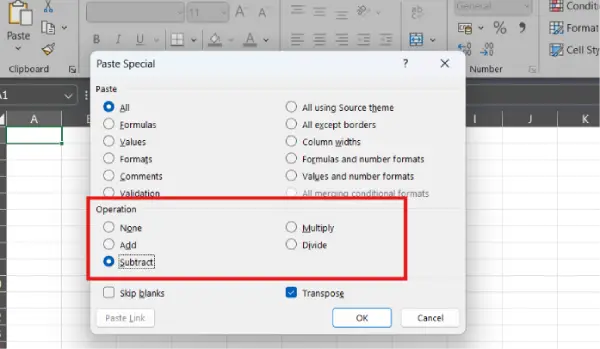
- Type the conversion number in a blank cell (e.g., 1000 for unit conversion)
- Copy that cell (Ctrl + C)
- Select the entire range you want to modify
- Open Paste Special (Ctrl + Alt + V)
- Under Operations, choose Divide (or Add, Subtract, Multiply)
- Click OK
Result: Your entire column updates instantly in place. No helper columns, no manual editing.
4. Paste Formats: Copy Styling Without Touching Data
You’ve spent 20 minutes perfecting a table’s appearance—custom fonts, background colors, borders, number formatting. Now you want that same look applied elsewhere without changing any data. Paste Formats does exactly that.
How to use it
- Copy the formatted cell or range (Ctrl + C)
- Select your destination range
- Open Paste Special (Ctrl + Alt + V)
- Select Formats and click OK
Result: Only the formatting transfers. Your data stays exactly as it is.
Related option: Column Widths
Use the Column Widths option to copy column widths from one area and apply them to another. If you’re constantly dragging column edges to align data, this saves enormous amounts of time.
5. Paste Formulas Only: Get the Logic Without the Values
Sometimes you want the opposite of Paste Values. You need the formula structure without the calculated results, especially when adapting a formula to work with a different dataset or rebuilding a calculation on fresh data.
How to use it
- Copy your formula cells (Ctrl + C)
- Select your destination range
- Open Paste Special (Ctrl + Alt + V)
- Select Formulas and click OK
Result: Only the formulas paste, with cell references automatically adjusted to the new location.
Why Paste Special Matters: Real Productivity Gains
Excel is often faster than AI tools when you know the right features. Paste Special is one of those features that separates efficient users from frustrated ones.
The difference between manually reformatting data and using Paste Special isn’t just a few seconds—it’s often the difference between a 5-minute task and a 45-minute task. For anyone working with spreadsheets regularly, mastering these options pays dividends in saved time and eliminated errors.
Quick Reference Guide
| FEATURE | BEST FOR | SHORTCUT |
| Paste Values | Remove formulas, share numbers only | Ctrl+Alt+V, then Values |
| Transpose | Flip rows and columns | Ctrl+Alt+V, check Transpose |
| Paste Operations | Unit conversions, batch math | Ctrl+Alt+V, select Operation type |
| Paste Formats | Copy styling without data | Ctrl+Alt+V, select Formats |
| Paste Formulas | Copy logic to new locations | Ctrl+Alt+V, select Formulas |
Start using these features today, and you’ll wonder how you ever worked without them.
Conclusion
Paste Special is Excel’s best-kept secret. By mastering just these five features—Values, Transpose, Operations, Formats, and Formulas—you’ll eliminate repetitive tasks, reduce errors, and work faster than ever. Stop relying on manual workarounds. Start using Paste Special today and reclaim hours of your week.

