

Copying a drop-down list in Excel is simpler than it seems. It requires only a few steps to replicate a drop-down list from one cell to another. This is essential for efficient data management, helping users organize information, build dynamic forms, and create interactive spreadsheets quickly—all while saving valuable time.
Copying drop-down lists in Microsoft Excel allows you to quickly apply the same validation rules to new areas without re-entering criteria, which becomes especially important as your spreadsheet expands with new rows or columns.
This approach also helps when sharing Excel templates with others, as it ensures colleagues or clients receive a fully functional tool with all validation rules pre-configured. It supports compliance and standardization in regulated or collaborative environments where consistent data entry is essential.
How to Copy a Drop-Down List in a Excel Spreadsheet
Follow below given steps to copy a drop-down list from one cell to another. This will save you time and ensure consistency across your spreadsheet.
1. Click the cell with the drop-down list you want to copy. Verify it works by clicking the small arrow to see the options.
2. Copy the cell by right-clicking and selecting “Copy” (or press Ctrl+C).
3. Click the destination cell where you want the drop-down list to go.
4. Right-click and select “Paste Special,” then choose “Validation” to paste only the drop-down list.
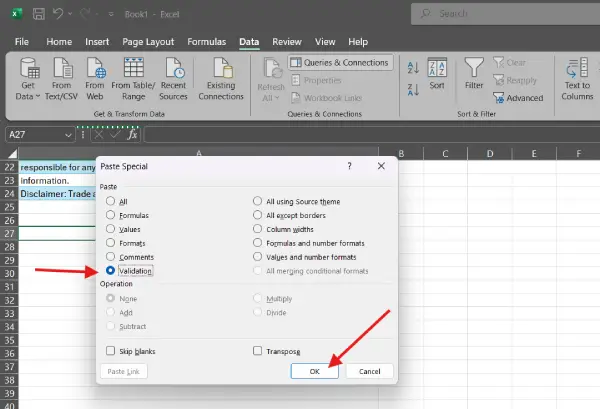
5. Press “OK” to confirm. Test the new drop-down by clicking the arrow to make sure it works.
That’s it! Your drop-down list is now copied and ready to use in the new cell.
If you prefer a faster approach, you can use the fill handle (the small square in the bottom-right corner of a selected cell). Simply click and drag it across adjacent cells to copy the drop-down list instantly without using copy-paste commands.
Frequently Asked Questions
Q: Can I copy a drop-down list to multiple cells at once?
A: Yes. After copying the original cell, select all destination cells, then use Paste Special > Validation to apply the drop-down list to all selected cells simultaneously.
Q: Will the drop-down options change if I copy the list?
A: No. Copying a drop-down list copies the validation rules exactly as they are. The options will remain identical across all copied cells unless you manually edit them.
Q: What’s the difference between copying and using the fill handle?
A: The fill handle is faster for adjacent cells, but Paste Special > Validation gives you more control and works better when copying to non-adjacent cells.
Q: Can I copy a drop-down list between different Excel files?
A: Yes. Copy the cell from one file, open the destination file, and use Paste Special > Validation to apply the same drop-down rules.
Q: What if the Paste Special option is grayed out?
A: Ensure you’ve actually copied a cell first (Ctrl+C), and that the destination cell is editable and not protected. If the spreadsheet is password-protected, you may need to unprotect it first.
Conclusion
Copying drop-down lists in Excel is quick, easy, and essential for building organized, professional spreadsheets. With just a few clicks—or a simple drag of the fill handle—you can replicate validation rules across multiple cells, ensuring consistency and saving hours of manual work. Master this skill and elevate your spreadsheet productivity today.

