

MLA format or the Modern Language Association style, is a set of rules for formatting academic papers and listing sources. These rules help make papers look neat, consistent and professional, and they help prevent copying someone else’s work without giving them credit. Here’s how to use MLA format in Microsoft Word.
The basic requirements for MAL format are 1-inch margins, 12-point font (either Times New Roman or Arial), double-spacing, and citations in parentheses within your text. In Microsoft Word, most of these settings are already in place. However, you’ll need to make a few changes to get everything exactly right.
Table of Contents
How to Apply MLA Format in Microsoft Word
Basic Formatting
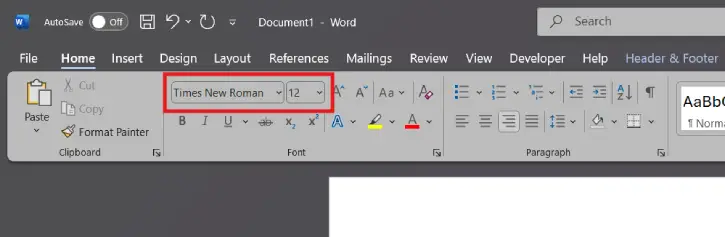
1. Font: Select Times New Roman, 12 pt from the Home tab
2. Margins: Go to Layout > Margins > Normal (1-inch on all sides—this is the default)
3. Line spacing: In the Paragraph settings, click “Line and Paragraph Spacing” and select 2.0 for double spacing
Header Setup
4. Go to the Insert tab and select Header
5. Add page numbers at the top: Insert > Page Number > Top of Page > Plain Number 3
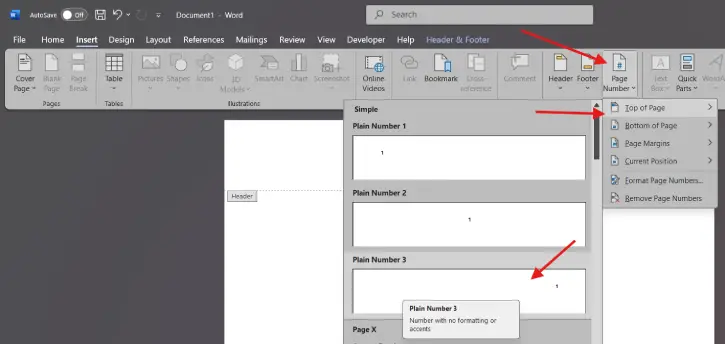
6. Type your last name before the page number
7. In the top left corner of the first page, type:
- Your name
- Instructor’s name
- Course name
- Date
Works Cited Page
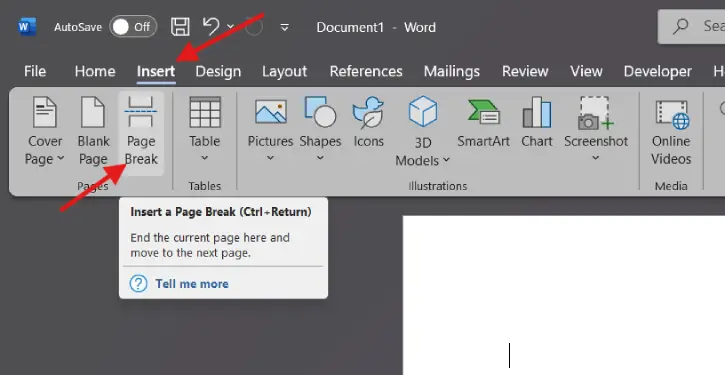
8. Insert a page break: Go to Insert > Page Break
9. Align all text to the left
10. Use a hanging indent for each citation
[A Works Cited page credits your sources, prevents plagiarism, and demonstrates academic integrity. It allows readers to verify the research you’ve used.]
Your document is now correctly formatted in MLA style and ready to submit. With a polished, professional appearance, your work will make a great impression.
Frequently Asked Questions
What if my instructor asks for a different citation style?
Check your assignment guidelines. APA and Chicago style are common alternatives to MLA.
Can I use a different font besides Times New Roman?
MLA allows Times New Roman or Arial, 12-point size.
What goes on the Works Cited page?
List all sources you cited in your paper in alphabetical order by the author’s last name.
Do I need in-text citations?
Yes. Include the author’s last name and page number in parentheses after each quote or paraphrase.
Conclusion
Formatting your paper in MLA style demonstrates academic integrity and professionalism. Once you’ve set up your Microsoft Word document correctly, you’re ready to submit work that meets academic standards and makes a great impression.

