

The TEXT function in Excel is a lifesaver when you need to format numbers, dates, or times in a specific way without changing the actual values. It converts a number into text with the format you specify, which is perfect for creating custom displays in reports, dashboards, or presentations. In this post let us learn how to use Excel Text function to format numbers.
Table of Contents
What Does the TEXT Function Do?
Imagine you have a sales number like 1500.5, but you want it to display as $1,500.50 in your spreadsheet. The TEXT function handles that conversion. It takes a value and applies formatting to show it exactly how you want, all while keeping the original number intact for calculations.
The basic syntax is simple:=TEXT(value, format_code)
- value: The number, date, or time you want to format
- format_code: The format pattern (we’ll cover these next)
Common Format Codes You’ll Actually Use
Here are the format codes you’ll reach for most often:
| What You Want | Format Code | Example |
| Currency with 2 decimals | "$#,##0.00" | =TEXT(1500, "$#,##0.00") → $1,500.00 |
| Percentage | "0.00%" | =TEXT(0.85, "0.00%") → 85.00% |
| Phone number | "[000] 000-0000" | =TEXT(5551234567, "[000] 000-0000") → (555) 123-4567 |
| Date (MM/DD/YYYY) | "mm/dd/yyyy" | =TEXT(TODAY(), "mm/dd/yyyy") → 07/27/2026 |
| Time (HH:MM AM/PM) | "hh:mm AM/PM" | =TEXT(TIME(14,30,0), "hh:mm AM/PM") → 02:30 PM |
| Number with leading zeros | "00000" | =TEXT(42, "00000") → 00042 |
ALSO READ: How to Create a Custom Search Box in Excel (Step-by-Step Guide)
Real-World Examples of Using Text Function in Excel
Example 1: Formatting Sales Data
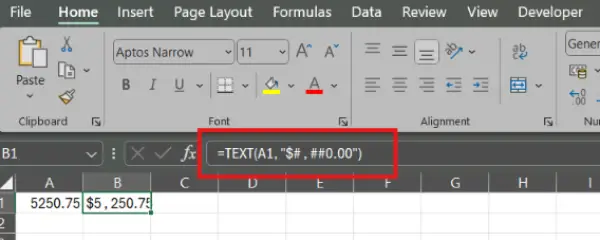
Let’s say you’re building a sales report. You have raw numbers but need them to look professional:
A1: 5250.75
B1: =TEXT(A1, "$#,##0.00")
Result: $5,250.75
Example 2: Making Dates Readable
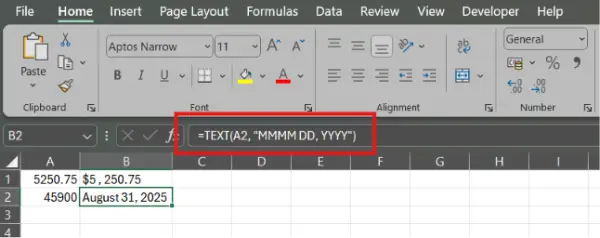
You’ve got a date serial number (like 45900) and need it to display nicely in a report:
A2: 45900
B2: =TEXT(A2, "mmmm dd, yyyy")
Result: July 27, 2026
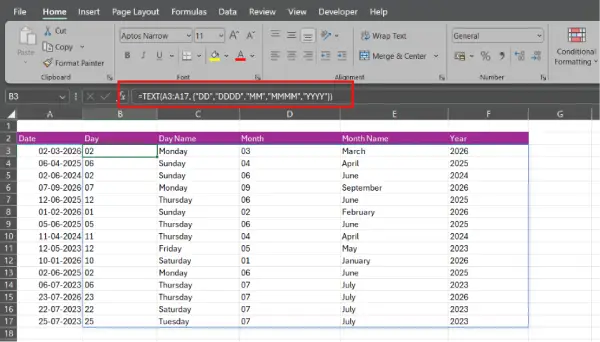
Or, if you want to convert a series of date formats into day, day name, month, month name and year, use the below format.
B3: =TEXT(A3:A17, {“DD” , “DDDD” , “MM” , “MMMM” , “YYYY”})
Why TEXT Matters (And When to Use It)
The key thing to understand: TEXT returns text, not a number. This is both a feature and a limitation.
Use TEXT when you:
- Need formatted text for display (reports, emails, dashboards)
- Want to combine numbers with text in a cell
- Need to create custom labels or codes
Don’t use TEXT when you:
- Still need to calculate with the value (formatting alone is better)
- The original number must remain a number for math operations
- For pure formatting without converting to text, use Excel’s built-in number formatting instead (right-click → Format Cells → Number tab).
Key Takeaway
The TEXT function transforms how numbers and dates appear without changing their underlying values. It’s essential for creating professional-looking reports and dashboards where appearance matters. Master a handful of format codes (currency, date, percentage), and you’ll handle 90% of real-world scenarios.

