

Watermarks are a useful way to label documents as drafts, confidential, or still under review. If you manage sensitive files or move documents through different stages of a workflow, it helps to know how to add and remove watermarks in Google Docs. The process is simple and gives you control over how your document looks to readers.

In this guide, let us learn how to add and remove watermarks so you can keep your documents organized and professional at every stage.
What are Watermarks and Why Use Them in Documents?
Watermarks are faint text or images that sit behind your document content and appear on every page. They’re applied automatically, which makes them useful for showing a document’s status or ownership. Common examples include labels like “DRAFT,” “CONFIDENTIAL,” or “FINAL,” as well as company logos for branding.
The main benefit is that watermarks don’t get in the way of your content. They stay in the background so readers can clearly see the document while still noticing the watermark.
How to Add a Watermark in Google Docs?
Adding a watermark takes just a few clicks. Follow these steps to get started:
1. Open your Google Docs document on your computer and ensure you’re viewing the edit mode.
2. Click the Insert tab at the top of the screen.
3. Navigate to Page Element, then select Watermark from the dropdown menu.
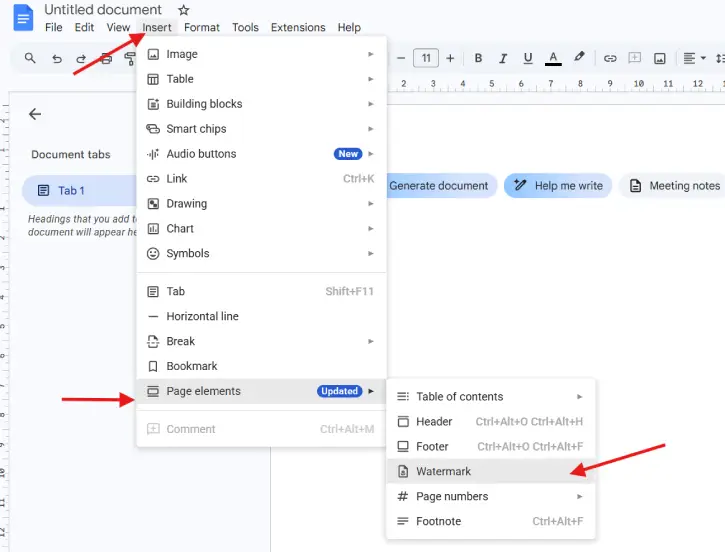
4. Choose your watermark type in the sidebar panel that appears on the right:
- Image watermark: Click to upload an image from your computer (useful for logos or branded images)
- Text watermark: Type your desired text (such as “DRAFT” or “CONFIDENTIAL”)
5. Customize your watermark:
- For text watermarks, adjust the font, size, and formatting to match your preferences
- Set the transparency level to control how prominent or subtle the watermark appears
- For image watermarks, the system will automatically size it appropriately
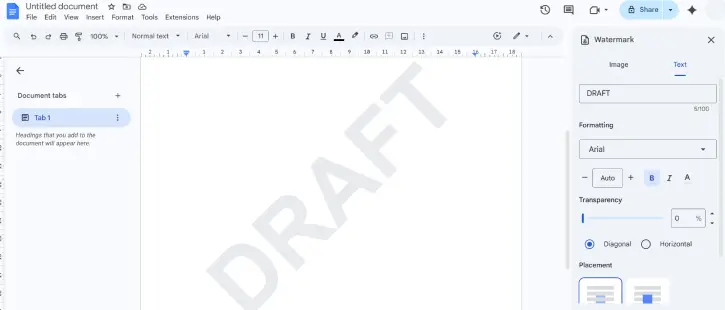
6. Click Done to apply the watermark to your document.
Your watermark will now appear behind all content on every page of your document.
How to Remove a Watermark from Google Docs?
When you’re ready to finalize your document or no longer need the watermark, removal is equally simple:
1. Open the document containing the watermark you want to remove.
2. Click the Insert tab at the top of the screen.
3. Go to Page Element and select Watermark from the menu.
4. In the sidebar panel, locate and click Remove watermark at the bottom of the options.
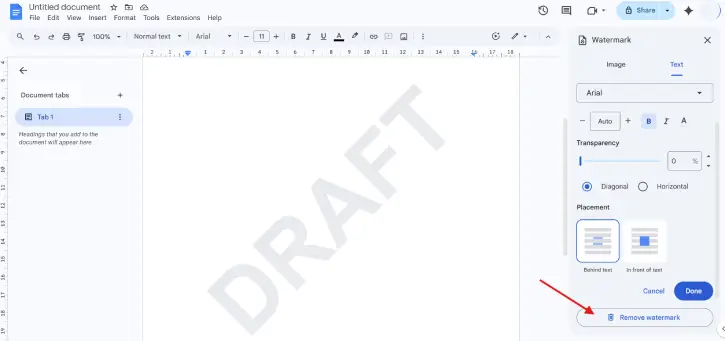
5. Click Done to finalize the removal.
The watermark will immediately disappear from all pages in your document.
One important limitation: watermarks aren’t available in pageless format. If you’re using Google Docs in pageless layout, switch to the standard page format before you can add or edit a watermark. You can do this in File > Page setup.
Final Thought:
Adding and removing watermarks in Google Docs is a simple yet effective way to manage your documents throughout their lifecycle. Whether you’re collaborating on drafts, marking sensitive materials, or preparing final versions for distribution, watermarks give you professional control without cluttering your content. Now that you know how to use this feature, you can keep your document workflow organized and clear.

