

Mozilla has quietly integrated one of the web’s most effective ad-blocking engines into the latest Firefox release. Along with VPN integration, Split View, and other features, the browser has also received adblock-rust, the powerful Rust-based ad and tracker blocking engine that powers Brave’s native content blocker.

If you’ve been annoyed by intrusive ads, tracking banners, and invasive data collection while browsing the internet, adblock-rust (currently an experimental feature) offers a way to reclaim your browsing experience directly within Firefox. Here’s everything you need to know about it—and how to enable it yourself.
What Is Adblock-Rust?
Adblock-rust is Brave’s open-source content blocking engine, built in Rust and licensed under the Mozilla Public License 2.0 (MPL-2.0). It handles three critical functions that traditional ad blockers struggle with:
- Network request blocking – Stops ads from loading in the first place
- Cosmetic filtering – Removes visible ad remnants and tracking elements from web pages
- uBlock Origin-compatible filter syntax – Works seamlessly with popular filter lists already trusted by millions of users
What makes this engine particularly powerful is its efficiency. Written in Rust, it’s designed to block unwanted content while consuming minimal CPU and memory resources—a significant advantage over JavaScript-based blockers that can slow down your browsing.
ALSO READ: How to Remove Web Ads Without Extensions: Reader Mode in Chrome, Edge & Firefox
How to Enable Adblock-Rust in Firefox
Before you begin, I recommend testing this experimental feature on a fresh Firefox installation. This is still in development, and you want to ensure it doesn’t interfere with your primary browsing setup.
Step 1: Disable Firefox’s Existing Tracking Protection (Optional but Recommended)
For a clean test of adblock-rust’s capabilities, click the shield icon in your address bar and turn off Enhanced Tracking Protection for the website you’re testing. This ensures adblock-rust—not Firefox’s built-in protection—is doing the blocking work.
Step 2: Access Firefox’s Configuration Page
Open a new tab and navigate to about:config in your address bar. When Firefox displays a warning message, click through to proceed. You’re now in Firefox’s advanced configuration settings.
Step 3: Enable Content Protection Engine
Search for the following setting:privacy.trackingprotection.content.protection.enabled
Click the toggle to set its value to true.
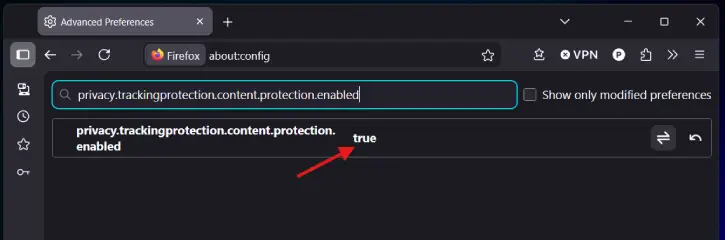
Step 4: Add Filter Lists
Next, search for: privacy.trackingprotection.content.protection.test_list_urls
Click the pencil icon (Edit) and paste the following filter list URLs: https://easylist.to/easylist/easylist.txt|https://easylist.to/easylist/easyprivacy.txt
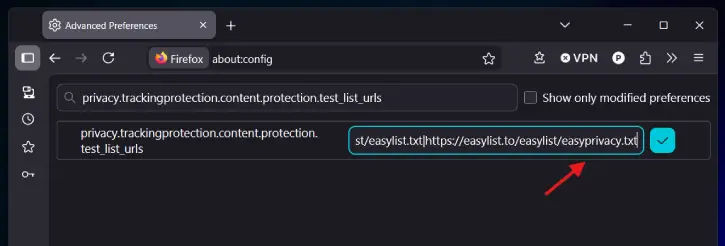
These are two of the most respected filter lists in the ad-blocking community:
EasyList – Blocks common ads across general websites
EasyPrivacy – Blocks tracking scripts and privacy-invasive elements
Click the blue Save button before proceeding.
You have now enabled adblock-rust in Firefox browser. Now let us know how to test it.
Visit a website you know has advertisements. If adblock-rust is working correctly, you’ll see something interesting, the ad layout spaces will still render, but the actual ad content will be blocked (see screenshot below)
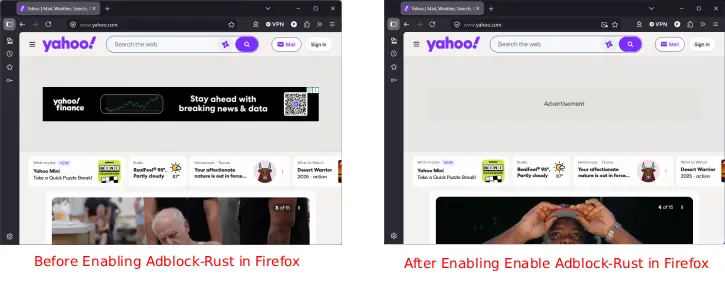
You might see placeholder text like “Advertisement” where the ad would normally display, with the promotional content completely stripped away.
This approach differs from aggressive ad blockers that remove ad slots entirely—it maintains page layout and structure while eliminating the unwanted content.
FYI, this is still an experimental feature. Mozilla may change its implementation, add new configuration options, or refine how it works. Keep an eye on Firefox release notes for updates. Additionally, some websites may break or display incorrectly if adblock-rust’s filters are too aggressive, so test on sites you visit regularly before rolling it out widely.
Final Thought
The integration of adblock-rust into Firefox represents a significant shift in how Mozilla approaches user privacy and browsing experience. Rather than building ad-blocking from scratch, Mozilla leveraged existing open-source technology already proven effective in Brave. For users tired of invasive ads, tracking pixels, and behavioral analytics, this feature offers a powerful option. And because it’s Rust-based, it achieves this blocking efficiently—without the performance overhead of JavaScript-based alternatives.

