

WhatsApp allows you to back up your chats and media to Google Drive, which you can use to restore your data when reinstalling the app or switching to a new phone. However, if you haven’t enabled Google Drive backup, you will lose all your chats when you reinstall or set up WhatsApp on a new phone.
In this guide, we will learn how to back up your WhatsApp chats and media files without using Google Drive. This method is particularly useful if you encounter an issue when restoring chats from Google Drive backup.
If you cannot use your Google Drive backup transfer your chats to WhatsApp, it will automatically create a new backup that includes only 2-3 of your most recent chats.
In this case, the below steps may help you restore your old chats, ensuring everything goes smoothly.
ALSO READ: How to Use the Perplexity AI Chatbot on WhatsApp
How to Restore WhatsApp Chats and Media Without Using Google Drive
1. First, open any file manager app on your old phone (the one on which you were previously using WhatsApp).
2. Next, navigate to Internal Storage > Android > media > com.whatsapp > WhatsApp > Databases.
3. You will see the msgstore.db.crypt14 file, most often located at the bottom of the page.
[msgstore.db.crypt14 file is the latest WhatsApp backup that the app has made; the other files (YYYY-MM-DD.1.db.crypt14) are older backups]
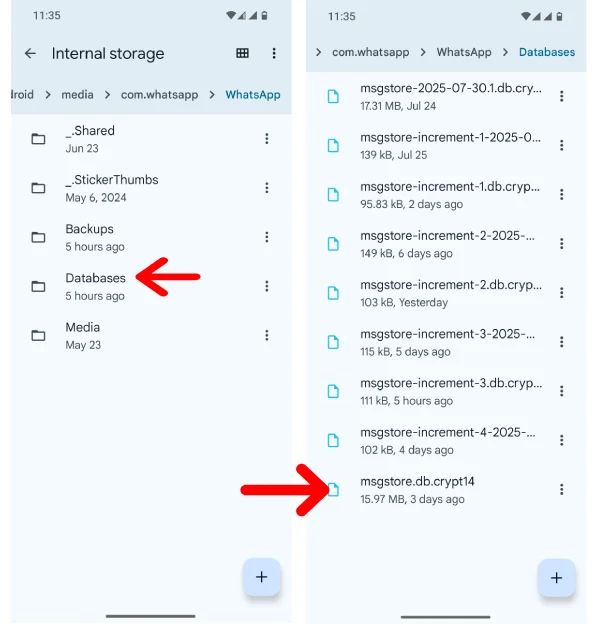
4. Copy the msgstore.db.crypt14 file and transfer it to the new device where you want to install WhatsApp.
5. After installing WhatsApp on your new phone, navigate to Internal Storage > media > com.whatsapp > WhatsApp > Databases.
6. If you do not see a Databases folder, create a new one and paste the msgstore.db.crypt14 file into this folder.
7. ow, relaunch WhatsApp, and you will receive a prompt to restore data from internal storage.
8. Tap Restore. The data will be restored from the msgstore.db.crypt14 file, and the process will take some time.
Backing up your WhatsApp chats and media without Google Drive is essential for preserving important conversations. By following the outlined steps, you can successfully restore your old chats, ensuring you don’t lose valuable information during app reinstallation or phone changes.

