

Real-time location sharing is now available in Google Messages, giving Android users a convenient way to track friends and family without relying on third-party apps like WhatsApp, or Telegram. This new feature, officially introduced in latest Feature Drop update, is gradually rolling out to users and promises to make coordinating meetups easier than ever.
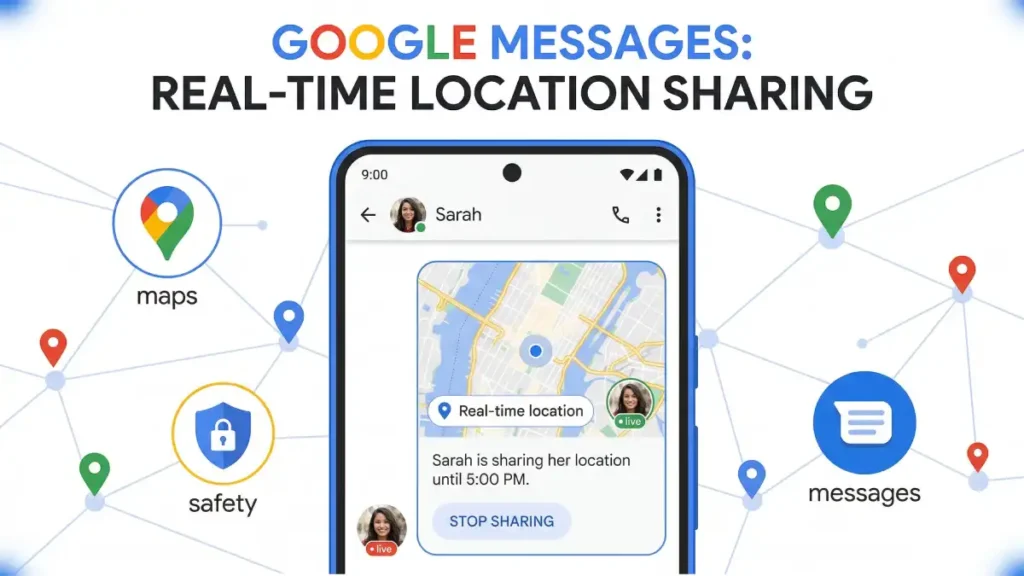
Why Real-Time Location Sharing Matters
For years, WhatsApp, Telegram, and Google Maps have been the go-to apps for sharing live location with contacts. Now, Google Messages brings this functionality directly into your messaging app, eliminating the need to switch between multiple applications.
The feature is particularly useful when you’re running late to meet someone. Instead of sending constant updates, your location updates automatically in real-time, so the recipient can track your progress without additional messages from you.
How to Share Real-Time Location in Google Messages
Follow these simple steps to start sharing your live location:
1. Open Google Messages on your Android phone
2. Tap the Start chat button to begin a new conversation
3. Select the contact you want to share your location with (you can share with anyone, even if they’re not in your contact list)
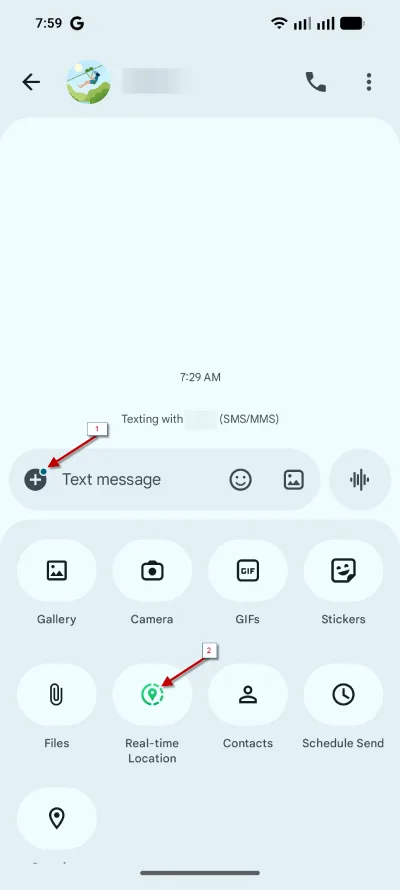
4. Tap the + icon, then select Real-time location option
5. Choose your duration by tapping “For 1 hour” and tap the “clock” icon to customize the time period
6. Tap Send to share your live location
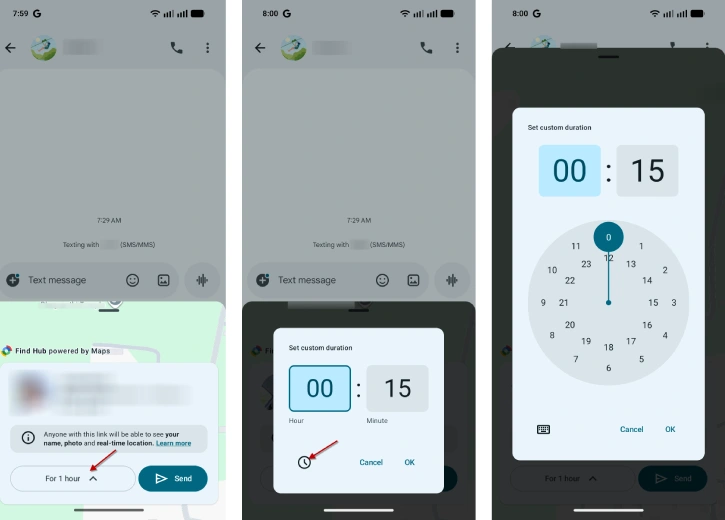
Customizing Duration and Settings
Google Messages offers flexible duration options for location sharing:
- Preset options: 1 hour or “today only”
- Custom duration: Set any time from as short as one minute to as long as 24 hours
A banner will appear in your chat showing how long your location will be shared. If live-location sharing is active, a green dot icon will appear in the + icon of Google Messages, making it easy to see at a glance which conversations have active location sharing.
ALSO READ: How to Use RCS Messages in Google Messages to Transfer Files
Real-Time Location vs. One-Time Location and Compatibility with Different Devices
Google Messages already has a location sharing feature, but now distinguishes between two location-sharing options:
- Real-time location: Updates continuously throughout the duration you set, allowing recipients to track your movement in real-time
- One-time location: Sends a static Google Maps link (the older option), which has been moved to the last position in the menu
The real-time location feature works for both RCS and non-RCS conversations, utilizing Google’s Find Hub infrastructure. For iPhone users, the feature will likely deliver a Google Maps link instead of live tracking, though exact compatibility details remain unclear.
According reports, real-time location sharing is being rolled out gradually to both beta and stable channel users. This phased approach means the feature may take some time to reach your device. If you don’t see it yet, check back in the coming weeks as Google continues the deployment.
ALSO READ: 3 Methods to Fix Google Maps Showing Wrong Location on Android or iPhone
Final Thought
Real-time location sharing in Google Messages simplifies how you coordinate with friends and family. By keeping everything within your primary messaging app, you can save time and reduce the friction of switching between multiple applications. As the feature becomes more widely available, it’s likely to become a standard way Android users share their location during meetups and travel.

