

Google has updated its Messages app with the option to send messages to yourself using the RCS (Rich Communication Services) protocol. By utilizing this feature, you can quickly and easily send files (high-quality photos, audio, video, zip files, documents, reminders, etc.) between your computer and Android phone.
In this guide, let us learn how to use the RCS Messages feature in Google Messages to transfer files between your Android phone and PC. To use this feature, you need to enable RCS chat in Google Messages. To confirm the Messages app is set to use RCS, look for ‘RCS message’ in the message box when you start a conversation with yourself.
ALSO READ: Android’s Quick Share Gets iOS’s AirDrop Like File Sharing Feature
How to Use Google Messages to Transfer Files Between Your Phone and PC
1. First, enable RCS chat in Google Messages if you have not already done so.
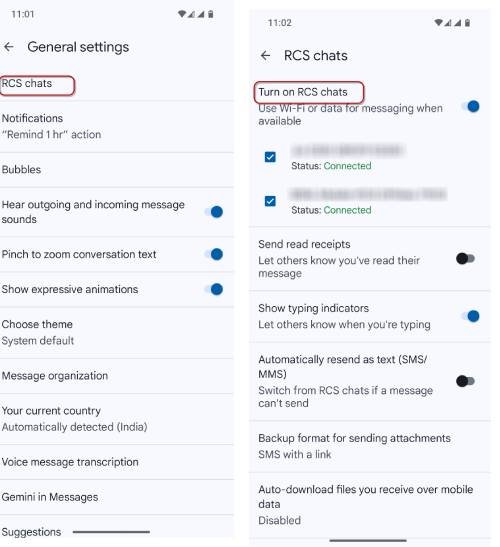
2. To do this, tap your profile picture in the top-right corner of the app and select “Messages settings.” Then, choose “RCS Chats” and switch on the option “Turn on RCS Chats.”
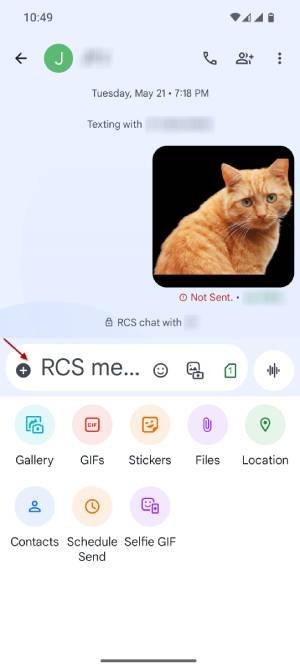
3. To send files or messages to yourself, open the Google Messages app and tap the “Start chat” button.
4. Next, select your name or phone number, tap the “+” icon, then select the required file and tap the “Send” button.
5. To receive files on your PC, go to Google Messages for Web and log in with your Google account (the same account used on your Android phone).
6. Once you open Google Messages on your PC, you will see the files you sent to yourself from your phone, which you can download to your PC.
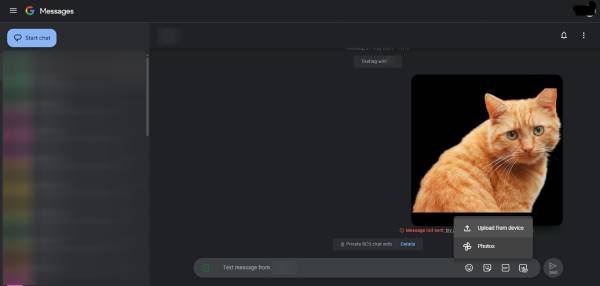
7. Similarly, you can select files from your PC and send them to yourself, which will also appear on your device for you to download to your phone.
ALSO READ: Unable to Change SIM in Google Messages: How to Fix
For your information, WhatsApp introduced a similar ‘message yourself’ option in 2022, which you can use to transfer files between devices, jot down quick notes, and more. This is how to use the Google Messages RCS chat feature to send high-quality photos and other files between your phone and computer.

