

Quick Share (previously called Nearby Share), is a built-in feature of Android that allows you to send photos, videos, contacts, links, folders and other files without wires between Android phones, Chromebooks and Windows PCs. Google and Samsung keep adding new features to Quick Share for better functioning.
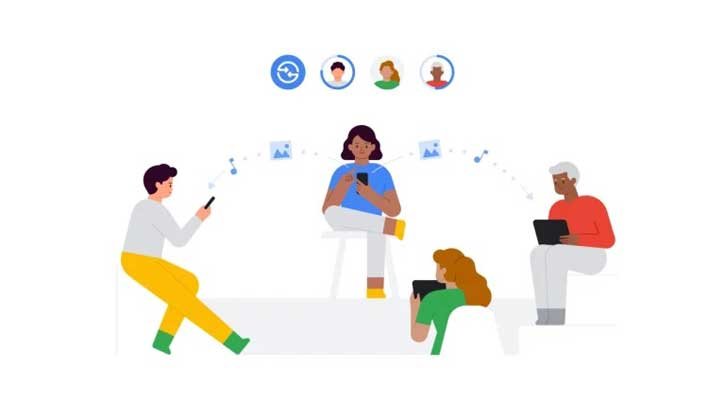
Quick Share has just gotten new feature, similar to Apple’s AirDrop. You can now send files over Wi‑Fi or mobile data even if the connection drops. Apple added this kind of feature to AirDrop in 2023 with the iOS 17.1 update.
How to Get AirDrop Like File Sharing Feature in Quick Share
If you want Quick Share to work like AirDrop you should update Google Play Services to version 25.04 or later. As this update rolling out in stages you might have to wait a days before Quick Share shows the new option.
FYI, Samsung first added this feature in the One UI 7.0 beta. Now it is available for all Android users. I hope you will enjoy file transfers between devices with this upgraded Quick Share.
When you send files a disconnection can be frustrating because you may need to start. But the newest update keeps file transfers going even if one device loses the connection as long as both devices stay on mobile data or Wi‑Fi.
Quick Share now feels smoother and more reliable so you can send files without worry.
Limitations of New File Transfer Feature of Quick Share
Remember that the new Quick Share feature uses mobile data and Wi‑Fi to send files. If devices lose the connection while a transfer is, in progress Quick Share will rely on your internet data. Small files are fine. Big files could use a lot of data.
Also when a device disconnects and Quick Share keeps sending the file over the internet the speed will depend on how fast your connection is. If the internet is slow Quick Share may take longer to finish the transfer.

