

Windows 11 comes with several built-in apps, such as Microsoft Edge, Clipchamp, Media Player, Screen Recorder, Camera, and more. In many cases, these apps are allowed to run in the background even when you are not using them. This can affect system performance and may drain your battery faster.
In this guide, you’ll learn how to disable unwanted background running apps in Windows 11. Since too many background apps can slow down your PC and reduce battery life, turning off background access for apps you don’t need is a smart choice.
FYI, background running apps are programs that continue running on your computer even when you are not actively using them. They may check for updates, sync data, or send notifications in the background. However, you should not disable some apps, for example, Security software, email app, etc.
How to Control Background App Permissions in Windows 11
1. Open the Settings app by pressing Win + I.
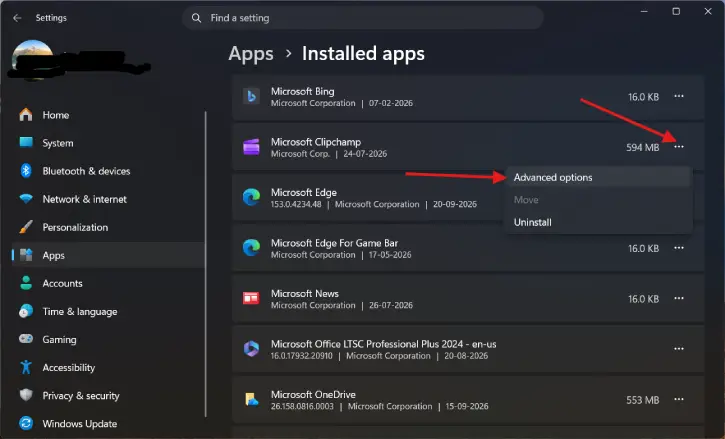
2. Select Apps from the left menu, then click Installed apps.
3. You will see a list of all apps installed on your computer
4. Scroll through the list and find the app you want to stop from running in the background.
5. Click the three-dot menu (⋯) next to the app’s name, then select Advanced options.
6. Under the Background app permissions section, open the dropdown menu and choose Never to disable the app running in the background.
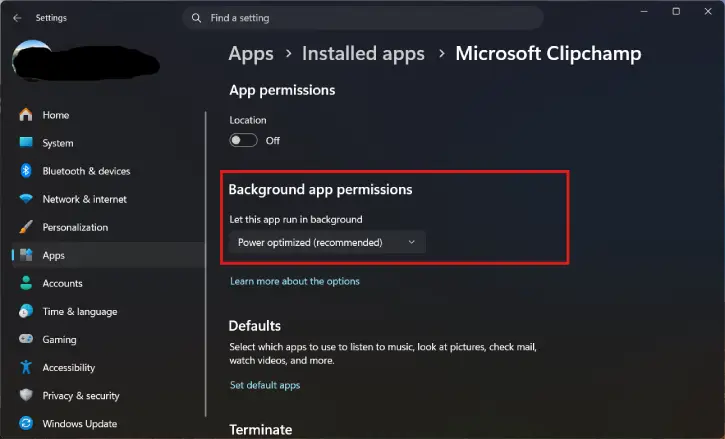
Note: Under the Background app permissions section, you will usually see three options: Always, Power optimized (recommended), and Never.
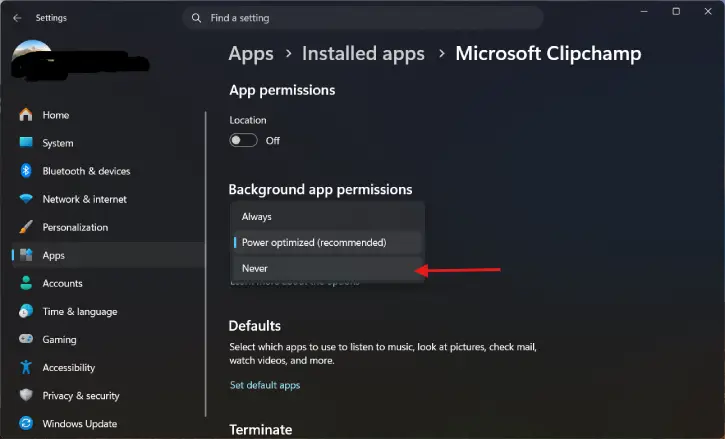
- Always: The app is always allowed to run in the background, using system resources and battery power.
- Power optimized (recommended): Windows decides when the app should run in the background to help save power while still allowing important notifications and occasional updates.
- Never: The app is not allowed to run in the background at all. This is a good option for apps you rarely use.
Final Thoughts
Managing background app permissions in Windows 11 is a simple way to improve performance and extend battery life. If an app does not need to stay active all the time, setting its background permission to Never is usually the best choice.

