

Windows 11 now lets you make the taskbar smaller without a registry hack or third-party app. This welcome change is especially useful for users with small screens, since it helps save valuable screen space and makes the desktop feel less crowded.
Microsoft added the smaller taskbar option in Windows 11 with September 2026’s Patch Tuesday update, released on the 8th of the month. This is certainly a welcome feature for users who’ve wanted more personalization on their PC.
Note that this is not the option to make smaller taskbar icons and buttons on Windows 11. It will resize the entire taskbar, including its size, icons and buttons. Here’s how to turn the smaller taskbar on or off.
Steps to Resize Taskbar Size in Windows 11
1. Open Settings with Windows key + I, then click Personalisation in the left menu. From there, choose Taskbar on the right.
2. You can also right-click the taskbar and select Taskbar settings instead.
3. Scroll down to Taskbar behaviours, open the Taskbar size dropdown, and choose Small.
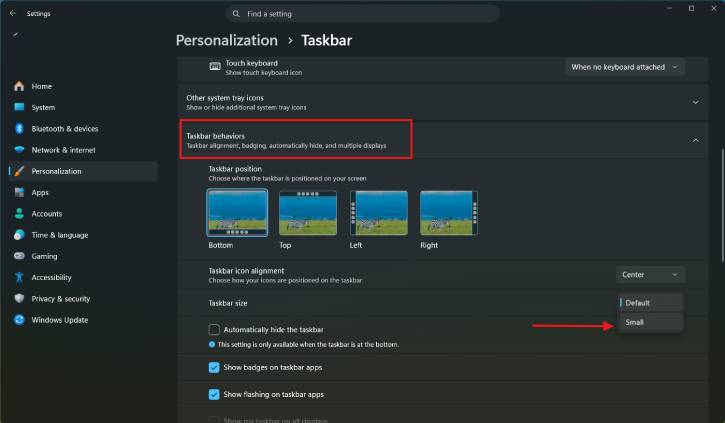
4. The taskbar will shrink right away.
Along with the smaller taskbar setting you’ll also notice new options to move the taskbar to the top, left and right.
Moving the taskbar to the top, left, or right of the desktop can make better use of screen space and fit different workflow preferences. It can also help you keep important icons and notifications in a more convenient place, making navigation feel more natural.
Choosing a different taskbar position may improve accessibility and efficiency, especially on wide or vertical displays. It lets you customize your desktop layout so it works better for the way you use your computer.
Note that you can only make the taskbar smaller when it’s at the top or bottom of the screen. If it’s on the left or right, choosing “Small” only makes the icons smaller.
Final Thought
Customizing your taskbar can make a surprisingly big difference. If you’re working on a laptop with limited screen space, or you just like a cleaner desktop, Windows 11’s built-in taskbar resizing gives you more control without any hacks or registry edits. With the new positioning options too, it’s easier to set up your workspace the way you like it.

