

Android smartphone users with dual SIM capabilities often prefer to send text messages from either SIM card. Previously, it was simple to select the desired SIM for sending messages by tapping the SIM icon in the message composition section. However, this option has recently been removed with the latest update to Google Messages app. Now, users cannot change SIM in the usual way.

While this new change (via – Reddit) has annoyed many users who now face extra steps to select a SIM for sending messages, some see it as a positive update. Since changing the SIM card for a contact is infrequent, the additional space created in the compose screen is a welcome improvement for certain users.
If you’re unsure how to select a SIM (SIM 1 or SIM 2) in a dual SIM setup for sending messages via Google Messages app, the guide below willhelp you. There are two methods to select preffered SIM in Google Messages.
How to Switch to the Other SIM in Google Messages?
Method 1:
1. First, go to the chat screen of the contact you want to message.
2. Tap on their name or number at the top of the screen.
3. Then, select ‘Send with’ to choose your preferred SIM card.
Method 2:
1. From the chat screen, tap the overflow icon in the top right corner and select Details.
2. You will find the option to change the SIM card in that menu.
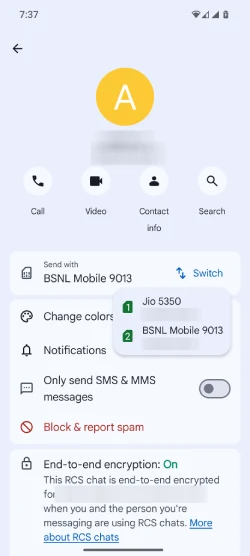
Above given are the two methods for changing SIMs in the Google Messages app following the latest update.
ALSO READ: Google Messages Gets Real-Time Location Sharing: How to Use it
What is New in Google Messages?
The latest update to the Google Messages app introduces several enhancements for improving user experience and functionality. One of the important features is the integration of Rich Communication Services (RCS), which allows for high-quality media sharing, read receipts, and typing indicators, making conversations more interactive.
The app has also features improved search capabilities, enabling users to find messages, images, and links more easily.
Additionally, the update focuses on better organization, with features like categorized message threads and the ability to pin important conversations for quick access. Enhanced privacy settings allow users to manage who can contact them more effectively.
Overall, the latest Google Messages app aims to provide a more seamless and feature-rich messaging experience, catering to the evolving needs of users in a digital communication landscape.

