

Many people rely on Google Maps for navigation, locating nearby restaurants, gas stations, EV charging stations, etc. However, for some reasons Google Maps will display incorrect locations during navigation. In this guide, let us know what are the reasons for this issue and how to fix it.
There are many reasons why Google Maps is displaying wrong location on your Android or iPhone. This could be due to corrupt app data, problems with location permissions, or inaccuracies in location settings.
Before try below given fixes, update your Google Maps app to the latest version and ensure that you have a stable internet connection. If you’re still experiencing issues with incorrect location data, check the below instruction.
ALSO READ: How to Mute Voice Guidance on Google Maps
Fix Google Maps Showing Wrong Location on Android and iPhone
1. Turn on Precise Location Permission
If you have not granted location permission to Google Maps, you will not get accurate results.
- On your Android phone, long-press the Maps icon and tap on the App info button.
- Then, tap on Permissions and select Location.
- Next, choose either the “Allow all the time” or “Allow only while using the app” option.
- Additionally, toggle on the “Use precise location” option.
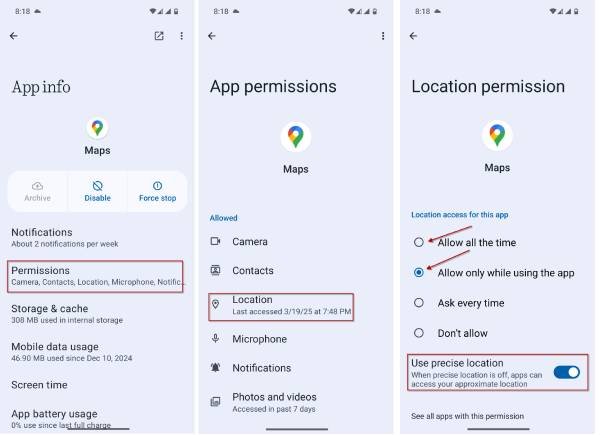
[Not all Android devices feature the same interface, as they can differ from one manufacturer to another and across different Android versions.]
- For iPhone users, open Settings and select Google Maps.
- Next, tap on Location under “Allow Google Maps to Access.”
- Now, enable “Always” under “Allow Location Access.”
- Also, turn on the toggle for “Precise Location.”
2: Turn on Google Location Accuracy Settings
Android smartphones also have a location accuracy setting that helps Google Maps determine your location more precisely. Here’s how to enable it:
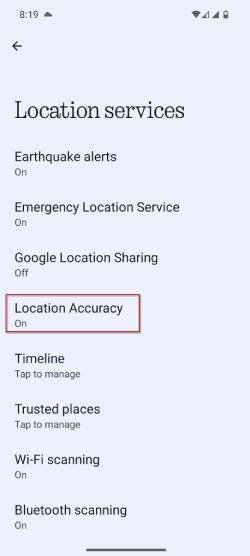
- Open the Settings app and tap on Location.
- Next, select Location services.
- Then, tap on Google Location Accuracy and toggle on the option for Improve Location Accuracy.
3: Clear Google Maps App Cache and Data
Corrupted map data can also lead to incorrect location displays on Google Maps. Clearing the app cache and app data may resolve this issue. Here’s how to do it:
- On your Android phone, long-press the Google Maps icon and select App info.
- Next, choose the Storage & cache option.
- Then, tap on Clear cache.
- After that, open Google Maps and check if the location issue is resolved.
- If the problem persists, go back to the Maps Storage & cache settings and tap on Clear storage.
- This should allow you to use Google Maps without encountering location issues.
ALSO READ: How to Disable Power Saving or Black & White Mode in Google Maps
Now that you’ve explored the best ways to resolve the issue of Google Maps displaying the wrong location on your Android or iPhone, we hope this guide has addressed the issue and provided you with effective solutions.

