

Google Maps has introduced a Power Saving Mode designed to help users extend their device’s battery life. This feature, which many have requested, is now available! It enhances your navigation experience, especially when your phone’s battery is low.
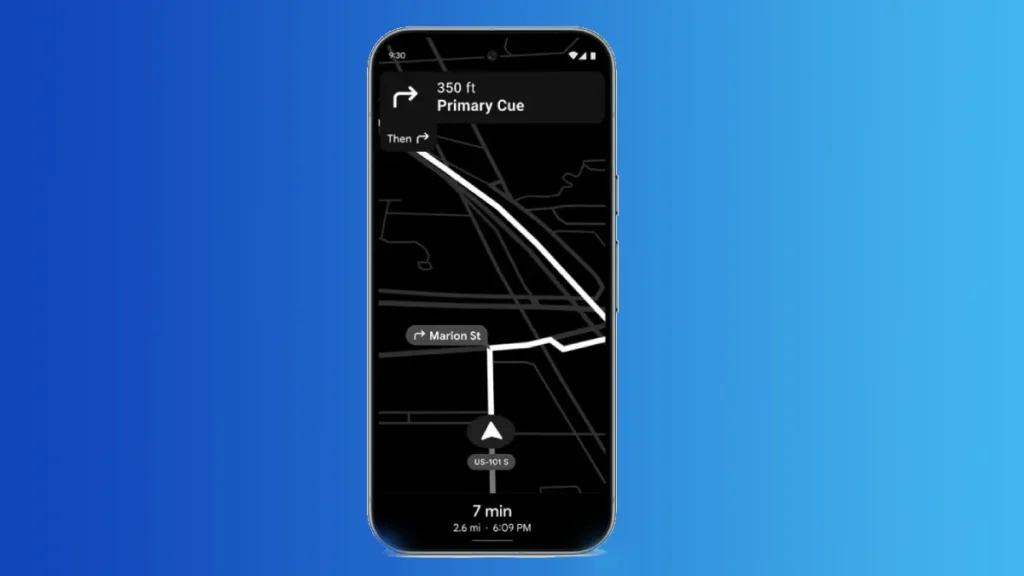
In this guide, we will show you how to enable or disable the Power Saving Mode or black & white Google Maps on your device, allowing you to optimize your navigation while conserving battery life.
What is Power Saving Mode or Black & White Google Maps?
Power Saving Mode is a new feature in Google Maps that activates when your phone’s battery is running low. In this mode, the navigation icons and the map display in black and white. Additionally, many features are disabled, and alternative navigation types such as cycling or walking are not available. This mode can only be used in portrait orientation.
Using Power Saving Mode or Black & White Mode in Google Maps can significantly extend your phone’s battery life compared to regular navigation settings. It provides a minimalist navigation experience.
Power Saving Mode is enabled by default. To activate it, simply press the power button. To get this feature, you need to update Google Maps to latest version. Currently, this feature is available on Google Pixel 10 series devices, with plans to expand to more Android devices in the future, including Samsung, Oppo, OnePlus, Nothing, and others.
How to Turn Off Power Saving Mode or Black & White Mode in Google Maps
1. Open Google Maps and tap on your Profile picture in the top right corner.
2. Select Settings and scroll down to Navigation settings.
3. In the Navigation settings, scroll down to the Driving Options section.
4. Tap the Power Saving Mode toggle to turn off the feature.
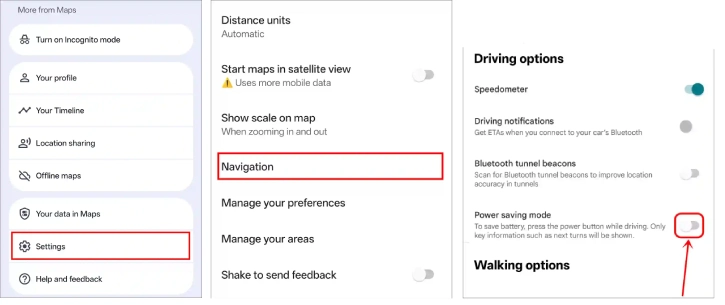
That’s it! You have successfully disabled Power Saving Mode or Black & White Mode in Google Maps.
If you press the power button while using Google Maps, it will not switch to Power Saving Mode. However, keep in mind that Power Saving Mode can still help extend your battery life during important moments.
Conclusion
Power Saving Mode in Google Maps activates when your battery is low, displaying the map in black and white and disabling many features. It enhances battery life and offers a minimalist experience, and is enabled by pressing the power button.

