
 Posted by
 Many Android users have seen the frustrating “Couldn’t update” message when trying to update apps in Google Play. This error can appear even when you manually tap Update and nothing happens. Fortunately, the problem is usually caused by a few common issues – corrupted Play Store data, Google Play Services problems, insufficient storage, network hiccups, or phone-specific security features – and can be fixed quickly with a few straightforward steps.
Below are practical, tested fixes you can follow in order; try them one at a time until the update works. These steps target the most frequent causes and include quick checks (network, storage, date/time), cache resets, account fixes, and a couple of device-specific tips (like disabling “App Protection” or Private Space features).
If you cannot update some apps on your Android phone, then it might be due to device-specific security features (like “App Protection”, “Private Space” or Secure Vaults features). If one fix doesn’t work, move to the next; most users are able to resolve the issue within five minutes.
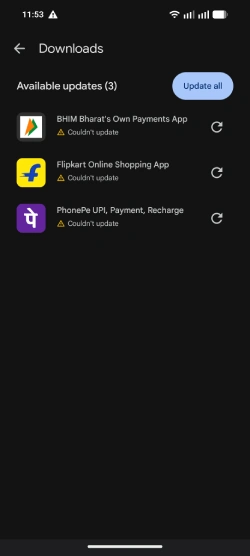
Table of Contents
10 Fixes for “Couldn’t Update” Error in Google Play Store
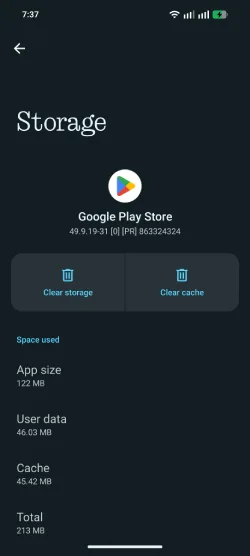
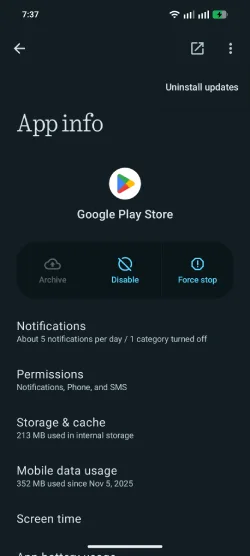
1. Clear Google Play Store cache & data
- Settings > Apps > Google Play Store > Storage > Clear Cache.
- If problem persists: Clear Data (or Clear Storage).
2. Clear Google Play Services cache & data
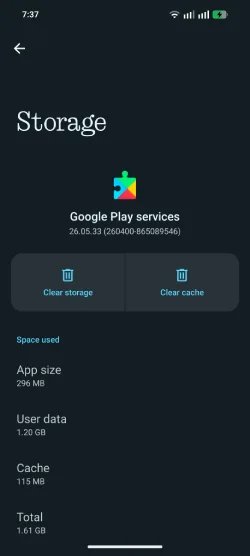
- Settings > Apps > Google Play Services > Storage > Clear Cache.
- If needed: Clear Data (this may reset some app preferences).
3. Disable App Protection / Private Space (device-specific)
- Some phones (e.g., Nothing Phone) include App Protection, Private Space, or Secure vaults that block updates.
- Disable or exit these features temporarily and retry updates.
- On the Nothing Phone (Android 16), open Private Space, tap the Edit icon, and uncheck the apps there.
4. Check available storage
- Settings > Storage to confirm free space.
- Free at least 200–500 MB for small updates; 1–2 GB for larger updates. Delete unused apps, large media files, or move files to SD/Cloud.
5. Restart your device
- Power off, wait 10 seconds, power on. This clears temporary glitches.
6. Check network & switch connections
- Toggle Wi‑Fi or mobile data off/on.
- Try a different Wi‑Fi network or use mobile data (and vice versa).
- If using a VPN, disable it temporarily.
7. Verify date & time
- Settings > System > Date & time > set to Automatic (network-provided time). Incorrect time can block Play Store connections.
8. Remove and re-add your Google account
- Settings > Accounts > Google > Remove account.
- Restart phone, then add account again: Settings > Accounts > Add account > Google.
9. Uninstall Play Store updates
- Settings > Apps > Google Play Store > tap three-dot menu > Uninstall updates.
- This restores the Play Store to factory version; open Play Store and let it update itself again.
ALSO READ: Guide to Rollback or Uninstall Google Play System Update (2 Methods)
10. Update Android system
- Settings > System > System updates (or Settings > Software update).
- Install available OS updates — Play Store issues sometimes result from outdated system components.
11. Force stop Play Store (quick retry)
- Settings > Apps > Google Play Store > Force stop. Then open Play Store and try updating.
12. Ensure app compatibility
- If the app’s latest version no longer supports your device or Android version, you’ll see update failures. Check the app’s Play Store page for compatibility notes.
13. Factory reset (last resort)
- If nothing else works and the issue is widespread on your device, back up data and perform a factory reset: Settings > System > Reset options > Erase all data (factory reset). Only use this as a final option.
Quick troubleshooting order (recommended)
- Check storage, network, date/time.
- Clear Play Store & Play Services cache.
- Restart device.
- Remove/re-add Google account.
- Uninstall Play Store updates.
- Disable App Protection/Private Space if present.
- Update OS or factory reset if all else fails.
Conclusion
If an individual app still won’t update after these steps, check the app’s Play Store listing for developer contact or visit the app developer’s support page. If multiple apps fail, contact your device manufacturer or Google Support with your device model, Android version, and a description of the steps you’ve tried.
By following these steps in order you’ll resolve most “Couldn’t update” errors quickly.