
Android Auto connectivity issues have become increasingly common. Recently, users of devices such as the Google Pixel 10 and Samsung Galaxy S26 have reported both wired and wireless connection problems; some devices require unlocking before a successful car pairing. While Google is actively rolling out fixes, users experiencing these issues can try any of the following 11 methods to resolve them.
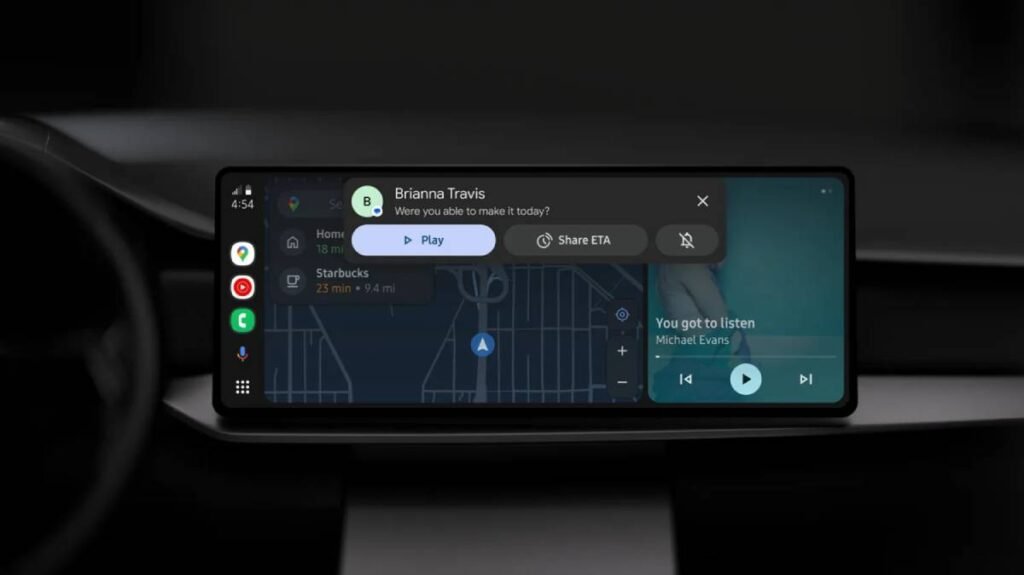
Connection problems can stem from multiple sources: recent Android Auto updates, faulty USB cables, Bluetooth interference, Wi-Fi complications with wireless Android Auto, battery optimization restrictions, and more. This comprehensive guide covers 11 proven troubleshooting methods that have successfully resolved Android Auto connectivity issues over the past decade.
Table of Contents
How to Fix Android Auto Connection Issues
These foundational steps resolve most Android Auto connection problems for both wired and wireless setups.
Method 1: Clear Your Car’s Bluetooth Profiles
1. Open the settings menu on your car’s head unit, go to Bluetooth setting and delete all mobile and unused Bluetooth profiles.
2. After deleting the Bluetooth profiles, turn off your car and lock the vehicle and wait a few minutes.
3. Restart your car and attempt to reconnect to Android Auto.
This simple reset often resolves persistent pairing issues.
Method 2: Remove Previously Connected Vehicles from Your Phone
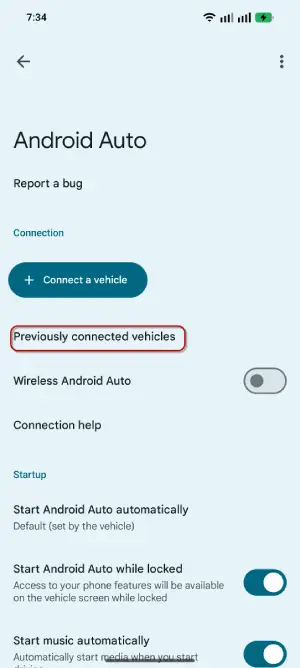
1. On your Android phone and open Android Auto settings
2. Navigate to “Previously connected vehicles”
3. Delete any unused or problematic vehicles from the list
Method 3: Clean Up Your Bluetooth Settings
1. Go to your phone’s Bluetooth settings: Connected devices > Bluetooth
2. Remove all unused vehicles from the paired device list
Method 4: Clear Android Auto Cache and Data
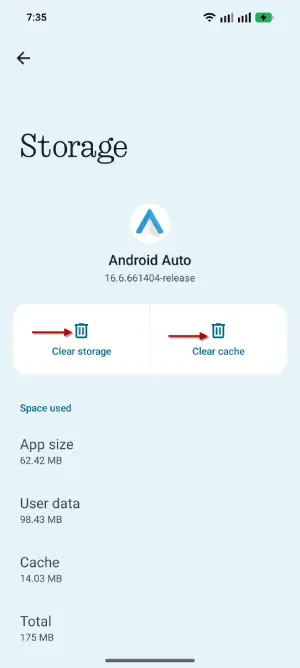
1. On your Android phone, navigate to Apps > All Apps > Android Auto
2. Choose Storage > Clear Cache and Clear Data
3. Next, tap App details to check for available updates
Intermediate Troubleshooting: Wired Connection Focus
If the basic fixes haven’t resolved your issue, focus on the physical connection itself.
Method 5: Use a Quality USB Cable
The cable matters more than many users realize. Before connecting, turn on your car.
Next, connect your Android phone to the car head unit using a high-quality, short-length (below 1-meter) USB cable.
A poor-quality or overly long cable is often the culprit behind connection failures. Aim for cables under 1 meter in length, particularly if your car supports USB 3.0 or better—in which case, upgrading from an older USB 2.0 cable can significantly improve performance.
Method 6: Test with Alternative Equipment
- If Method 5 didn’t work, try another quality USB cable to rule out cable defects
- Test with a different Android phone to determine if the issue lies with your device
- Check your car manufacturer’s system for available updates, as outdated car software is a frequent source of compatibility issues
ALSO READ: Play Local Music on Android Auto: How to Use Musicolet to Play Songs from Your Phone
Advanced Solutions
These methods address less common but significant causes of Android Auto problems.
Method 7: Remove Battery Optimization Restrictions
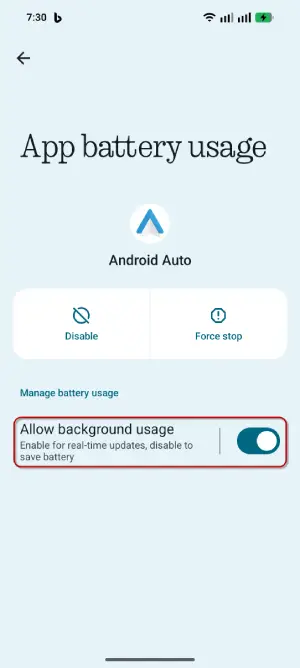
Battery optimization can prevent Android Auto and related apps from functioning properly. Remove restrictions for:
- Android Auto itself
- Google Play Services
- Any driving-related apps (Google Maps, YouTube Music, Waze, etc.)
Navigate to Settings > Apps > choose the required app turn on “Allow background usage” (Android 16 settings)
Method 8: Address Wireless Connection Interference
If you’re using wireless Android Auto, environmental factors matter. Interference from wireless earbuds, crowded wireless networks in busy urban areas, and signal congestion can cause frequent disconnections. In these scenarios, switching to a wired connection provides more reliable performance, especially in cities with heavy wireless traffic.
Method 9: Correct DPI Mismatch Notifications
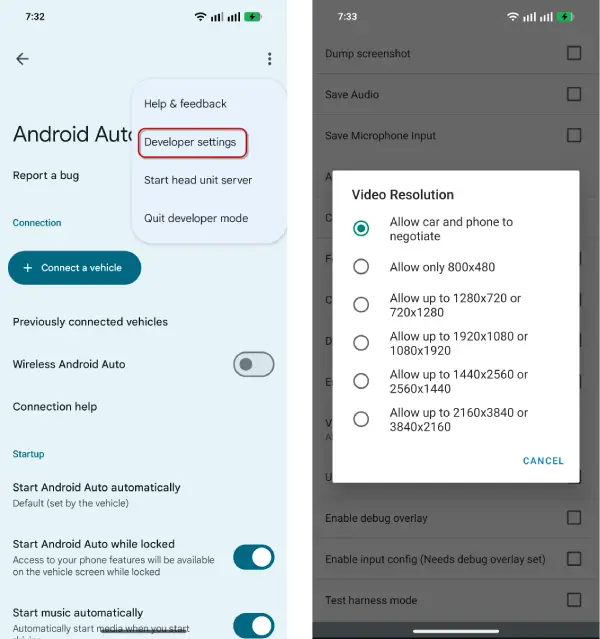
If notifications appear oversized on your car’s display, a DPI mismatch between your phone and car screen is likely responsible. To fix this:
- Enable Developer settings by tapping the Build Version option ten times consecutively in Android Auto settings
- Access Developer settings and locate Video Resolution
- Cycle through available options until notifications display at an appropriate size for your car’s screen
Method 10: Inspect USB Ports for Debris
Lint, dust, and pocket debris accumulating in your phone’s or car’s USB port can prevent proper cable contact. Inspect both ports carefully and clean them gently if necessary. This often-overlooked issue resolves numerous “connection failed” errors.
Method 11: Force Lower Video Resolution (Last Resort)
If performance remains poor despite other fixes, return to Developer settings > Video Resolution and select Allow up to 480p. This forces a lower-quality video stream, which can significantly boost performance on older or less capable car head units.
When to Seek Further Help
If none of these 11 methods resolve your Android Auto connectivity issues, consider:
- Visiting your car manufacturer’s support website for model-specific troubleshooting
- Consulting Google’s official Android Auto support documentation
- Visiting an authorized car dealership to update your vehicle’s infotainment system
Conclusion
While Android Auto can experience frustrating issues—from signal dropouts to performance glitches—it remains one of the most genuinely valuable driving enhancements modern software offers. The good news: most problems can be resolved through simple software adjustments and deliberate attention to physical connections. For optimal reliability, a wired connection using a quality, short USB cable consistently outperforms wireless alternatives, particularly in congested urban environments. By methodically working through these troubleshooting steps, most users can restore stable Android Auto connectivity within minutes.


